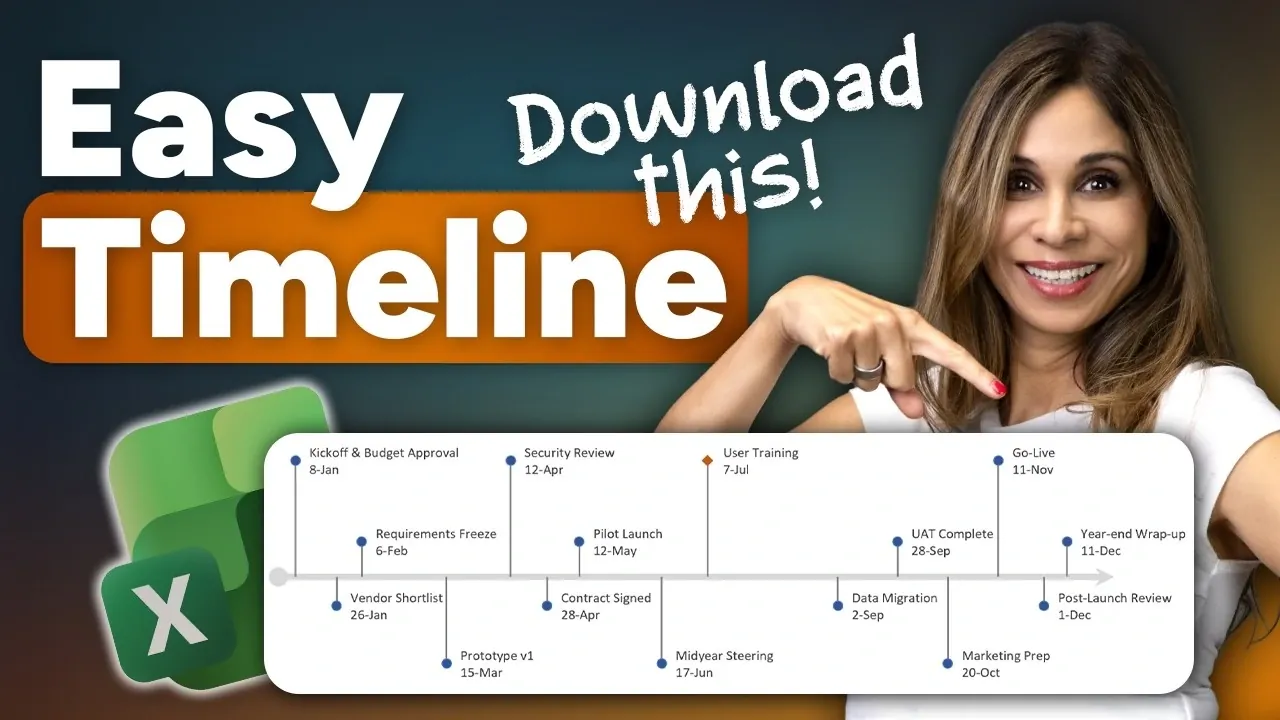
Have you ever spent hours crafting a timeline chart, only to abandon it because it was too clunky, rigid, or just plain uninspiring? You’re not alone. Many tools promise sleek visuals but fall short when it comes to flexibility or ease of use. Enter Excel: a platform you might already use daily, but likely haven’t tapped into for creating timelines that are both functional and visually stunning. With its dynamic features and customization options, Excel can transform your timeline-building experience, giving you a solution that’s not only professional but also adaptable to your evolving needs. And the best part? You don’t need to be a design expert to make it happen.
In this guide Leila Gharani takes you through how to create a timeline chart in Excel that you’ll actually want to use, again and again. From structuring your data to customizing your chart for maximum clarity, we’ll walk you through a step-by-step process that simplifies the entire experience. Along the way, you’ll discover how Excel’s dynamic updates and reusable templates save you time while keeping your visuals polished and professional. Whether you’re tracking project milestones, preparing a business report, or delivering a presentation, this guide will help you create a timeline that’s as practical as it is impressive. After all, why settle for static visuals when you can design something that evolves with your data?
Create Professional Excel Timelines
TL;DR Key Takeaways :
- Excel is a versatile tool for creating dynamic and reusable timeline charts, offering automation and customization features that save time and effort.
- Organizing data into a structured table with columns for dates, milestones, and helper values is essential for building a clean and functional timeline.
- Customizing the timeline with contrasting colors, varied marker sizes, and clear label formatting enhances readability and visual appeal.
- Excel timelines are flexible and automatically update when data changes, making them ideal for project tracking, business reporting, and presentations.
- Advanced techniques like custom marker shapes, conditional formatting, and refined formulas allow for greater customization and tailored designs.
The Advantages of Using Excel for Timelines
Excel is a versatile tool for creating timeline charts, offering features that go beyond static alternatives like PowerPoint. Its automation capabilities allow you to save time and effort by updating timelines dynamically as your data changes. By setting up a reusable template, you can easily adjust your timeline for new milestones or dates without starting from scratch. This makes Excel particularly effective for tasks such as project tracking, business reporting, and professional presentations.
1: Structuring Your Data
The success of your timeline begins with well-organized data. Start by creating an Excel table with at least two essential columns: one for dates and another for milestones. Formatting your data as a table ensures that any updates are automatically reflected in your chart.
To enhance functionality, consider adding a helper column that assigns numeric values to each milestone. This column allows you to adjust marker positions dynamically, making sure a clean and organized timeline layout. Structuring your data in this way lays a solid foundation for the rest of the process.
How to Make an Excel Timeline Chart Template

Here are more detailed guides and articles that you may find helpful on Excel functions.
- New Excel’s Copilot() Function : AI Spreadsheets Just Got Smarter
- How to use Excel FILES a secret, powerful hidden function
- How to Use Excel’s Dot Operator and Trim Range for Smarter
- Why You Should Stop Using Excel’s INDIRECT Function Today
- How to Use Excel’s LET Function to Simplify Complex Formulas
- Powerful Excel formulas you should know in 2024
- 10 New Excel Functions to improve your formulas
- How to us new Excel TRANSLATE Function
- How to use the Excel FILTER function
- 10 MS Excel formulas to create next level spreadsheets
2: Constructing the Timeline Chart
With your data prepared, you can begin building your timeline chart. Follow these steps to create a professional and functional design:
- Select your data and insert a line chart with markers. This chart type provides a clean and professional appearance.
- Add error bars to simulate a timeline effect, visually connecting each marker to its corresponding date.
- Adjust the axis settings to define the date range and improve label placement for better readability.
This method ensures that your timeline is both visually appealing and easy to interpret.
3: Customizing the Timeline for Clarity
Customization is key to making your timeline clear and effective. Use the following techniques to enhance its readability and visual appeal:
- Apply contrasting colors, varied marker sizes, and distinct line styles to emphasize key milestones.
- Use formulas like MOD and CHOOSE in your helper column to alternate marker heights, preventing overlapping text and making sure clarity.
- Split long labels into multiple lines and align them carefully to avoid clutter and improve readability.
These adjustments ensure that your timeline remains legible and professional, even when dealing with dense or complex data sets.
4: Improving Readability and Design
A polished timeline is not only functional but also visually cohesive. To enhance the readability and overall design of your chart, consider these tips:
- Minimize distractions by adjusting axis labels and gridlines to focus attention on the timeline itself.
- Ensure that labels are evenly spaced and formatted consistently for a clean appearance.
- Use a cohesive color scheme and consistent font styles to maintain a professional look.
These small but impactful changes can significantly improve the usability and aesthetic appeal of your timeline.
5: Making sure Flexibility for Future Updates
One of Excel’s greatest strengths is its ability to handle updates effortlessly. When you add, remove, or modify milestones in your data table, the changes are automatically reflected in your chart. This eliminates the need for manual adjustments, making sure that your timeline remains accurate and up to date. By designing your timeline with flexibility in mind, you can save time and maintain consistency across multiple projects.
Advanced Techniques for Enhanced Timelines
For more complex timelines, Excel offers advanced features that allow for greater customization and functionality. Consider incorporating the following techniques:
- Refine the formulas in your helper column to accommodate additional marker positions or unique layouts tailored to your needs.
- Experiment with custom marker shapes or colors to highlight critical milestones or differentiate between categories of events.
- Use conditional formatting to dynamically emphasize specific events based on criteria such as deadlines, priorities, or project phases.
These advanced options enable you to create timelines that are not only visually impressive but also tailored to specific requirements.
Applications of Excel Timelines
Excel timelines are highly versatile and can be applied to a variety of professional scenarios. Some common uses include:
- Business reporting: Clearly visualize project progress or key events in a concise format.
- Project management: Track milestones, deadlines, and deliverables to ensure projects stay on schedule.
- Presentations: Communicate timelines effectively with clean and dynamic visualizations that engage your audience.
By using pre-designed templates or creating your own, you can focus on the content of your timeline rather than its design. This approach ensures a functional and visually appealing result that enhances your work.
Excel as a Tool for Professional Timelines
Excel provides a powerful and flexible platform for creating dynamic timeline charts that are both practical and visually appealing. By following the steps outlined in this guide, you can design a reusable template that adapts to your data and meets the demands of professional reporting. With its robust customization options and ability to handle updates seamlessly, Excel enables you to create timelines that are not only efficient but also a valuable asset in your professional toolkit.
Media Credit: Leila Gharani
Disclosure: Some of our articles include affiliate links. If you buy something through one of these links, Geeky Gadgets may earn an affiliate commission. Learn about our Disclosure Policy.
