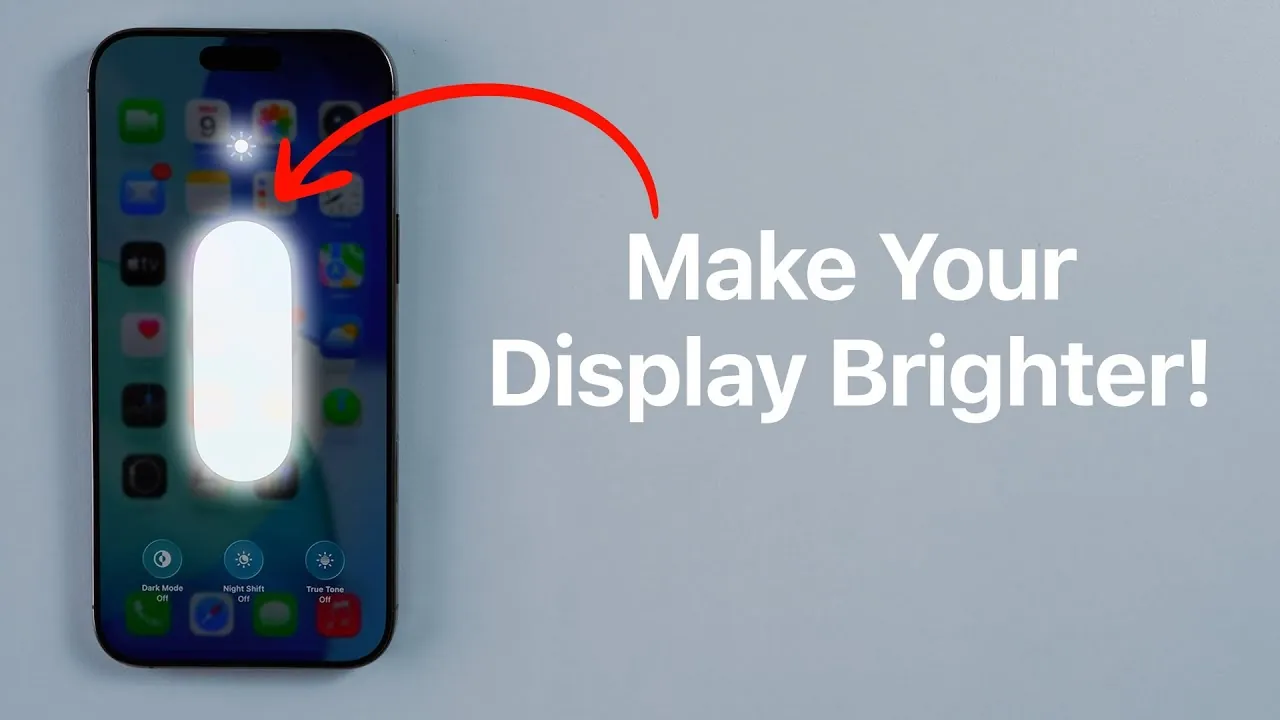
Do you find your iPhone’s display lacking brightness, even when set to its maximum? By understanding and adjusting your device’s brightness settings, you can unlock its full potential. This guide will walk you through disabling auto-brightness, manually adjusting brightness levels, and understanding the trade-offs involved. Whether you’re a professional photographer, a gamer, or simply someone seeking a better viewing experience, these steps will empower you to make informed adjustments for optimal results. The video below from Daniel About Tech gives us more details.

Step 1: Disable Auto-Brightness for Greater Control
Auto-brightness is a default feature designed to adjust your screen’s brightness based on the surrounding light. While convenient, it can limit your ability to fine-tune the display to suit your specific needs. Disabling this feature gives you complete control over your screen’s brightness. Follow these steps to turn off auto-brightness:
- Open the Settings app on your iPhone.
- Scroll down and select Accessibility.
- Tap on Display & Text Size.
- Locate the Auto-Brightness toggle and switch it off.
Once disabled, you can manually adjust the brightness using the Control Center or the settings menu. This allows you to increase brightness beyond what auto-brightness might permit or dim it further for low-light environments, providing a more tailored experience.
Why Manual Brightness Control Matters
Taking manual control of your iPhone’s brightness offers several practical advantages, particularly in situations where precision is essential. Here are some key benefits:
- Improved Outdoor Visibility: Brighten your screen to its maximum setting for better readability in direct sunlight or bright outdoor conditions.
- Reduced Eye Strain in Darkness: Lower the brightness to a comfortable level when using your device in dimly lit environments, such as at night.
- Consistent Display Performance: Maintain a steady brightness level without fluctuations caused by ambient light changes.
This level of customization is especially valuable for professionals, such as photographers who require accurate color representation, or gamers who need consistent visuals for an immersive experience.
Understanding the Trade-Offs
While manual brightness adjustments provide flexibility, they come with certain trade-offs that should be considered. Here are the primary concerns:
- Battery Life Impact: Higher brightness settings consume more power, leading to faster battery depletion. This can be inconvenient if you rely on your iPhone for extended periods without access to a charger.
- Display Longevity Risks: Prolonged use of maximum brightness can generate heat and accelerate wear and tear on your screen. OLED displays, in particular, are susceptible to burn-in when static images are displayed at high brightness for extended durations.
To mitigate these risks, it’s advisable to use manual brightness adjustments selectively and avoid keeping the screen at its brightest setting for long periods.
How Brightness Affects Battery Life and Display Health
Your iPhone’s display is one of its most power-intensive components. When brightness is set to its highest level, the battery drains more rapidly, which can be problematic during long days without charging access. Additionally, excessive brightness can affect the display’s long-term health. OLED screens, commonly used in modern iPhones, are particularly vulnerable to burn-in, where static images leave a permanent mark on the screen. High brightness levels can also generate heat, which may accelerate wear and tear on the device, especially in warm environments.
Balancing brightness levels is crucial to preserving both battery life and display health. By using brightness settings judiciously, you can extend the lifespan of your device while maintaining optimal performance.
Built-In Overheating Protections
Even with manual brightness control, your iPhone is equipped with built-in safeguards to prevent overheating. If the device detects excessive internal temperatures, it may automatically dim the screen to protect its components. This often occurs in hot environments or when the phone is exposed to direct sunlight for extended periods.
To avoid triggering these protections, consider the following precautions:
- Keep your iPhone out of direct sunlight whenever possible.
- Use a case designed for heat dissipation to help regulate the device’s temperature.
- Avoid using maximum brightness settings for prolonged periods, especially in warm conditions.
These steps can help maintain your iPhone’s performance and longevity while allowing you to enjoy the benefits of manual brightness adjustments.
Tips for Optimizing Brightness Settings
To make the most of your iPhone’s brightness settings while minimizing potential drawbacks, consider these practical tips:
- Adjust Brightness Manually When Necessary: Use manual control in specific situations, such as bright outdoor conditions or dimly lit environments, to enhance visibility and comfort.
- Re-enable Auto-Brightness for Routine Use: Allow your iPhone to manage brightness automatically during everyday use to conserve battery life and reduce display wear.
- Avoid Prolonged Maximum Brightness: Limit the time your screen remains at its brightest setting, particularly in hot environments or when displaying static images.
- Use Accessibility Features: Features like Reduce White Point can help you fine-tune brightness for comfort without compromising visibility.
By striking a balance between manual adjustments and automatic settings, you can achieve a brighter display that enhances your user experience without compromising your device’s performance or durability.
Here are more detailed guides and articles that you may find helpful on iPhone brightness settings.
- Exploring iOS 18.1 Beta 5: Key Changes and Enhancements
- Essential New iPhone Settings to Change for Better Performance
- Essential iPhone Settings You Should Never Turn
- Fix iPhone Battery Drain With These Settings
- 15 Practical Ways to Improve Your iPhone Battery Health
Source & Image Credit: Daniel About Tech
Disclosure: Some of our articles include affiliate links. If you buy something through one of these links, Geeky Gadgets may earn an affiliate commission. Learn about our Disclosure Policy.
