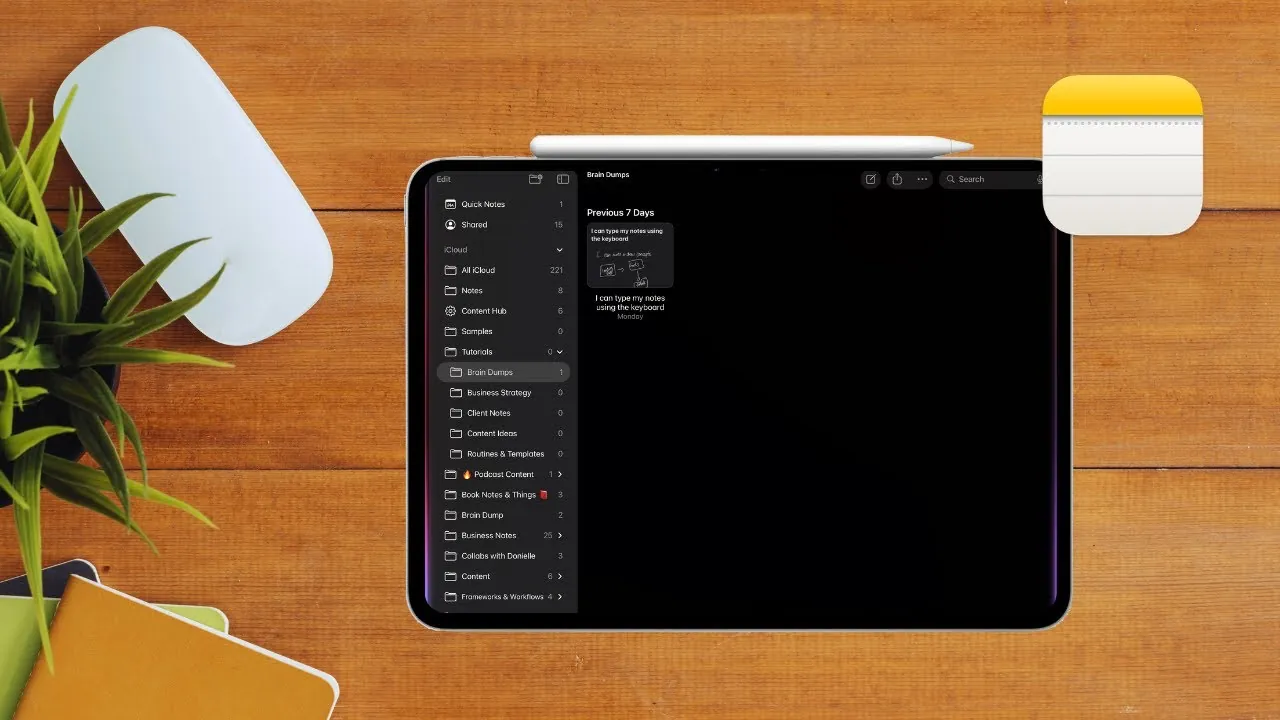
Have you ever considered that the humble Apple Notes app on your iPad could be the key to unlocking your most productive self? Often dismissed as a basic note-taking tool, Apple Notes is actually a treasure trove of features waiting to be discovered. From its seamless integration with other apps to its ability to organize your thoughts with precision, this app has the potential to become your ultimate productivity hub. Imagine a single space where your ideas, tasks, and research come together effortlessly, no more juggling between apps or losing track of important details. With just a few tweaks, you can transform Apple Notes into a powerful system tailored to your workflow.
In this guide, Elesha Jacobs explains how to access the full potential of Apple Notes on your iPad. You’ll learn how to create a customized folder structure, automate organization with smart folders, and capture inspiration on the go with Quick Notes. We’ll also dive into advanced features like Apple Pencil integration for visual thinkers and syncing across devices for uninterrupted access. Whether you’re a creative professional, entrepreneur, or student, these strategies will help you streamline your processes, stay organized, and focus on what truly matters. Let’s reimagine Apple Notes, not as just another app, but as the backbone of your productivity.
Maximize Productivity with Apple Notes
TL;DR Key Takeaways :
- Organize your notes effectively with a structured folder system, including primary folders and subfolders tailored to your focus areas like “Brain Dumps” or “Client Notes.”
- Use smart folders and tagging to automate note organization, dynamically grouping notes by keywords such as #tasks or #ideas for streamlined access.
- Use Quick Notes for instant idea capture and Safari integration to save text, links, or images directly into your notes for efficient research.
- Enhance creativity and productivity with Apple Pencil for annotating, sketching, and highlighting, and integrate Apple Notes with Reminders and Calendar for seamless task and schedule management.
- Sync your notes across all Apple devices for consistent access and use Safari integration to consolidate research, making Apple Notes a central productivity hub.
Build a Solid Foundation with Folders
A well-structured folder system is the backbone of productivity in Apple Notes. Begin by creating primary folders that align with your key focus areas. For example:
- Brain Dumps: A dedicated space for capturing spontaneous ideas or thoughts.
- Business Strategy: A folder for planning, setting goals, and tracking execution.
- Client Notes: Individual folders for each client or project to keep information organized.
To enhance this structure, create subfolders within these main categories. For instance, under “Business Strategy,” you might include subfolders like “Marketing Plans,” “Quarterly Reviews,” or “Competitor Analysis.” This hierarchical organization ensures your notes are easy to locate, reference, and manage, saving you valuable time and effort.
Streamline Organization with Smart Folders
Smart folders elevate your organizational system by automating how notes are grouped. By tagging your notes with keywords such as #tasks, #research, or #ideas, you can create smart folders that dynamically sort related notes. For example:
- A smart folder titled “Creative Ideas” could automatically collect all notes tagged with #ideas.
- A “Research” folder might gather notes tagged with #research or #data.
This automation eliminates the need for manual sorting, making sure your notes remain organized and accessible as your workflow evolves. Smart folders are particularly beneficial for managing large volumes of notes, allowing you to focus on content rather than categorization.
Turn Apple Notes on iPad into a Productivity Powerhouse

Advance your skills in Apple Notes productivity by reading more of our detailed content.
- Mastering Apple Notes and Reminders for Maximum Productivity
- Apple Notes AI Lets You Unlock Next-Level Productivity
- 6 Essential Apple Notes Features to Skyrocket Your Productivity
- 25 Apple Notes Hacks to Boost Productivity and Save Time
- 25 Apple Notes Hacks to Boost Your Productivity & Stay Organized
- Using Apple Notes, Reminders & Calendar for Maximum Productivity
- How to Use Apple Notes: Advanced Features for Better Note-Taking
- 8 Apple Notes Tips to Boost Your Productivity Instantly in 2025
- New Apple Notes iOS 26 Features to Boost Your Productivity
- 10 Apple Notes Hacks to Boost Your Efficiency in iOS 18
Capture Inspiration with Quick Notes
Quick Notes is a highly efficient feature for capturing ideas in real time. By swiping from the bottom-right corner of your iPad, you can instantly open a new note to jot down thoughts, save links, or capture screenshots. This functionality is especially useful when browsing in Safari, as it allows you to highlight text or drag content directly into a note. Whether you’re brainstorming, conducting research, or documenting fleeting ideas, Quick Notes ensures that no inspiration is lost.
Boost Creativity with Apple Pencil
For those who prefer a tactile approach, the Apple Pencil offers seamless integration with Apple Notes. This tool is ideal for:
- Annotating documents or PDFs for detailed reviews.
- Sketching ideas, diagrams, or mind maps to visualize concepts.
- Highlighting key points in your notes for quick reference.
The Apple Pencil is particularly valuable for visual thinkers and individuals who find that writing or drawing enhances creativity and memory retention. Its intuitive functionality makes it a versatile addition to your productivity toolkit.
Integrate with Reminders and Calendar
Apple Notes becomes even more powerful when integrated with Reminders and Calendar. This connectivity allows you to bridge the gap between planning and execution. For example:
- Link a note to a specific reminder to ensure follow-up on action items.
- Attach a note to a calendar event for quick access during meetings or deadlines.
By syncing these tools, you can centralize your task management and scheduling, reducing the need to switch between multiple apps. This integration helps you stay organized and ensures that critical tasks and deadlines are never overlooked.
Access Notes Anywhere with Device Syncing
One of the standout features of Apple Notes is its ability to sync seamlessly across all your Apple devices. Whether you’re working on an iPad, iPhone, or Mac, your notes are always up-to-date and accessible. This synchronization allows you to pick up where you left off, regardless of the device you’re using. It’s an invaluable feature for professionals and creatives who need flexibility and consistency in their workflows.
Enhance Research with Safari Integration
Apple Notes simplifies the research process through its direct integration with Safari. While browsing, you can highlight text, images, or links and drag them into a note. This feature is particularly useful for content creators, researchers, and students who need to compile information efficiently. By consolidating your research in one place, you can focus on analysis and execution rather than juggling multiple apps or tools.
Steps to Get Started
To transform Apple Notes into your ultimate productivity tool, follow these actionable steps:
- Set up a folder structure that reflects your key focus areas, such as “Brain Dumps” or “Client Notes.”
- Create smart folders and tag your notes with relevant keywords for automated organization.
- Use Quick Notes to capture ideas and integrate research seamlessly.
- Incorporate the Apple Pencil for annotating, sketching, and highlighting.
- Sync your notes with Reminders and Calendar to streamline task and schedule management.
- Use Safari integration to compile research and resources directly into your notes.
Unlock the Full Potential of Apple Notes
Apple Notes offers a comprehensive suite of tools designed to centralize your ideas, research, and tasks. By implementing a structured system of folders, smart folders, and tags, you can enhance your productivity and reduce reliance on multiple apps. Whether you’re a content creator, entrepreneur, or professional, this approach simplifies idea management, connects research with strategy, and keeps you organized. Start applying these strategies today to make Apple Notes an indispensable part of your workflow.
Media Credit: Elesha Jacobs
Disclosure: Some of our articles include affiliate links. If you buy something through one of these links, Geeky Gadgets may earn an affiliate commission. Learn about our Disclosure Policy.
