Your iPhone is more than just a communication device; it’s a powerful tool equipped with features that can simplify your daily tasks, enhance productivity, and add a touch of creativity to your routine. While many of its capabilities are widely known, there are several hidden features that often go unnoticed. The video below from Proper Honest Tech shows us ten lesser-known iPhone features you can start using today to maximize the potential of your device.

1. Relax with Sleep Sounds
If you find it challenging to relax, focus, or fall asleep, your iPhone has a solution. The built-in Background Sounds feature offers ambient audio options such as rain, ocean waves, and white noise. You can access this feature through the Control Center by allowing “Background Sounds” in the accessibility settings. Pair these sounds with your favorite playlists or meditation apps to create a calming atmosphere. Whether you’re trying to unwind after a long day or improve concentration during work, this feature can help you establish a more peaceful environment.
2. Stay Organized with Email Reminders
Managing emails can often feel overwhelming, but your iPhone makes it easier to stay on top of important messages. By integrating emails into the Reminders app, you can ensure that no critical follow-up or deadline is missed. Simply use the drag-and-drop feature or the share menu to set reminders for specific emails. This functionality is particularly useful for organizing work-related tasks or keeping track of personal commitments, allowing you to maintain a more structured and efficient workflow.
3. Send Handwritten Messages
Add a personal and creative touch to your conversations by sending handwritten messages. In the Messages app, turn your iPhone sideways to activate landscape mode, tap the squiggle icon, and start writing or drawing. Whether you want to send a heartfelt note, a quick doodle, or a unique signature, this feature allows you to express yourself in a way that standard text cannot. It’s a simple yet meaningful way to make your messages stand out.
4. Check Weather Insights in Maps
Planning your day or trip becomes easier with the real-time weather updates integrated into the Maps app. When you open Maps, you’ll notice a weather icon in the corner of the screen. Long-press this icon to access detailed weather insights, including current temperature, precipitation levels, and forecasts for specific locations. This feature is especially helpful when organizing outdoor activities, traveling to unfamiliar places, or preparing for changing weather conditions.
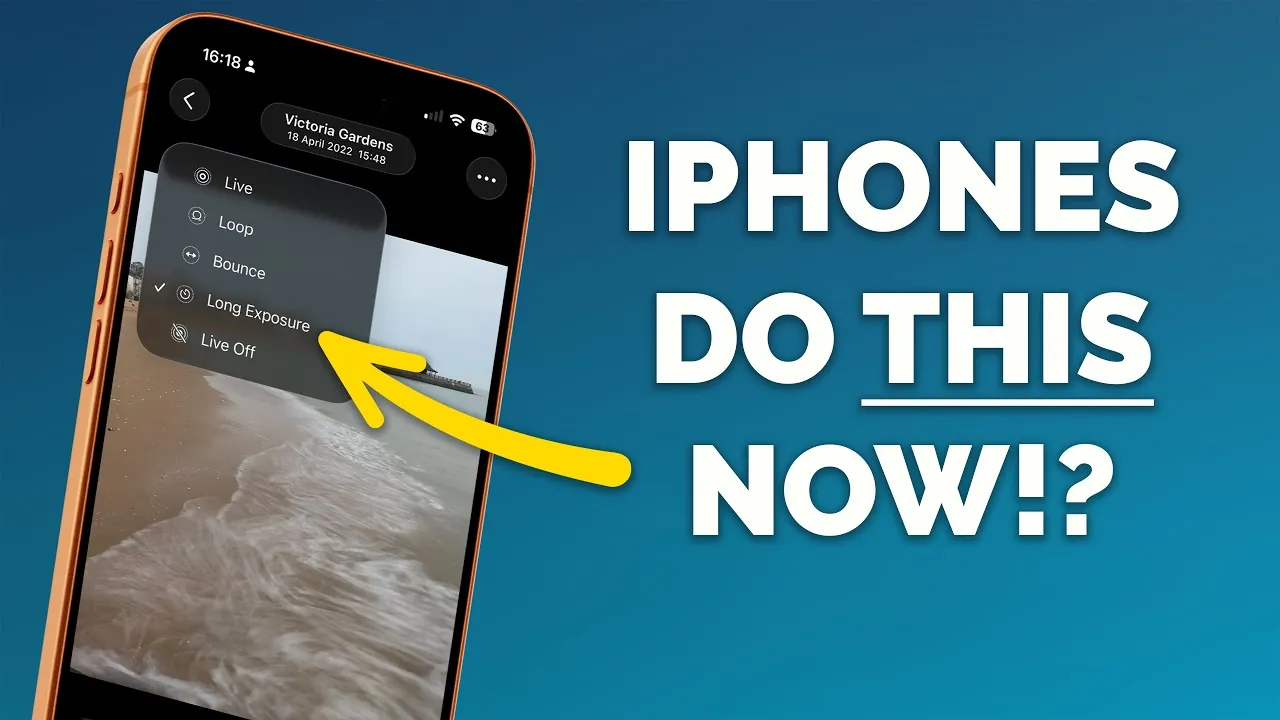
5. Create Long Exposure Photos
Transform your Live Photos into stunning long exposure images with just a few taps. This feature allows you to capture artistic effects such as silky water textures, light trails, or motion blur, giving your photos a professional and creative edge. To use this, open a Live Photo in the Photos app, swipe up, and select “Long Exposure” from the effects menu. It’s an excellent tool for photography enthusiasts looking to experiment with unique visual techniques.
6. Use the Siri Suggestions Widget
Your iPhone can anticipate your needs with the Siri Suggestions widget, which provides app recommendations based on your habits, location, or time of day. Add this widget to your home screen to streamline your routine. For example, Siri might suggest opening your fitness app in the morning, your calendar during work hours, or your favorite streaming app in the evening. By learning your preferences, this feature helps you save time and stay organized throughout the day.
7. Share Podcast Highlights
Sharing your favorite podcast moments has never been easier. With the “Share From” option, you can select specific segments from a podcast transcript and send them to friends, family, or colleagues. This ensures that you share only the most relevant or interesting parts of an episode, making your recommendations more engaging and precise. It’s a great way to spark discussions or share valuable insights without requiring others to listen to the entire episode.
8. Protect Privacy with Photo Censorship
Your iPhone includes tools to help you protect sensitive information in photos before sharing them. Using the built-in markup tool in the Photos app, you can blur faces, text, or other details to maintain privacy. This feature is particularly useful when sharing images that contain personal information, such as documents, screenshots, or group photos. It’s a simple yet effective way to ensure your privacy while still sharing important moments or information.
9. Set Custom Vibrations for Contacts
Stay connected discreetly by creating custom vibration patterns for specific contacts. This feature allows you to identify who’s calling or texting without needing to look at your screen. To set this up, go to the Contacts app, select a contact, tap “Edit,” and choose “Vibration” under the ringtone settings. Custom vibrations are especially useful in meetings, classes, or other situations where you need to stay focused but still want to remain aware of important communications.
10. Navigate Instagram Hands-Free
Scrolling through Instagram or TikTok no longer requires your hands. By allowing voice controls in the accessibility settings, you can navigate these apps using voice commands. This feature allows you to swipe through stories, scroll feeds, or like posts hands-free, making multitasking more convenient. Whether you’re cooking, exercising, or simply relaxing, this functionality adds a layer of ease to your social media experience.
Unlock Your iPhone’s Full Potential
Your iPhone is packed with features designed to enhance your daily life in ways you may not have explored yet. From improving productivity and organization to adding creative and personal touches, these hidden tools can transform how you use your device. Start exploring these functionalities today to make the most of your iPhone and discover new ways to simplify your routine.
Here are additional guides from our expansive article library that you may find useful on iPhone hidden features.
- iPhone 17 Pro Max Event: Hidden Features and Key Takeaways
- iPhone HIDDEN Features – iOS 26 New SECRETS
- 12 Hidden Features in iOS 26 to Maximize Your iPhone
- Unlock Hidden iPhone Features: Why StandBy Mode Is a Game
- iOS 26: 26 Hidden Settings to Change on Your iPhone Today
Source & Image Credit: Proper Honest Tech
Disclosure: Some of our articles include affiliate links. If you buy something through one of these links, Geeky Gadgets may earn an affiliate commission. Learn about our Disclosure Policy.
