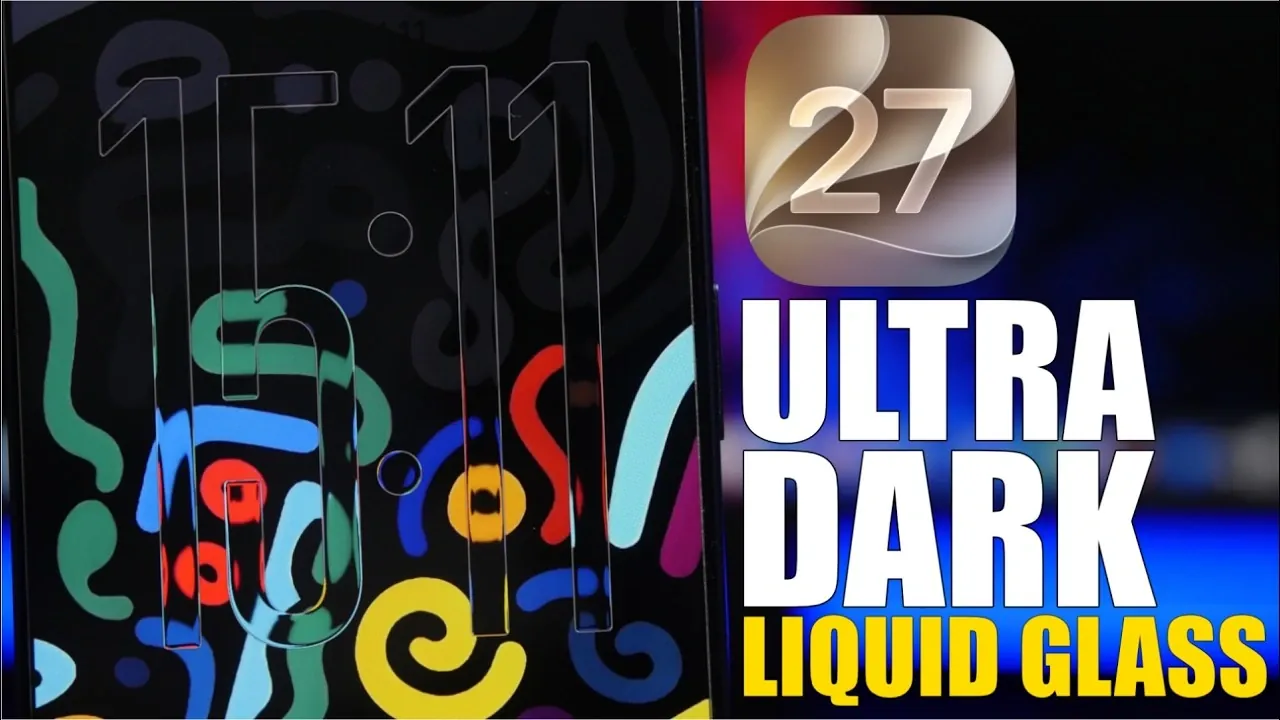
Transforming your iPhone into a sleek, ultra-dark masterpiece is now more accessible than ever with iOS 27. By using dark mode, refining transparency settings, and customizing your home and lock screens, you can create a visually striking “liquid glass” aesthetic. The video below from iReviews provides a step-by-step walkthrough to help you achieve a minimalist, modern interface that combines style with functionality.
1: Configure Dark Mode
Dark mode is the foundation of the ultra-dark aesthetic. To enable it:
1. Open Settings and navigate to Display & Brightness.
2. Select Dark to activate the mode.
3. For a seamless experience, set it to follow a schedule, such as Sunset to Sunrise.
Dark mode not only enhances the appearance of your iPhone but also offers practical benefits. On OLED displays, it conserves battery life by reducing power usage for darker pixels, making it both visually appealing and energy-efficient.
2: Adjust Transparency for the Liquid Glass Effect
To achieve the polished “liquid glass” look, fine-tune your transparency settings:
1. Go to Settings > Accessibility > Display & Text Size.
2. Enable Reduce Transparency to make UI elements appear more solid and refined.
3. Turn on Reduce Bright Effects to soften harsh highlights and further enhance the dark theme.
These adjustments create a cleaner, more cohesive interface that complements the ultra-dark aesthetic. The reduced transparency emphasizes the “liquid glass” effect, giving your device a sophisticated and modern appearance.
3: Enable the “Show Borders” Feature
Dark mode can sometimes make buttons and icons harder to distinguish. The Show Borders feature improves visibility while maintaining the sleek design:
1. Navigate to Settings > Accessibility > Per-App Settings.
2. Enable Show Borders to add subtle white outlines around UI elements.
3. For quick access, consider adding this feature to your Control Center.
This small but impactful tweak ensures clarity and usability, especially in low-light conditions, without disrupting the overall aesthetic.
4: Customize Your Home Screen
Your home screen is the centerpiece of your customization efforts. Follow these steps to create a cohesive, ultra-dark look:
– Wallpaper: Choose a predominantly black wallpaper with subtle, colorful accents. This complements dark mode while reducing distractions and enhancing the “liquid glass” effect.
– Icon Layout: Adjust icon size and spacing in Settings > Home Screen & Dock for a cleaner, more organized appearance.
– Icons: Opt for tinted designs that balance brightness and contrast, making sure visibility without overpowering the dark background.
– Widgets: Use widgets sparingly to maintain a minimalist look. Select designs that align with your overall theme for a unified aesthetic.
These changes will give your home screen a polished, modern feel while improving usability. A well-organized layout enhances both the visual appeal and functionality of your device.
5: Refine Your Lock Screen
To ensure consistency, extend your customization efforts to the lock screen:
– Use the same wallpaper as your home screen, but adjust zoom and color placement to improve clock visibility.
– Customize the clock’s appearance in Settings > Lock Screen & Clock by selecting darker colors or transparent effects.
– Enable Show Borders to outline key elements like notifications and widgets for added clarity.
A thoughtfully designed lock screen not only enhances the visual appeal of your device but also improves its usability. By aligning the lock screen with the home screen’s design, you create a seamless and cohesive user experience.
6: Optimize the Always-On Display
The always-on display can be tailored to match the ultra-dark theme:
1. Go to Settings > Display & Brightness > Always-On Display.
2. Disable the wallpaper to create a minimalist look, leaving only the clock and essential notifications visible.
This adjustment enhances the sleek design while reducing power consumption. By focusing on essential information, the always-on display remains practical and visually consistent with the ultra-dark aesthetic.
Achieving the Ultra-Dark Liquid Glass Aesthetic
By combining dark mode, transparency adjustments and thoughtful customization of your home and lock screens, you can achieve the ultra-dark liquid glass aesthetic on your iPhone running iOS 27. These changes not only elevate your device’s visual appeal but also improve functionality and battery efficiency. Whether you’re drawn to the minimalist design or the practical benefits, this setup offers a unique and personalized user experience.
Unlock more potential in iOS 27 by reading previous articles we have written.
- Apple Delaying iOS 27 Beta 5? Here’s When to Expect the Next Update
- New iOS 27 Beta 5 Release Arrives with a Big Shift Coming
- iOS 27 Beta 5 Is Late: What’s Holding Up Apple’s Next Release?
- The iOS 27 Beta 5 Release Imminent with More New Features
- Apple iOS 27 Beta 5 Preview: a Look at the Next Release
Source & Image Credit: iReviews
Disclosure: Some of our articles include affiliate links. If you buy something through one of these links, Geeky Gadgets may earn an affiliate commission. Learn about our Disclosure Policy.
