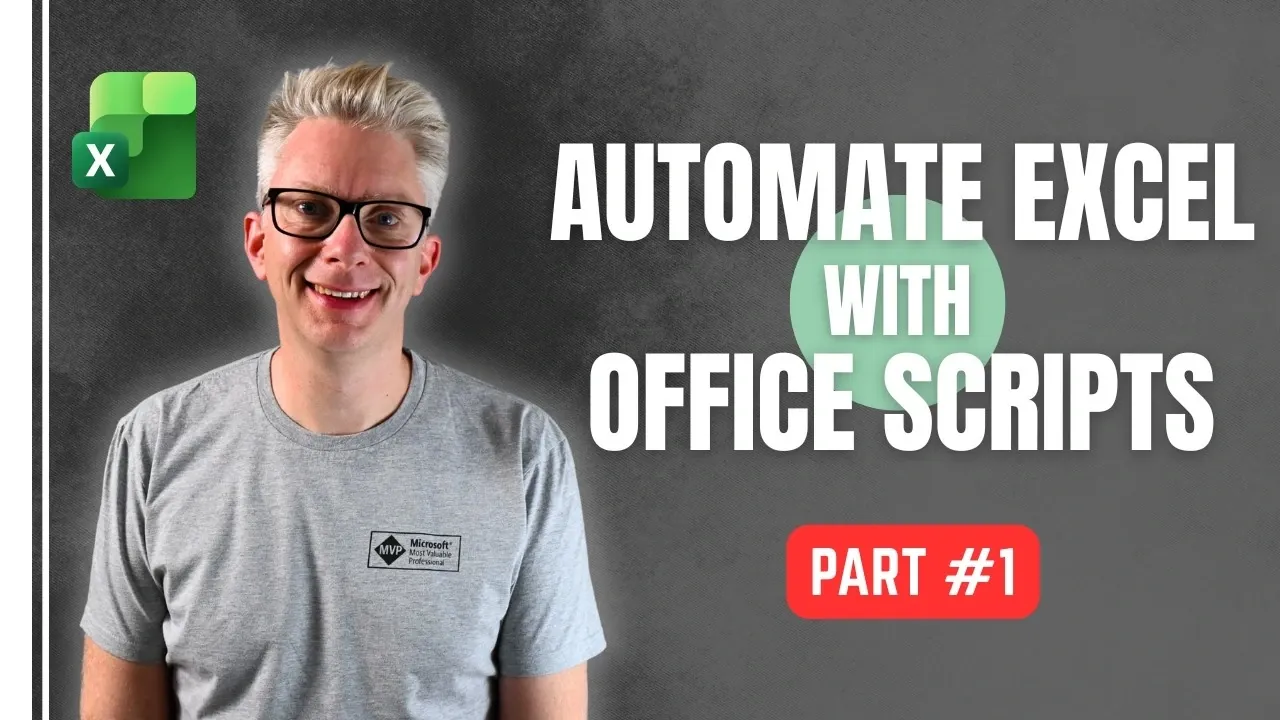
Office Scripts in Excel offer a structured way to automate repetitive tasks, making it easier to manage large datasets or streamline workflows. Built into the “Automate” tab of Excel’s ribbon, this feature uses a simplified version of TypeScript and the Document Object Model (DOM) to interact with workbooks, worksheets and cells programmatically. For example, you can use Office Scripts to apply consistent formatting across multiple sheets or generate reports with minimal manual effort. Excel Off The Grid provides a clear introduction to these capabilities, helping users understand how to activate and begin using this feature effectively.
Gain insight into creating and managing scripts, whether through manual coding for precise control or the action recorder for a beginner-friendly approach. You’ll also explore practical applications, such as automating formatting, validating data and generating visual reports. By the end, you’ll have the foundational knowledge to start building scripts that enhance your productivity and simplify your Excel workflows.
What Are Excel Office Scripts?
TL;DR Key Takeaways :
- Office Scripts in Excel enable automation of repetitive tasks using a simplified version of TypeScript and the Document Object Model (DOM), enhancing productivity and reducing manual errors.
- Scripts can be created through manual coding for advanced customization or by using the Action Recorder, which generates code based on user interactions, making it beginner-friendly.
- Scripts are securely stored in OneDrive or SharePoint, allowing seamless access across devices and easy sharing for collaborative workflows.
- TypeScript, the language behind Office Scripts, provides a structured way to automate tasks like formatting, data validation and overview generation, even for users new to programming.
- Practical applications include automating formatting, making sure data accuracy and streamlining overview generation, making Office Scripts a versatile tool for professionals across industries.
Office Scripts are a feature integrated into the “Automate” tab of Excel’s ribbon. To use them, you must have a Microsoft 365 subscription and in some cases, IT administrator approval may be required to enable the feature. Once activated, the Automate tab becomes your central hub for creating, editing and running scripts that can streamline your workflows.
With Office Scripts, you can automate tasks such as formatting data, generating reports, or applying formulas across multiple sheets. These scripts are particularly useful for repetitive processes, making sure consistency and reducing manual errors. By automating these tasks, you can focus on more strategic aspects of your work.
How to Create and Manage Scripts
There are two primary methods for creating Office Scripts, each catering to different levels of expertise:
- Manual Coding: This method involves writing scripts directly using TypeScript, giving you precise control over the automation process. It is ideal for users with programming experience or those looking to customize scripts for complex tasks.
- Action Recorder: The action recorder captures your interactions with Excel and automatically generates script code based on those actions. This approach is user-friendly and suitable for beginners who want to automate basic tasks without diving into coding.
Once created, scripts are saved in OneDrive or SharePoint, making sure they are securely stored and accessible across devices. This cloud-based storage enables seamless automation whether you’re working on a desktop, laptop, or mobile device. Additionally, you can easily share your scripts with colleagues, fostering collaboration and consistency in workflows.
Advance your skills in Excel automations by reading more of our detailed content.
- New Excel Features 2026 : 17 Tools to Speed up Work
- How to Use Office Scripts to Automate Excel Tasks Effortlessly
- How to Automate Tasks in Excel Without Coding Skills
- Simple Excel Automations to Save Time Daily in 2026
Understanding the Document Object Model (DOM)
The Document Object Model (DOM) serves as the structural framework that allows you to interact with Excel programmatically. It organizes Excel components, such as workbooks, worksheets and cells, into a hierarchical structure, making it easier to manipulate them through code. Mastering the DOM is essential for unlocking the full potential of Office Scripts.
Here are some practical tasks you can accomplish using the DOM:
- Modify cell values or formats: Update data, apply bold text, or change font colors programmatically.
- Adjust column widths or row heights: Ensure your data is displayed clearly and consistently.
- Apply conditional formatting: Highlight specific ranges based on predefined criteria, such as values exceeding a threshold.
For example, to update a worksheet, you can reference the active workbook and its sheets through the DOM, then apply changes to specific cells or ranges. This structured approach simplifies complex tasks, making automation more intuitive and efficient.
Using the Action Recorder
The action recorder is a valuable tool for users who are new to scripting. It simplifies the process by capturing your actions in Excel and generating corresponding code. For instance, if you adjust the alignment of text in a cell or apply a specific format, the recorder will produce a script snippet that replicates those actions.
While the action recorder is convenient, it has limitations. It cannot capture every possible action and the generated code may require manual adjustments for more complex automation scenarios. For advanced tasks, combining the recorder with manual coding can help you achieve greater flexibility and precision.
Streamlining Scripts with Variables
Variables play a crucial role in making your scripts more efficient and easier to manage. By assigning frequently used objects to variables, you can reduce repetition and improve code readability. For example:
- Instead of repeatedly calling `workbook.getActiveWorksheet()`, assign it to a variable like `let WS = workbook.getActiveWorksheet()`.
- Use variables to store ranges, formats, or other objects that are referenced multiple times within your script.
This approach not only minimizes redundancy but also simplifies script maintenance, making it easier to update or debug your code in the future. Effective use of variables enhances both the performance and clarity of your scripts.
TypeScript: The Language Behind Office Scripts
Office Scripts are written in a simplified version of TypeScript, a superset of JavaScript. TypeScript provides a structured and intuitive way to write automation scripts, allowing you to incorporate methods, properties and logic. Even if you’re new to programming, TypeScript’s straightforward syntax makes it accessible and easy to learn.
With TypeScript, you can handle a wide range of tasks, including:
- Formatting cells and ranges: Apply consistent styles to your data for better readability.
- Validating data: Ensure accuracy and consistency by implementing validation rules.
- Creating and customizing charts: Automate the generation of visual reports tailored to your needs.
By learning the basics of TypeScript, you can unlock advanced scripting capabilities, allowing you to create dynamic and responsive automation solutions.
Practical Applications of Office Scripts
Office Scripts can be applied to a variety of real-world scenarios, making them a versatile tool for professionals across industries. Some common applications include:
- Automating repetitive formatting tasks: Save time by standardizing font styles, colors and alignments across multiple sheets.
- Making sure data accuracy: Use scripts to validate entries, flag inconsistencies, or apply conditional formatting to highlight errors.
- Streamlining overview generation: Automate the creation of charts, summaries and pivot tables for presentations or analysis.
These practical applications not only enhance efficiency but also improve the accuracy and consistency of your workflows. Additionally, scripts can be reused and adapted for different projects, maximizing their value over time.
Expanding Your Skills
This guide provides a foundation for understanding and using Office Scripts, but there is much more to explore. Advanced topics, such as incorporating logic, loops and conditional statements in TypeScript, can help you create dynamic scripts that adapt to specific conditions. These features enable you to tackle more complex automation challenges, further enhancing your productivity.
By mastering Office Scripts, you can transform the way you work with Excel, making your processes more efficient and effective. Start experimenting today to unlock the full potential of Excel automation and take your skills to the next level.
Media Credit: Excel Off The Grid
Disclosure: Some of our articles include affiliate links. If you buy something through one of these links, Geeky Gadgets may earn an affiliate commission. Learn about our Disclosure Policy.
