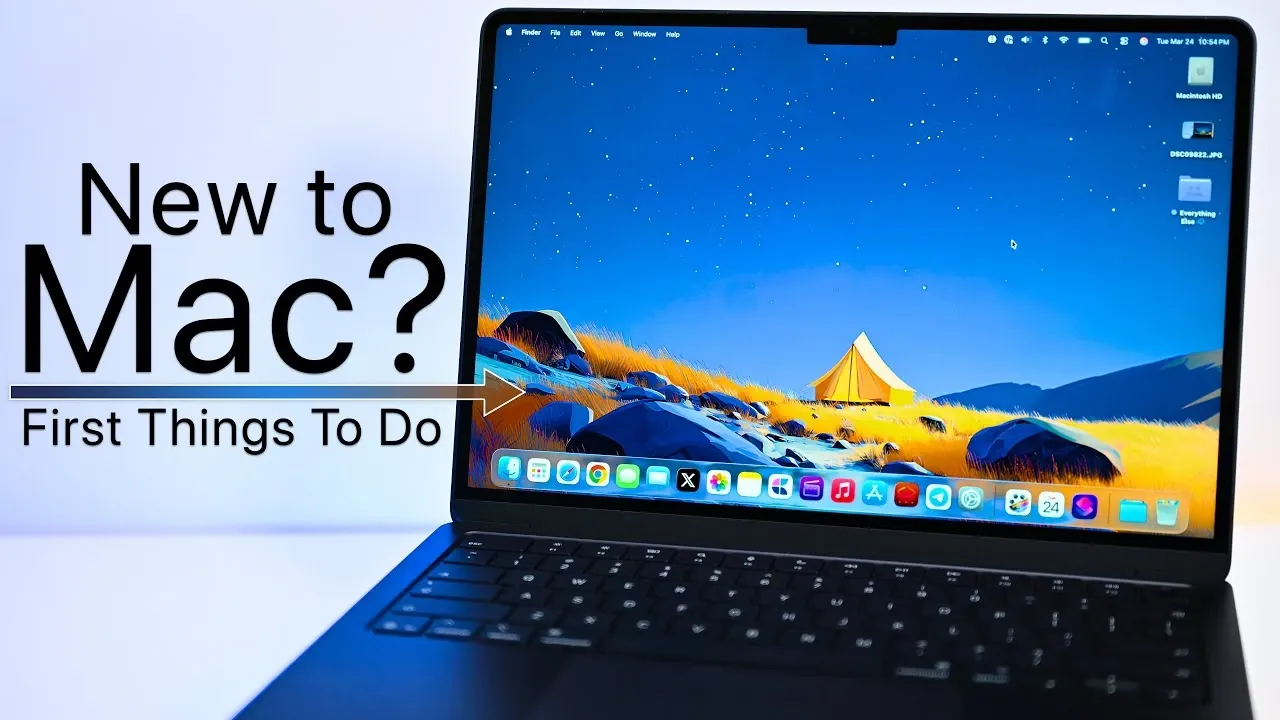
Unboxing a new Mac is an exciting experience, but setting it up properly is key to unlocking its full potential. Whether you’ve chosen a MacBook Air, MacBook Pro, or Mac Studio, taking the time to configure your device ensures a seamless and productive start. The video below from Zollotech provides a step-by-step approach to personalizing and optimizing your Mac, covering everything from basic settings to advanced features.

Customize the Dock for Efficiency
The Dock serves as your Mac’s central hub for quick access to frequently used applications. To make it work for you, drag apps to or from the Dock to add or remove them. Adjust its size and magnification in System Settings to match your preferences. For a cleaner and more organized workspace, enable the auto-hide feature, which keeps the Dock hidden until you hover over it. These adjustments allow you to streamline your workflow and reduce visual clutter.
Fine-Tune Trackpad and Mouse Settings
Your Mac’s trackpad and mouse are designed to enhance navigation, but their default settings may not suit everyone. Enable secondary click (right-click) and tap-to-click for more intuitive control. For advanced users, the three-finger drag feature, found under Accessibility settings, simplifies window movement. If you’re using a mouse, customize the scrolling speed and button functions to align with your specific workflow. These settings ensure smoother and more efficient navigation tailored to your needs.
Personalize Appearance Settings
Customizing your Mac’s appearance not only makes it feel more personal but also improves usability. Switch between light and dark modes depending on your environment or preference. Adjust accent and highlight colors in System Settings to create a unique aesthetic. These changes can also reduce eye strain during extended use, especially in low-light conditions. By tailoring these settings, you can create a visually comfortable and personalized workspace.
Optimize Display Settings
Your Mac’s display settings play a crucial role in your overall experience, particularly if you work with visuals. For tasks requiring precise color accuracy, such as photo or video editing, consider disabling True Tone to maintain consistent colors. Adjust resolution scaling to either maximize screen space or make text and icons larger for better readability. These options are especially useful for multitasking or detailed work, making sure your display is optimized for productivity.
Organize Your Desktop
A well-organized desktop can significantly boost productivity. Use the Stacks feature to group files by type, such as images, documents, or PDFs, keeping your workspace tidy. Configure Hot Corners to perform actions like showing the desktop or opening Mission Control with a simple mouse movement. These tools not only streamline navigation but also help maintain a clutter-free environment, allowing you to focus on your tasks without unnecessary distractions.
Enhance Privacy and Security
Protecting your data is a critical step in setting up your Mac. Enable FileVault encryption to secure your files and ensure your Mac is password-protected. Review privacy settings to control app permissions, such as access to your location, camera and microphone. These measures safeguard your personal information and help maintain your Mac’s security, giving you peace of mind as you use your device.
Streamline Finder and File Management
The Finder is your primary tool for managing files on your Mac. Customize the Finder sidebar to include frequently accessed folders and drives for quicker navigation. Enable the option to display hard drives, external devices and connected servers on your desktop. These adjustments simplify file management, making it easier to locate and organize your documents, photos and other files efficiently.
Integrate Your iPhone
If you own an iPhone, your Mac can seamlessly integrate with it to enhance your productivity. Features like device mirroring allow you to view notifications, send messages and interact with apps directly from your Mac. Use Handoff to start tasks on one device and continue them on another, creating a unified Apple ecosystem experience. This integration ensures that your devices work together effortlessly, saving you time and effort.
Sync with iCloud
iCloud is an essential tool for keeping your files, photos and documents accessible across all your Apple devices. Sync specific items like contacts, calendars and notes to maintain consistency. Regularly review your iCloud storage usage and upgrade your plan if necessary to avoid running out of space. This feature is invaluable for users who rely on multiple devices, making sure that your data is always up-to-date and readily available.
Personalize Your Wallpaper
Adding a personal touch to your Mac is as simple as customizing your desktop background. Choose from Apple’s curated wallpapers or set a favorite photo as your wallpaper. For a dynamic experience, opt for dynamic wallpapers, which change based on the time of day. This small but impactful customization can make your workspace more visually appealing and enjoyable to use.
Master Keyboard Shortcuts
Keyboard shortcuts are a powerful way to improve your productivity on a Mac. For instance, use Spotlight Search (Command + Space) to quickly open apps, search files, or even perform calculations. Learn other shortcuts, such as Command + Tab for switching between apps, to streamline your workflow. Mastering these shortcuts can save you time and make your daily tasks more efficient.
Use Migration Assistant for a Smooth Transition
If you’re upgrading from another Mac or switching from a Windows PC, the Migration Assistant simplifies the process of transferring data. This tool allows you to move files, applications and settings to your new Mac, preserving your previous workflow and minimizing setup time. By using Migration Assistant, you can ensure a seamless transition and get started with your new device quickly and efficiently.
Here are more detailed guides and articles that you may find helpful on Mac.
- Steam Machine : Early 2026 Release Date, Prices, Specs & OS Features
- Steam Machine Pricing Tipped at $600 to $650 with Supply Tight
- Steam Machine Pricing Outlook, Early 2026 Release Window
- M5 Mac Mini Leak: Features, Release Date, and More
- M5 MacBook Air Leak: Specs, Features, and Release Date
- Worlds Smallest DIY Steam Machine : Ryzen 7840U for Steady 1080p Play
Source & Image Credit: Zollotech
Disclosure: Some of our articles include affiliate links. If you buy something through one of these links, Geeky Gadgets may earn an affiliate commission. Learn about our Disclosure Policy.
