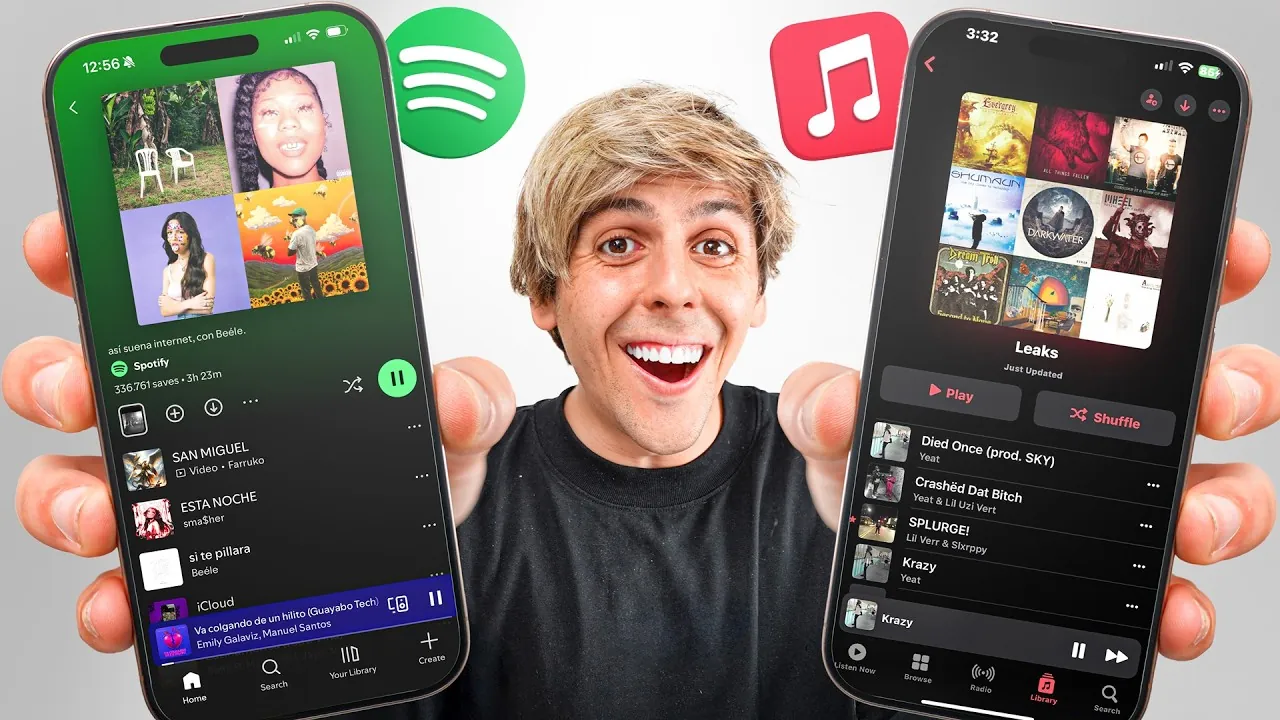
Switching between music streaming platforms has become increasingly common, and transferring playlists no longer needs to be a complicated or time-consuming task. With tools like Tune My Music, you can seamlessly move your music collection across services such as Spotify and Apple Music. The video below from Nikias Molina provides a comprehensive walkthrough of the process, covering playlist transfers, library backups, cross-platform sharing, and customization options. By following these steps, you’ll gain the ability to manage your music effortlessly across platforms while preserving your personalized listening experience.

Playlist Transfer: Move Your Music with Ease
When transitioning from Spotify to Apple Music, transferring playlists is often the first and most important step. Tune My Music simplifies this process by allowing you to transfer individual playlists, multiple playlists, or even your entire music library. Supported platforms include Spotify, Apple Music, YouTube Music, Amazon Music, and others, making it a versatile solution for music enthusiasts.
One of the most valuable features of Tune My Music is automatic syncing. This functionality ensures that any updates you make to a playlist on Spotify—such as adding or removing songs—are automatically reflected in your Apple Music account. This is particularly beneficial if you frequently update your playlists or maintain dynamic collections that evolve over time. With this tool, you can ensure your playlists remain consistent and up to date across platforms.
Library Backup: Protect Your Music Collection
Backing up your music library is essential for safeguarding your collection, especially if you frequently switch between streaming platforms or want to prevent data loss. Tune My Music allows you to export your entire library, including songs, playlists, and artists, into a file or cloud storage. This ensures that your music remains accessible, even in the event of technical issues or platform changes.
For example, you can export your Spotify library as a CSV file or save it to a cloud service like Google Drive. This backup can later be imported into Apple Music or another compatible platform, providing you with flexibility and peace of mind. By creating a backup, you can also preserve your curated playlists and favorite tracks, making sure they’re always within reach.
Cross-Platform Sharing: Share Playlists Without Limits
Sharing music across different streaming platforms can be challenging, especially when your friends or family use services other than your own. Tune My Music addresses this issue by generating shareable links for playlists that work across multiple platforms. This feature allows you to share your playlists with anyone, regardless of their preferred streaming service.
For instance, if you’ve created a playlist on Spotify, you can share it with a friend who uses Apple Music. By clicking the link, they can instantly add the playlist to their library without needing to manually recreate it. This functionality not only saves time but also ensures that your music recommendations are easily accessible to others, fostering a more connected listening experience.
Customization: Tailor Your Playlists to Your Style
Once your playlists have been transferred to Apple Music, you may want to personalize them to better reflect your preferences. Tune My Music supports a range of customization options, allowing you to update playlist covers, rearrange tracks, or modify playlist details. These adjustments can make your playlists more visually appealing and better organized, enhancing your overall music experience.
For example, you can replace a generic playlist cover with a custom image that resonates with the theme of the playlist. Additionally, you can reorder songs to create a more cohesive listening flow or adjust the playlist title and description to better match its content. These small but meaningful changes allow you to make your playlists uniquely yours, making sure they align with your personal style and preferences.
Efficiency: Fast and Reliable Transfers
When transferring large music collections, speed and reliability are critical. Tune My Music excels in both areas, offering a fast and dependable solution for moving your playlists and libraries. Whether you’re transferring a single playlist or an entire library, the process is designed to be quick and straightforward, minimizing the risk of errors or interruptions.
The tool also supports a wide range of file formats and streaming platforms, making it a versatile choice for users with diverse music collections. Its intuitive interface ensures that even complex transfers are easy to complete, allowing you to focus on enjoying your music rather than troubleshooting technical issues.
Pro Version: Advanced Features for Power Users
For users who require advanced functionality, Tune My Music offers a Pro version with additional features. This premium option includes benefits such as unlimited transfers, faster processing speeds, and priority customer support. It’s particularly useful for individuals managing extensive music libraries or working across multiple accounts.
For example, DJs, playlist curators, or avid music collectors can use the Pro version to streamline their workflow, saving time and making sure their music remains organized and accessible. The enhanced processing speeds and dedicated support also make it easier to handle large-scale transfers, providing a seamless experience for power users.
Streamline Your Music Management
Transferring playlists and music libraries between Spotify, Apple Music, and other platforms doesn’t have to be a daunting task. Tools like Tune My Music empower you to move your music effortlessly, back up your library for added security, share playlists across platforms, and customize your collections to suit your preferences. Whether you’re a casual listener or a dedicated music enthusiast, these features provide the tools you need to manage your digital music library with ease. By using these capabilities, you can ensure your music is always accessible and tailored to your unique tastes, no matter which platform you choose.
Explore further guides and articles from our vast library that you may find relevant to your interests in Spotify to Apple Music playlist transfer.
- 10 Must-Have Android Apps for January 2025
- 10 Best iOS Apps You Need to Download in 2025
- Open source alternatives to Notion note taking app in 2024
Source & Image Credit: Nikias Molina
Disclosure: Some of our articles include affiliate links. If you buy something through one of these links, Geeky Gadgets may earn an affiliate commission. Learn about our Disclosure Policy.
