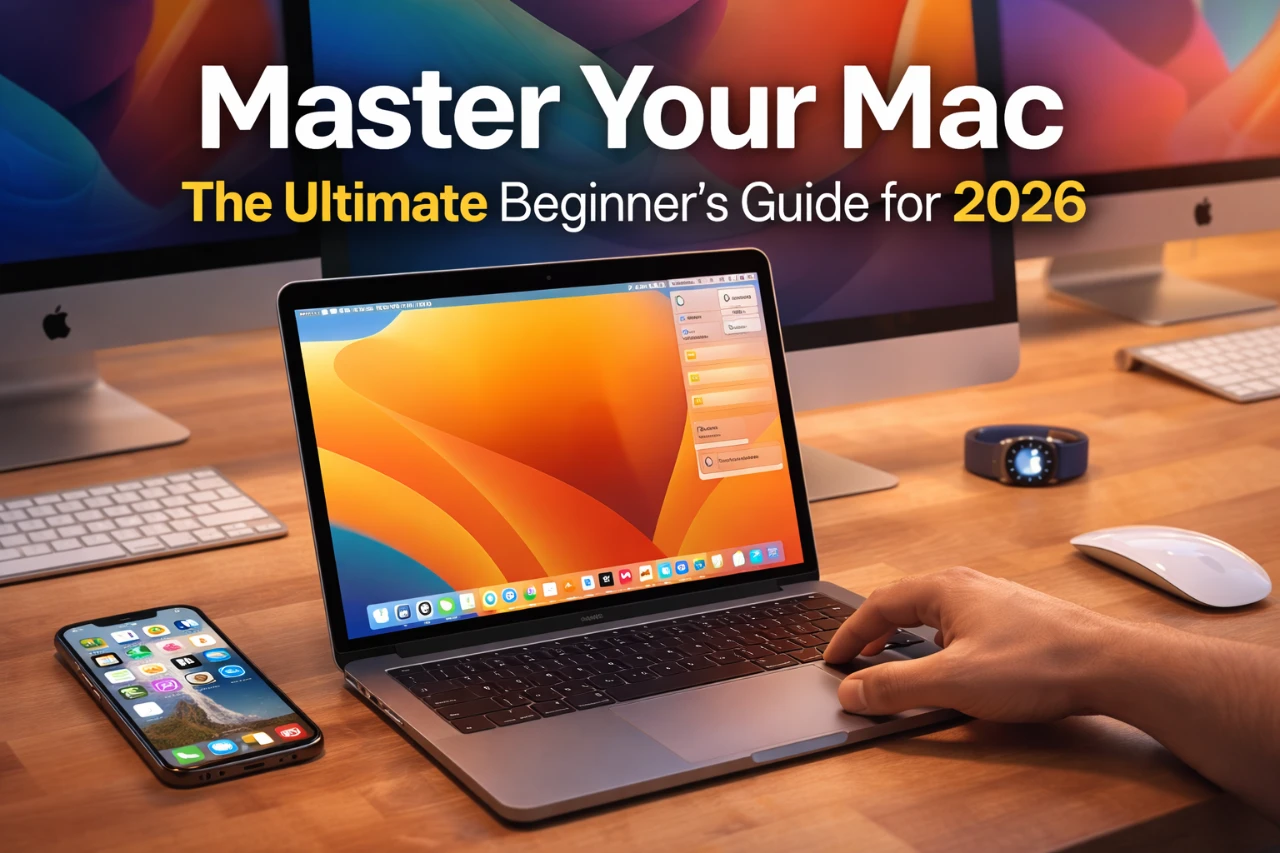
Transitioning to a Mac from another operating system, such as Windows, can initially feel overwhelming. However, with the right guidance, you can quickly familiarize yourself with its features and confidently navigate your new device. This guide provides a detailed breakdown of essential Mac functionalities, helping you maximize your experience and productivity. The video below from ThisIsE gives us more details.
Getting Started: Key Differences and Initial Setup
When you first power on your Mac, you’ll notice several differences compared to other operating systems. Understanding these distinctions will help you adapt more easily:
- Keyboard Layout: Macs use the Command (⌘) and Option (⌥) keys instead of the Control and Alt keys found on Windows keyboards. These keys are integral to Mac shortcuts, so mastering them early is essential.
- Right-Click Functionality: Unlike Windows, Macs don’t enable right-click by default. To activate it, navigate to System Settings > Trackpad or Mouse and enable the secondary click option.
- File Management: Macs use Finder instead of File Explorer for organizing files and folders. Finder offers a streamlined interface and features like Quick Look, which allows you to preview files without opening them.
Taking the time to adjust to these differences will ensure a smoother transition and set the foundation for an efficient Mac experience.
Mastering System Navigation
The Mac interface is designed to be intuitive and user-friendly, with several key components that simplify navigation:
- The Dock: Positioned at the bottom of the screen, the Dock provides quick access to frequently used apps. You can customize it by adding or removing apps to suit your workflow.
- The Menu Bar: Located at the top of the screen, the Menu Bar offers system-wide controls and app-specific menus. It’s a central hub for accessing settings, notifications, and other essential tools.
- Mission Control: This feature displays all open windows and desktops, making multitasking more manageable. You can activate it using the F3 key or a three-finger swipe up on the trackpad.
By mastering these tools, you’ll be able to navigate your Mac with ease and improve your overall efficiency.
File Management Made Simple with Finder
Finder is the cornerstone of file management on a Mac. It’s accessible from the Dock and features a sidebar for quick navigation to locations like Documents, Downloads, and iCloud Drive. Here’s how to make the most of Finder:
- Drag-and-Drop: Easily move files and folders by dragging them to your desired location.
- Preview Files: Press the spacebar to preview files without opening them. This works for various file types, including images, PDFs, and videos.
- Compress Files: Create ZIP archives by right-clicking a file or folder and selecting Compress.
These features make Finder a powerful and user-friendly tool for organizing and managing your files.
Installing and Managing Applications
Installing apps on a Mac is straightforward and can be done through the App Store or by manually downloading DMG files. To uninstall an app, simply drag it from the Applications folder to the Trash. Understanding how Mac apps function is also important:
- Closing vs. Quitting: Clicking the red “X” button closes a window but doesn’t quit the app. To fully quit an app, use Command (⌘) + Q or select Quit from the app’s menu.
This distinction helps ensure your Mac runs efficiently without unnecessary background processes.
Boost Productivity with Spotlight Search
Spotlight Search is a versatile tool that can significantly enhance your productivity. Activate it by pressing Command (⌘) + Spacebar. Here are some of its key functionalities:
- Find Files: Quickly locate documents, photos, or apps by typing their names.
- Perform Calculations: Enter math equations directly into Spotlight for instant results.
- Search the Web: Type queries to perform web searches without opening a browser.
This tool is an invaluable resource for saving time and accessing information quickly.
Customizing Your Mac
Personalizing your Mac can enhance your overall experience and make it more suited to your needs. In System Settings, you can adjust various preferences, including display settings, iCloud integration, and external monitor configurations. Consider these customization tips:
- iCloud Integration: Enable iCloud Drive to store and sync documents, photos, and backups across all your Apple devices.
- Multiple Displays: Arrange external monitors to extend your workspace or mirror your screen for presentations.
These adjustments allow you to tailor your Mac to your specific requirements and improve your workflow.
Essential Keyboard Shortcuts
Keyboard shortcuts are a powerful way to streamline your tasks and improve efficiency. Here are some essential shortcuts to get you started:
- Command (⌘) + C: Copy
- Command (⌘) + V: Paste
- Command (⌘) + Tab: Switch between open apps
- Command (⌘) + Shift + 4: Take a screenshot of a selected area
Learning and incorporating these shortcuts into your routine will make navigating and managing tasks on your Mac faster and more intuitive.
Exclusive Mac Features
Macs offer unique features that distinguish them from other operating systems. Here are a few highlights to explore:
- Drag-and-Drop: Seamlessly move files, images, and text between apps for enhanced multitasking.
- Sleep Mode vs. Shutdown: Use Sleep Mode for short breaks and shut down your Mac during extended periods of inactivity to conserve energy.
- Maintenance Tools: Use built-in apps like Disk Utility to repair disk errors and Activity Monitor to monitor system performance and resource usage.
These features not only improve usability but also help maintain your Mac’s performance over time.
Maximizing Your Mac Experience
By understanding and using the features outlined in this guide, you’ll quickly adapt to using your Mac and unlock its full potential. From mastering system navigation and file management to using productivity tools and customization options, each aspect is designed to simplify your workflow and enhance your experience. With consistent practice, your Mac will become an indispensable tool in your daily routine, empowering you to work smarter and more efficiently.
Stay informed about the latest in Mac tutorials for beginners by exploring our other resources and articles.
- PiCar-X Smart Video Robot Car Kit for Raspberry Pi 4 (Board Not
- Raspberry Pi Pico W Ultimate Starter Kit | StackSocial
- Virtual Training Company: Lifetime Subscription – StackSocial
- The JavaScript Beginner Bootcamp Course | StackSocial
- X-MAKER JOY Smart 3D Printer for Kids & Beginners | StackSocial
Source & Image Credit: ThisIsE
Disclosure: Some of our articles include affiliate links. If you buy something through one of these links, Geeky Gadgets may earn an affiliate commission. Learn about our Disclosure Policy.
