Your iPhone is more than just a device for calls, texts, or browsing. It’s a sophisticated tool designed to streamline your daily tasks, enhance accessibility, and offer a personalized experience. By tapping into its lesser-known features, you can unlock its full potential and make your life easier. Here are ten practical ways your iPhone can work smarter for you. The video below from Proper Honest Tech gives us a look at some of these features.
1. Use Siri to Quickly Access Settings
Navigating through your iPhone’s settings can be time-consuming, especially when you’re unsure where to look. Siri simplifies this process. Just activate Siri and say, “Open [specific setting],” such as “Open Wi-Fi settings” or “Open Bluetooth settings.” This feature eliminates the hassle of scrolling through menus, saving you time and effort. Whether you’re adjusting your display brightness or allowing Airplane Mode, Siri ensures you can access settings in seconds.
2. Enable Text-to-Speech for Accessibility
If you prefer listening to text rather than reading it, the “Speak Selection” feature is an invaluable tool. Found in the Accessibility settings, this option allows you to highlight any text on your screen and have it read aloud. It’s particularly useful for proofreading, learning new words, or aiding users with visual impairments. You can even customize the voice, language, and reading speed to suit your preferences. This feature is not only practical but also enhances accessibility for a wide range of users.
3. Relax with Built-in Sleep Sounds
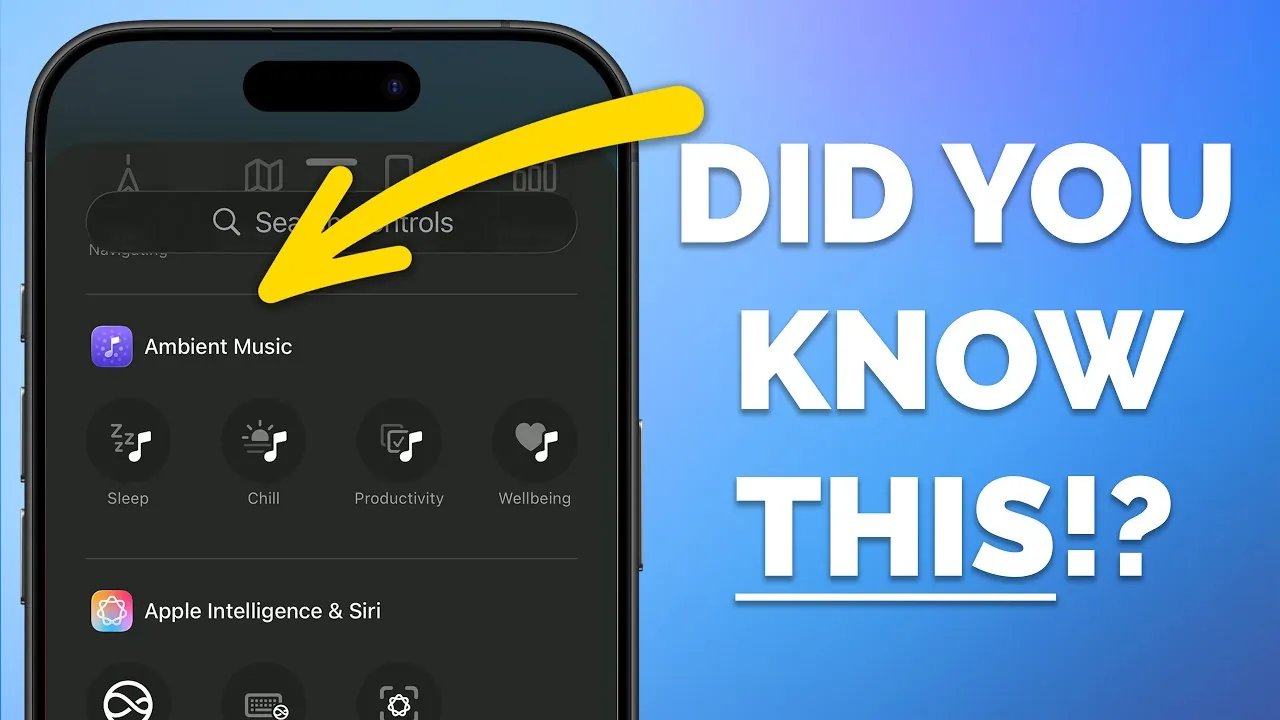
Falling asleep can be challenging, but your iPhone has a solution. Through the Control Center, you can access built-in ambient sounds like rain, ocean waves, or white noise. These sounds play in the background, even when your screen is locked or while using other apps. Unlike third-party apps, this feature is seamlessly integrated and requires no additional downloads. It’s a simple yet effective way to create a calming environment for relaxation or sleep.
4. Organize Receipts with the Photos App
Keeping track of receipts doesn’t have to be a chore. Your iPhone’s Photos app can help you organize them effortlessly. Use the search function to find receipt images by typing keywords like “receipt” or “invoice.” For better organization, create a dedicated album to store all your receipts in one place. This is especially helpful for managing expenses, preparing for tax season, or keeping track of warranties. Simply snap a photo of your receipt, and let your iPhone do the rest.
5. Simplify Your Home Screen with Widget Stacks
A cluttered home screen can be overwhelming, but widget stacks offer a solution. This feature lets you group multiple widgets into a single space, which you can swipe through as needed. For instance, you can combine a weather widget, calendar, and reminders into one stack, keeping essential information at your fingertips while maintaining a clean, organized home screen. You can even enable Smart Rotate to let your iPhone display the most relevant widget based on your usage patterns.
6. Automate Task Organization in Reminders
The Reminders app in iOS 16 introduced an “Autocategorize” feature that automatically organizes your tasks into categories like Work, Personal, or Shopping. This reduces the need for manual sorting, allowing you to focus on completing tasks. Simply create a reminder, and your iPhone will handle the categorization for you. You can also set priority levels, due dates, and location-based alerts to ensure you stay on top of your to-do list.
7. Discover Music with Personalized Stations
Apple Music makes discovering new music effortless with its personalized stations. By selecting a song and choosing the “Create Station” option, you can generate a playlist of similar tracks tailored to your preferences. Whether you’re exploring new genres or curating a mood-specific playlist, this feature ensures your music experience is always fresh and engaging. It’s a great way to expand your library and discover hidden gems that align with your taste.
8. Stay Organized with Safari Tab Groups
Managing multiple projects or topics is easier with Safari’s tab groups. This feature allows you to group tabs by theme, such as “Work” or “Travel,” and switch between them seamlessly. You can even share tab groups with others, making collaboration more efficient. For example, you can create a tab group for vacation planning with links to flights, hotels, and activities, all neatly organized in one place. It’s a simple way to keep your browsing organized and focused.
9. Plan Custom Walking Routes in Maps
The Maps app lets you create personalized walking routes with multiple stops. Whether you’re exploring a new neighborhood or planning errands, you can add stops, save the route, and reuse it whenever needed. This feature is perfect for tailoring your walks to your preferences and staying on track. It’s especially useful for tourists or anyone looking to maximize their time while navigating unfamiliar areas.
10. Automate Distraction-Free Reading in Safari
Safari’s Reader Mode offers a clean, ad-free reading experience, and you can automate it for specific websites. This ensures that articles from cluttered news sites or blogs always open in a distraction-free format. To enable this, simply tap the “AA” icon in the address bar and select “Use Reader Automatically” for the site. It’s an excellent tool for staying focused on content without unnecessary interruptions, making it ideal for research or leisure reading.
Unlock the Full Potential of Your iPhone
Your iPhone is packed with features designed to enhance productivity, accessibility, and personalization. From using Siri to quickly access settings to automating task organization in Reminders, these tools can transform how you interact with your device. By incorporating these tips into your routine, you’ll discover new ways to make your iPhone work smarter for you. Explore these features today and experience how they can simplify and enrich your daily life.
Check out more relevant guides from our extensive collection on iPhone Siri Settings Navigation that you might find useful.
- Make Apple CarPlay Useful: The iOS 26 Settings You Need to Change
- Another Look at iOS 18.1 Beta 2
- Apple CarPlay Unleashed: 25 Must-Know Features
- iOS 18.4 Beta 2: Advanced Shortcuts for Smarter iPhone Use
- How to Fix iOS 18.6 Battery Drain on Your iPhone
Source & Image Credit: Proper Honest Tech
Disclosure: Some of our articles include affiliate links. If you buy something through one of these links, Geeky Gadgets may earn an affiliate commission. Learn about our Disclosure Policy.
