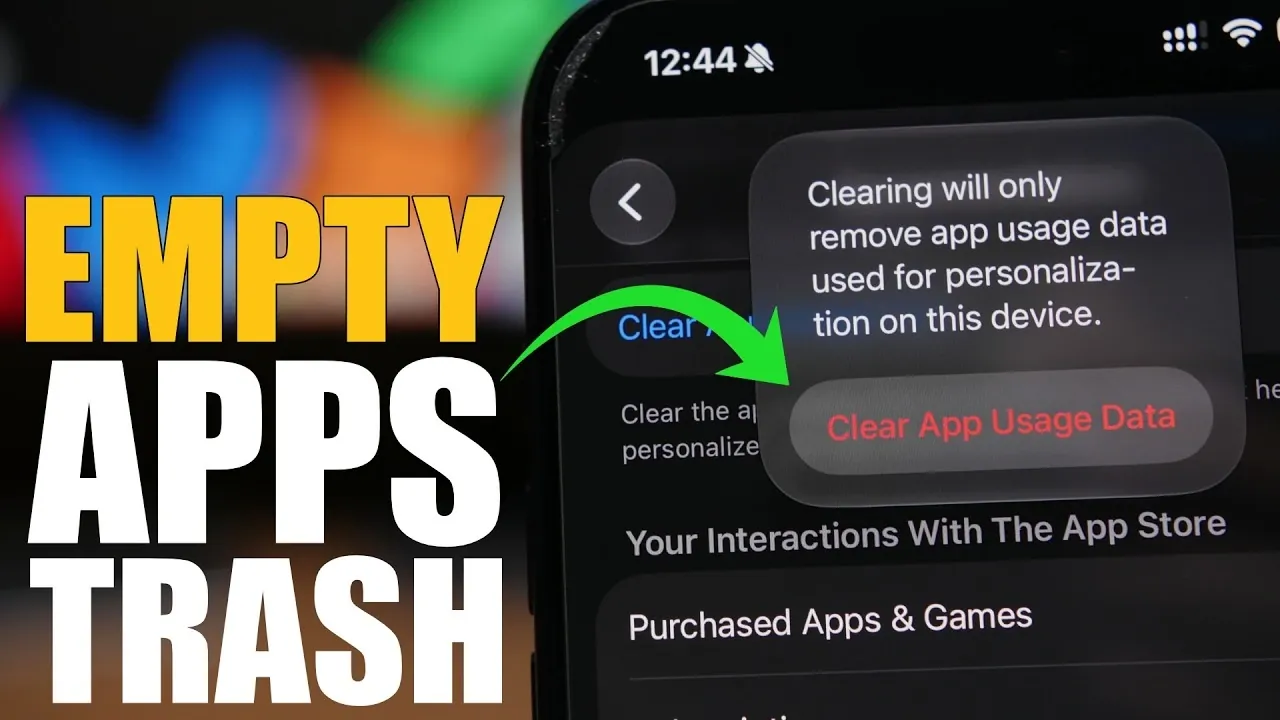
Efficiently managing your iPhone’s storage is crucial for maintaining its performance and making sure a seamless user experience. Over time, temporary files, cached data, and unused content can accumulate, consuming valuable storage space. By following these practical steps, you can optimize your device’s storage, improve its responsiveness, and extend its usability. The video below from iReviews gives us more details.

1. Clear App Data to Free Up Storage
Apps on your iPhone often generate and store temporary files, such as cached data, which can quickly occupy significant storage. Managing this data is an effective way to reclaim space and enhance your device’s performance.
- Access Settings > App Store > Personalized Recommendations to clear cached data related to app suggestions. This action does not affect the functionality of your apps.
- Review app storage usage under Settings > General > iPhone Storage. Identify apps with excessive cached data and consider deleting and reinstalling them to reset their storage footprint.
By regularly managing app data, you can prevent unnecessary storage consumption and ensure your iPhone operates efficiently.
2. Manage Safari Browser Data
Safari, the default browser on your iPhone, stores browsing history, cookies and cached files that can accumulate over time. Clearing this data not only frees up storage but also enhances your privacy.
- Navigate to Settings > Safari > Clear History and Website Data to remove all stored browsing information in one step.
- For more granular control, go to Settings > Safari > Advanced > Website Data and delete data from specific websites.
Regularly managing Safari data ensures that your browser runs smoothly while protecting your personal information.
3. Delete Email Attachments and Empty the Trash
Emails and their attachments can quietly consume a significant portion of your iPhone’s storage. Taking steps to manage this data can help you reclaim space.
- Open the Mail app and navigate to the trash folder. Permanently delete emails you no longer need to prevent them from occupying storage.
- Manually review and remove large email attachments that are no longer necessary.
By routinely clearing your email trash and attachments, you can prevent unnecessary files from lingering on your device.
4. Remove iMessage Attachments
iMessages, particularly those containing photos, videos, or other media, can take up considerable storage space. Even after deletion, these files may remain in the “Recently Deleted” folder for 30 days unless removed permanently.
- Go to Settings > Messages > Recently Deleted and delete the files permanently to free up space.
This step ensures that unnecessary media files are completely removed from your iPhone, allowing you to reclaim valuable storage.
5. Empty Recently Deleted Folders
Many apps on your iPhone, such as Photos, Notes and Voice Memos, include “Recently Deleted” folders where files are stored temporarily before being permanently erased. These files continue to occupy storage until removed.
- Open the app (e.g., Photos) and navigate to the “Recently Deleted” folder.
- Select the files you no longer need and delete them permanently.
Emptying these folders is a simple yet effective way to ensure that deleted items no longer consume storage space.
6. Offload Unused Apps
If you have apps that you rarely use but don’t want to delete entirely, offloading them can be a practical solution. This feature removes the app itself while retaining its data, allowing you to reinstall it later without losing any information.
- Go to Settings > General > iPhone Storage and identify apps you rarely use.
- Select the app and tap Offload App to free up space while keeping its data intact.
This option is particularly useful for managing storage without permanently removing apps you may need in the future.
7. Use iCloud for Storage Optimization
Using iCloud can help you manage your iPhone’s storage more effectively by offloading photos, videos and other files to the cloud. This reduces the burden on your device’s internal storage.
- Enable iCloud Photos under Settings > [Your Name] > iCloud > Photos to store your photo library in the cloud while keeping optimized versions on your device.
- Use iCloud Drive to store documents and other files, freeing up space on your iPhone.
By using iCloud, you can maintain access to your files while making sure your device remains responsive and efficient.
8. Perform Regular Storage Maintenance
Proactively managing your iPhone’s storage on a regular basis can prevent issues from accumulating over time. Set aside time to review and clear unnecessary files, optimize app data and manage your storage settings.
- Periodically review your storage usage under Settings > General > iPhone Storage to identify areas where space can be reclaimed.
- Delete old files, unused apps and redundant data to keep your device running smoothly.
Consistent maintenance ensures that your iPhone remains optimized for performance and usability.
By following these steps, you can take control of your iPhone’s storage, making sure it operates efficiently and provides a seamless user experience. Regularly clearing unnecessary files, managing app and browser data and using tools like iCloud will help you maintain a device that is both responsive and reliable.
Uncover more insights about iPhone storage optimization in previous articles we have written.
- iOS 26 Guide: How to Safely Clear iPhone System Data (2026)
- “iOS 26: How to Clear System Data & Free Up iPhone Storage
- iOS 26 Storage HACK: 7 Settings to FREE UP Space INSTANTLY
- How to Clean Out the Hidden Trash Ruining Your iPhone Storage
- iPhone Storage Full? Reclaim Space with These Easy Tips
Source & Image Credit: iReviews
Disclosure: Some of our articles include affiliate links. If you buy something through one of these links, Geeky Gadgets may earn an affiliate commission. Learn about our Disclosure Policy.
