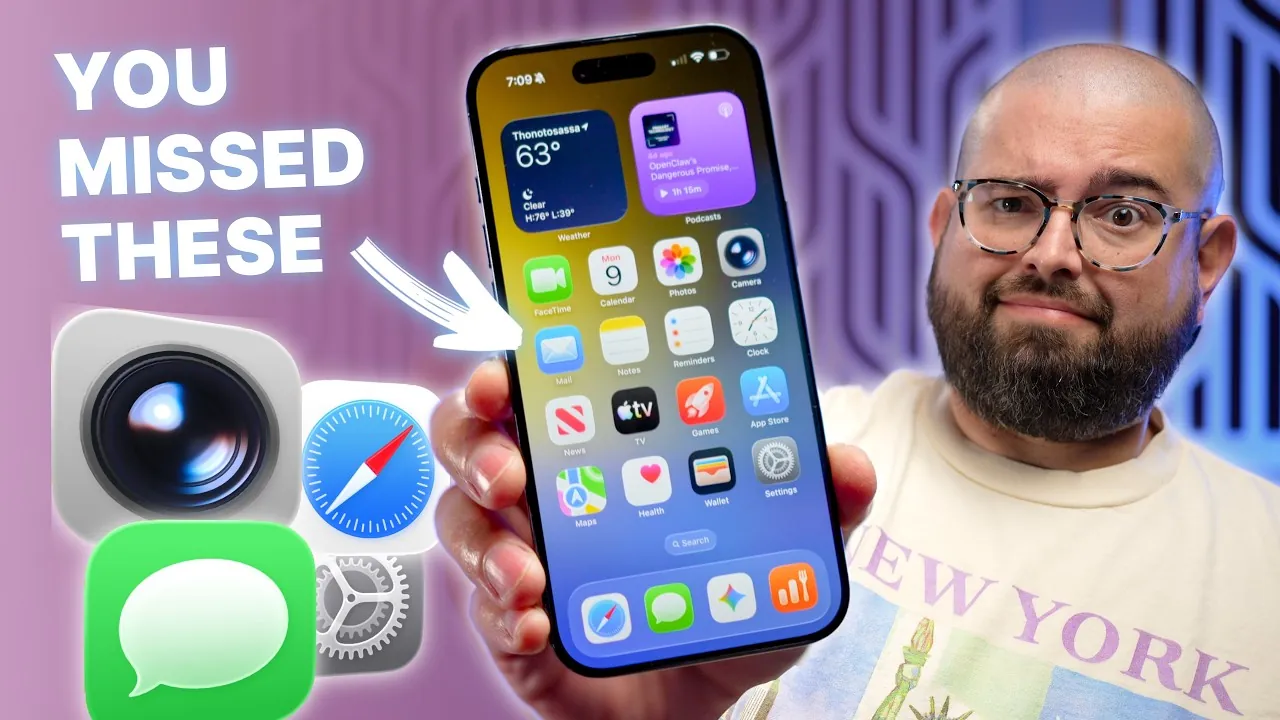
Setting up a new iPhone presents an opportunity to customize your device for optimal performance and usability. While Apple’s default settings aim to cater to a wide audience, they often fail to address individual preferences or maximize efficiency. By adjusting key settings, you can enhance customization, streamline notifications, and improve overall functionality, making sure your iPhone works exactly the way you need it to. The video below from Stephen Robles gives us more details.
Home Screen Customization
The home screen serves as the central hub of your iPhone, and tailoring it to your needs can significantly improve productivity and ease of use. Consider these steps to make your home screen more functional:
- Reorganize or Remove Default Screens: Begin by decluttering your home screen. Delete unnecessary pages and focus on apps and widgets that you use most frequently.
- Prevent App Clutter: Stop newly downloaded apps from automatically appearing on your home screen. Enable the “App Library Only” option in Settings to keep your layout clean and organized.
- Optimize Widgets: Add widgets that provide quick access to essential information, such as weather updates, calendar events, or reminders. This can save time and reduce the need to open multiple apps.
Customizing your home screen ensures that your most-used tools are always within reach, improving both efficiency and accessibility.
Notification Management
Uncontrolled notifications can quickly become overwhelming, distracting you from important tasks. Fine-tuning your notification settings can help you stay informed without unnecessary interruptions:
- Disable Notification Badges: Turn off badges for non-essential apps to reduce visual clutter and maintain focus.
- Use Scheduled Summaries: Group non-urgent notifications into scheduled summaries. This allows you to receive updates at specific times rather than being interrupted throughout the day.
- Customize Alerts: Adjust individual app notification settings to prioritize alerts from apps that matter most, such as messaging or productivity tools.
By managing notifications effectively, you can maintain focus while staying up-to-date on critical updates.
Control Center and Lock Screen Customization
The Control Center and lock screen are essential for quick access to frequently used tools and information. Customizing these areas can save time and improve convenience:
- Add Shortcuts: Personalize the Control Center by adding shortcuts to tools like screen recording, flashlight, or low-power mode. This ensures instant access to features you use most often.
- Personalize Lock Screen Widgets: Display important widgets, such as your calendar, alarms, or smart home controls, directly on the lock screen. This allows you to view critical information without unlocking your device.
- Enable Quick Actions: Use lock screen shortcuts for tasks like opening the camera or accessing wallet features, streamlining your interactions with the device.
These adjustments make your iPhone more intuitive and efficient, making sure that essential tools are always at your fingertips.
Camera and Video Settings
The iPhone’s camera is a powerful tool, but its default settings may not fully use its capabilities. Adjusting these settings can significantly enhance your photography and video quality:
- Upgrade Video Resolution: Change the default recording resolution from 1080p to 4K for sharper, more detailed footage.
- Enable Burst Mode: Use the volume up button to activate burst mode, making it easier to capture fast-moving subjects.
- Adjust Preferences: Customize live photo settings, frame previews, and HDR options to align with your shooting style and preferences.
- Use ProRAW and ProRes: For advanced users, enable ProRAW for photos and ProRes for videos to capture professional-grade content.
These tweaks ensure that your iPhone camera delivers the best possible results, whether you’re capturing everyday moments or creating high-quality content.
Privacy and Security Settings
Protecting your personal information is a top priority. Adjusting privacy and security settings can safeguard your data and provide peace of mind:
- Restrict Access When Locked: Limit access to features like the Control Center, voice assistant, and wallet while your phone is locked. This prevents unauthorized use if your device is lost or stolen.
- Enable Face ID for Private Browsing: Add an extra layer of security to Safari’s private browsing mode by requiring Face ID authentication.
- Review App Permissions: Regularly check and update app permissions to ensure that only necessary data is being shared.
- Activate Advanced Tracking Protection: Use Apple’s built-in tracking prevention tools to block apps and websites from collecting unnecessary data.
These measures help keep your personal information secure and reduce the risk of unauthorized access.
Shortcuts and Automations
Streamlining repetitive tasks with shortcuts and automations can save time and enhance your daily workflows. Explore these options to make your iPhone more efficient:
- Use the Action Button: Assign specific shortcuts or frequently used folders to the action button for quick access to your favorite features.
- Create Automations: Use Apple’s automation tools to set up routines triggered by time, location, or device activity. For example, you can automatically enable Do Not Disturb mode during meetings or lower screen brightness at night.
- Explore Third-Party Apps: Use apps like Widgetsmith or Shortcuts to create custom widgets and automate complex tasks.
These tools allow you to personalize your iPhone experience and reduce the time spent on repetitive actions.
Additional Settings to Explore
Beyond the basics, there are several lesser-known settings that can further enhance your iPhone experience:
- Keep Audio with Headphones: Maintain playback when switching between headphones and car Bluetooth for uninterrupted listening.
- Adjust Screenshot Behavior: Disable full-screen previews to avoid distractions while capturing screenshots.
- Enable Visual Lookup: Use this feature to identify objects, landmarks, or text in photos, making it a valuable tool for research or travel.
- Set Urgent Reminders: Use alarms in the Reminders app to ensure critical tasks are completed on time.
- Sync Text Messages: Forward SMS to other Apple devices for seamless communication across your ecosystem.
- Activate Call Screening: Filter unknown callers to minimize interruptions and focus on important calls.
These settings provide additional functionality and customization, making your iPhone more intuitive and user-friendly.
Safari Adjustments
Safari’s default settings may not align with your browsing habits. Customizing these options can improve both usability and security:
- Adjust Tab Bar Layout: Choose between tabs at the bottom or top of the screen based on your preference for easier navigation.
- Secure Private Browsing: Enable Face ID to protect sensitive information when using private browsing mode, making sure your data remains secure.
- Enable Reader Mode: Simplify web pages by allowing Reader Mode, which removes ads and distractions for a cleaner reading experience.
These adjustments enhance your browsing experience, making it more tailored to your needs while prioritizing security and convenience.
Here is a selection of other guides from our extensive library of content that you may find of interest on iPhone settings optimization.
- iOS 26 Settings You Need to Change
- Maximize Your iPhone Battery Life with These Genius iOS 26 Hacks
- Optimize Your New iPhone: Crucial Settings to Adjust Right Away
- How to Optimize iPhone Battery Settings on iOS 26
- Speed & Power: Essential Settings for Your iPhone 17 Pro Max
Source & Image Credit: Stephen Robles
Disclosure: Some of our articles include affiliate links. If you buy something through one of these links, Geeky Gadgets may earn an affiliate commission. Learn about our Disclosure Policy.
