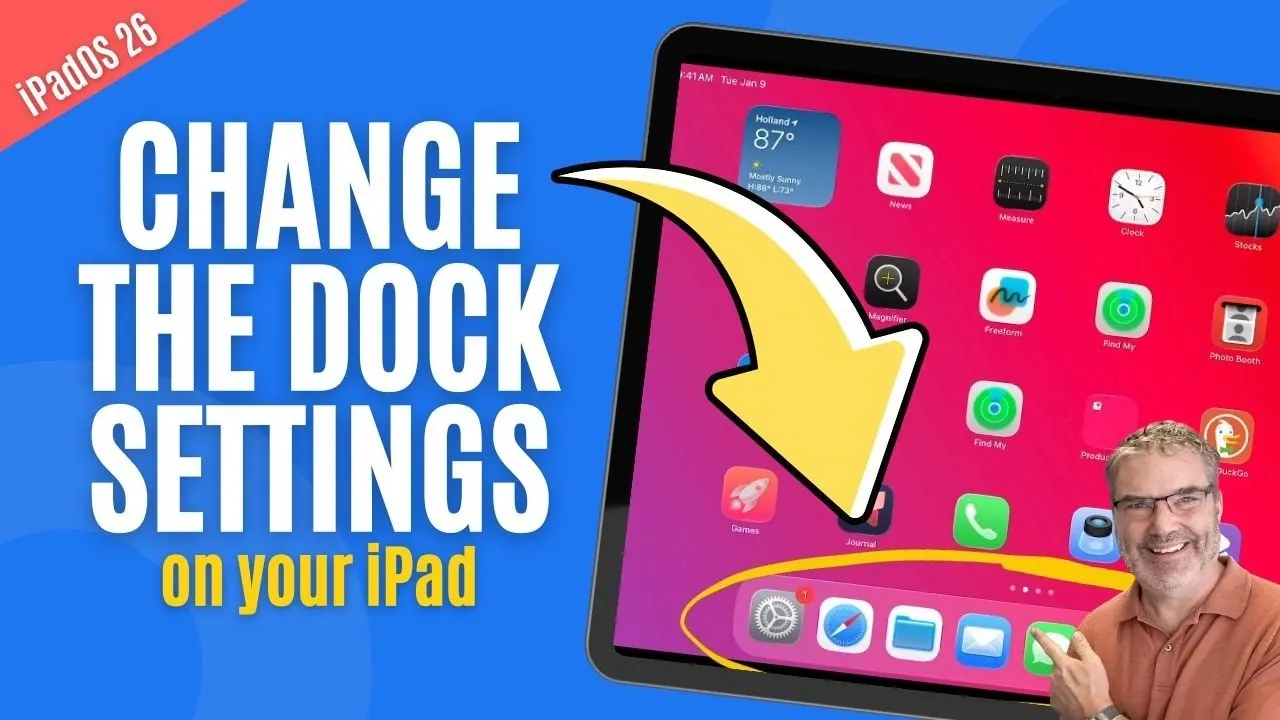
Have you ever stopped to think about how much time you spend navigating your iPad? If your dock isn’t set up effectively, you might be wasting precious seconds, or even minutes, every day. Dan’s Tutorials breaks down how a well-organized iPad dock can do more than just hold your favorite apps; it can completely transform how you interact with your device. From boosting productivity to simplifying multitasking, the dock is a feature that often goes underutilized, yet it holds the key to a smoother, more efficient workflow. Whether you’re a casual user or rely on your iPad for work, there’s a good chance your dock could use a refresh.
In this breakdown, we’ll explore how to customize your dock to better suit your needs, whether that means adding folders for better organization, decluttering unnecessary apps, or allowing features like the App Library for quick access. You’ll also discover how to use the dock to enhance multitasking, making it easier to switch between apps or drag and drop content. If you’ve ever wondered how to make your iPad feel more intuitive and tailored to your daily routine, this guide will give you the insights you need to take full advantage of this often-overlooked feature. Sometimes, the smallest changes can have the biggest impact.
Optimizing Your iPad Dock
TL;DR Key Takeaways :
- The iPad dock is a versatile tool for productivity, allowing quick access to favorite and recent apps, as well as organized folders.
- Apps can be added to or removed from the dock by dragging and dropping, allowing a customized and clutter-free layout.
- Folders in the dock help save space and group similar apps, making navigation more efficient and organized.
- The dock is divided into “Favorite Apps” and “Recent Apps” sections, which can be customized via settings to suit user preferences.
- The dock is accessible within apps through a swipe-up gesture, allowing multitasking features like drag-and-drop for seamless workflow management.
How to Add Apps to Your Dock
Adding apps to your dock is a straightforward process that can significantly improve your efficiency. By keeping your most-used tools within easy reach, you can save time and effort. Here’s how to do it:
- Press and hold an app icon on the home screen until it starts to wiggle.
- Drag the app into the dock and release it in your desired position.
The dock has a limited capacity, so it’s important to prioritize the apps you use most frequently. A well-curated dock ensures that your essential tools are always accessible, regardless of which home screen you’re on. Consider adding apps that you rely on daily, such as email, calendar, or note-taking tools, to maximize convenience.
Decluttering: Removing Apps from the Dock
An overcrowded dock can make navigation cumbersome and reduce its overall effectiveness. Removing unnecessary apps is a simple way to maintain a clean and organized layout. To remove an app from the dock:
- Press and hold the app icon in the dock until it starts to wiggle.
- Drag the app out of the dock and place it back on the home screen.
This process allows you to focus on the apps that truly matter. Regularly reviewing and decluttering your dock ensures that it remains a functional and efficient tool. By keeping only the most relevant apps, you can streamline your workflow and reduce distractions.
Is Your iPad Dock Set Up Right? Let’s find out!

Learn more about Apple’s iPad with the help of our in-depth articles and helpful guides.
- iPad Ultra 2026: The New Release Timeline Just Leaked
- iPad Ultra Leaks: Specs, Features, and Potential Release Date
- M5 iPad Pro Leaks: OLED Display, M5 Chip, and Dual Face ID
- Rumor: The NEW iPad Air with M4 and OLED Display is Coming!LAY
- 2026 iPad Air Rumors: M4 Chip and OLED Display
- The M5 iPad Pro’s Secret: A Larger Display Is Coming
- M5 iPad Pro: The MagSafe LEAK You Didn’t See Coming!
- Is iPad ULTRA Coming? 2025 Predictions
- Apple’s OLED Rollout: How It Impacts the M4 iPad Air
- iPad Mini 7: Everything We Know So Far
Maximizing Space with Folders
Folders are an excellent way to organize your dock while saving space. By grouping similar apps into a folder, you can keep related tools together and maintain a tidy layout. Here’s how to create and use folders in your dock:
- Drag one app onto another to create a folder.
- Rename the folder to reflect its contents, such as “Work” or “Entertainment.”
- Drag the folder into the dock.
It’s important to note that folder names won’t appear in the dock, so grouping apps with distinct and recognizable icons can help you quickly identify them. Folders are particularly useful for organizing apps you use less frequently but still want to keep accessible, such as photo editing tools or social media platforms.
Understanding and Customizing the Dock’s Layout
The iPad dock is divided into two main sections, each serving a specific purpose:
- Favorite Apps: These appear on the left side and include the apps you manually add to the dock.
- Recent Apps: Located on the right side, this section displays the apps you’ve used most recently. A vertical line separates the two areas for clarity.
You can customize the recent apps feature to better suit your preferences. To do this, open the Settings app and navigate to Home Screen and App Library. From there, you can toggle the Show Recent Apps option on or off. Disabling this feature allows you to dedicate the entire dock to your favorite apps, while allowing it provides quick access to recently used tools.
Additionally, you can enable the App Library in Dock feature, which offers a categorized view of all your apps directly from the dock. This can be particularly useful for quickly locating less frequently used apps without cluttering your home screen.
Accessing the Dock While Using Apps
One of the dock’s most convenient features is its accessibility within other apps. This allows you to multitask efficiently without interrupting your current activity. To reveal the dock while using an app:
- Swipe up slightly from the bottom of the screen.
This functionality is especially useful for tasks that require switching between apps or using the drag-and-drop feature. For example, you can drag text, images, or files from one app to another, streamlining your workflow. Whether you’re editing a document, responding to emails, or managing files, the dock ensures that your tools are always within reach.
Enhancing Multitasking and Navigation
The iPad dock is more than just a storage space for apps, it’s a central hub for multitasking and navigation. By customizing its layout and using features like folders, recent apps, and the app library, you can create a seamless and efficient workflow. Whether you’re managing a project, organizing personal tasks, or simply browsing, the dock ensures that everything you need is just a swipe away.
Take the time to evaluate your current dock setup and make adjustments as needed. By optimizing your dock, you can transform your iPad into a more powerful and user-friendly device, tailored to your unique needs and preferences.
Media Credit: Dan’s Tutorials
Disclosure: Some of our articles include affiliate links. If you buy something through one of these links, Geeky Gadgets may earn an affiliate commission. Learn about our Disclosure Policy.
