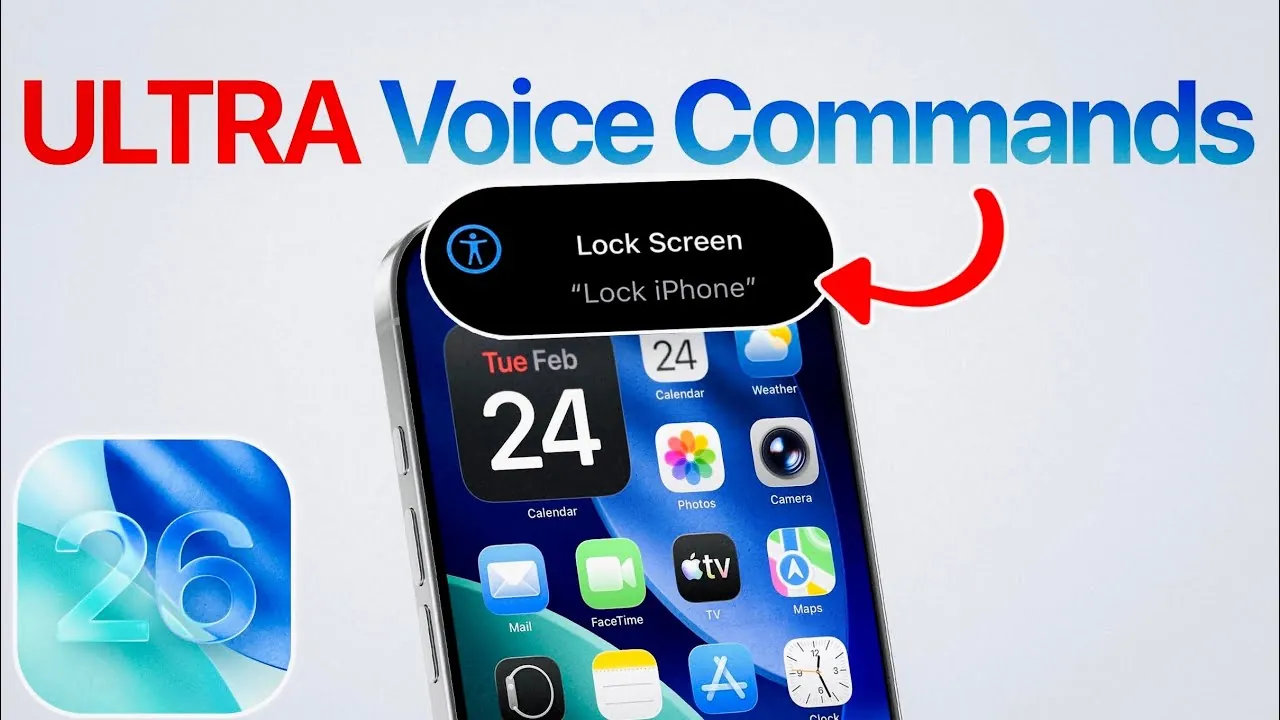
Apple’s iOS 26 introduces a new feature called “Vocal Shortcuts,” designed to transform how you interact with your iPhone. This innovative tool allows you to create custom voice commands that bypass Siri, making sure your commands are directed solely to your iPhone without inadvertently activating other Apple devices. With Vocal Shortcuts, you gain a new level of personalized control, enhancing both convenience and functionality in your daily interactions. The video below from iDeviceHelp gives us more details.
What Are Vocal Shortcuts?
Vocal Shortcuts are a customizable voice control feature exclusive to iPhones running iOS 26. Unlike Siri, which can sometimes trigger multiple Apple devices simultaneously, Vocal Shortcuts are designed to focus solely on your iPhone. This feature enables you to assign specific words or phrases to execute actions, offering a more targeted, efficient, and user-centric way to manage your device. By tailoring commands to your preferences, Vocal Shortcuts provide a seamless and intuitive experience that adapts to your unique needs.
How to Set Up Vocal Shortcuts
Setting up Vocal Shortcuts is a simple process that allows you to configure your iPhone for personalized voice commands. Follow these steps to get started:
- Navigate to your iPhone’s Accessibility settings.
- Locate and enable the Vocal Shortcuts option.
- Choose the type of action you want to control, such as system actions, Siri requests, shortcuts, or accessibility features.
- Record a unique phrase or word to serve as the trigger for the selected action.
Once configured, these commands allow you to streamline your interactions with your iPhone, making it more responsive to your specific needs.
Practical Applications of Vocal Shortcuts
Vocal Shortcuts are designed to simplify everyday tasks by allowing you to control your iPhone with customized voice commands. Here are some practical examples of how you can use this feature:
- Lock your device: Say “Lock iPhone” to instantly secure your screen.
- Control the flashlight: Use phrases like “Enable Flash” or “Disable Flash” to toggle the flashlight on or off.
- Switch to Dark Mode: A command such as “Dark Mode On” can adjust your display settings effortlessly.
- Access the camera: Say “Open Camera” or “Take Photo” for quick photography actions.
- Launch apps: Use commands like “Open Maps” or “Start Music” to access specific apps instantly.
These examples demonstrate how Vocal Shortcuts can make your iPhone more intuitive and efficient, allowing you to perform tasks quickly without navigating through menus or using physical controls.
Customization Options
One of the standout features of Vocal Shortcuts is its extensive customization capabilities, allowing you to tailor the feature to your specific needs. You can configure commands for a wide range of actions, including:
- System actions: Perform tasks such as locking your screen, allowing Dark Mode, adjusting volume, or controlling the camera.
- Accessibility features: Set up commands to activate tools like VoiceOver, Magnifier, or AssistiveTouch, improving usability for individuals with specific needs.
- Shortcuts: Link voice commands to pre-configured automation workflows, allowing you to perform complex tasks with a single phrase.
- App-specific actions: Create commands to interact with specific apps, such as sending a message, setting a reminder, or starting a timer.
This level of flexibility ensures that your iPhone adapts to your lifestyle, providing a personalized and seamless user experience.
Key Benefits of Vocal Shortcuts
The introduction of Vocal Shortcuts in iOS 26 offers several significant advantages, making it a valuable addition to Apple’s ecosystem:
- Precision: By bypassing Siri, Vocal Shortcuts eliminate the risk of accidentally activating other Apple devices, making sure your commands are directed solely to your iPhone.
- Personalization: Tailor commands to suit your specific preferences, allowing for a more intuitive and user-friendly experience.
- Accessibility: Enhance usability for individuals with mobility, vision, or other challenges by providing hands-free control and easy access to essential features.
- Efficiency: Save time by performing tasks quickly and directly, without the need to navigate through menus or rely on physical controls.
- Enhanced productivity: Link commands to automation workflows, allowing you to perform multiple actions with a single phrase.
These benefits highlight how Vocal Shortcuts can improve both the functionality and accessibility of your iPhone, making it a more versatile tool for everyday use.
Why Vocal Shortcuts Matter
Vocal Shortcuts represent a significant step forward in voice control technology, offering a level of customization and precision that was previously unavailable. By allowing you to create commands tailored to your specific needs, this feature enhances the overall usability of your iPhone. Whether you’re looking to simplify routine tasks, improve accessibility, or increase productivity, Vocal Shortcuts provide a powerful and flexible solution. With iOS 26, Apple continues to prioritize user-centric design, making sure that your iPhone adapts to your lifestyle and preferences.
Here are additional guides from our expansive article library that you may find useful on iOS 26.
- OS 26.3 Update: Performance, Battery, and Key Features
- 6 Things You Must Do First After Installing iOS 26.3 on Your iPhone
- iOS 26.3 Beta 1 Features, Updates, and Performance
- Apple iOS 26.3 Beta: Key Highlights, Features, and Release
- Apple Releases iOS 26.3: Why This Update is Critical for Your Privacy
Source & Image Credit: iDeviceHelp
Disclosure: Some of our articles include affiliate links. If you buy something through one of these links, Geeky Gadgets may earn an affiliate commission. Learn about our Disclosure Policy.
