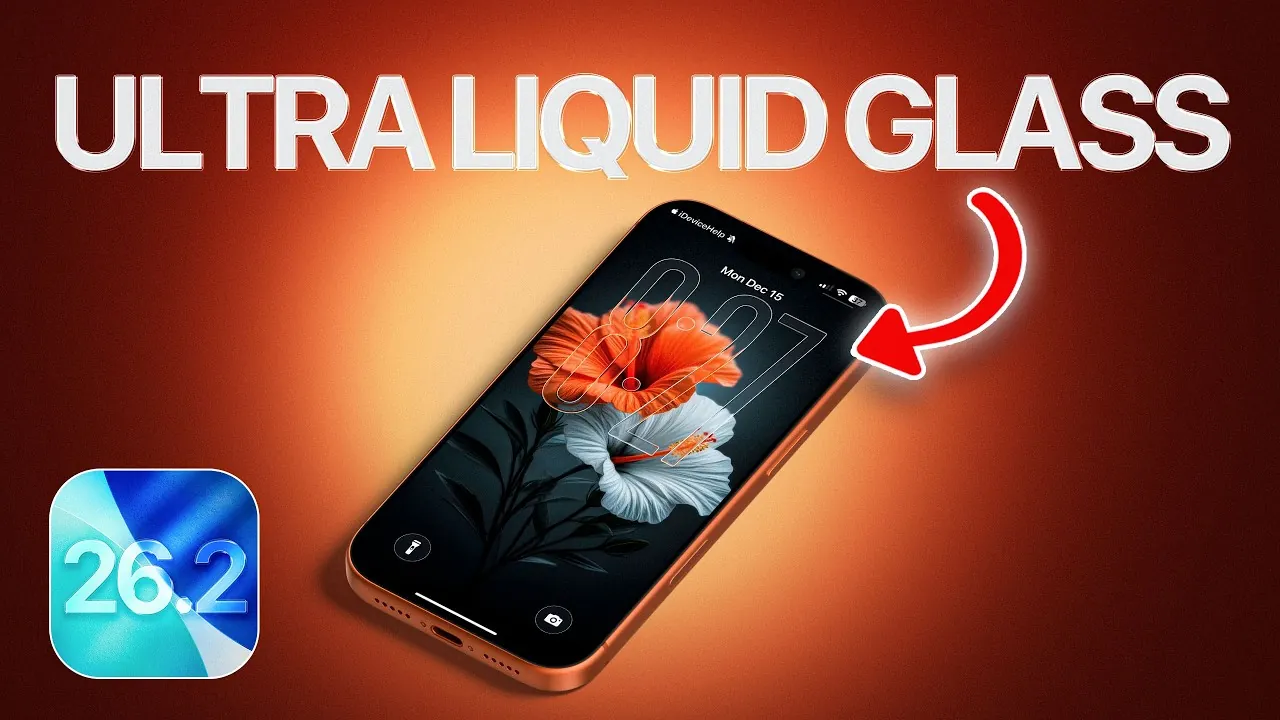
Apple’s iOS 26.2 introduces the ultra liquid glass aesthetic, a visually captivating design that enhances your iPhone’s interface with sleek transparency and modern elegance. This feature allows users to customize their device with a refined, minimalist appearance while maintaining functionality and clarity. By following the video below from iDeviceHelp, you can transform your iPhone into a personalized, innovative device that stands out for its aesthetic appeal and usability.
Step 1: Update Your iPhone to iOS 26.2
To access the ultra liquid glass aesthetic, your iPhone must be running iOS 26.2 or later. This update includes the necessary features and settings to enable the design. Follow these steps to ensure your device is up to date:
- Open Settings > General > Software Update to check your current version.
- If an update is available, tap Download and Install to upgrade to iOS 26.2.
Updating your device is a critical first step, as it unlocks the customization tools required for the liquid glass effect.
Step 2: Select the Ideal Wallpaper
The foundation of the ultra liquid glass aesthetic lies in choosing the perfect wallpaper. A dark or gradient background with subtle color accents enhances the transparency effect, creating depth and sophistication. To set or upload a wallpaper:
- Go to Settings > Wallpaper and browse Apple’s curated collection for optimized designs.
- Alternatively, upload your own image to personalize the look.
Selecting the right wallpaper ensures that the liquid glass effect is visually striking while maintaining readability across your device.
Step 3: Refine Your Lock Screen
The lock screen plays a pivotal role in showcasing the ultra liquid glass aesthetic. By customizing its elements, you can achieve a clean and modern appearance. Adjust the following settings:
- Increase the clock size by navigating to Settings > Lock Screen > Clock Style and selecting “Large.”
- Enable the liquid glass effect by toggling the Liquid Glass option under Lock Screen Settings.
- Turn off blur effects for a sharper display by disabling Blur Background in the same menu.
These changes create a sleek lock screen that seamlessly integrates with the overall design.
Step 4: Optimize Display Settings
Fine-tuning your display settings is essential for achieving the desired level of transparency and sharpness. Adjust these options to enhance the visual clarity of your device:
- Enable the “Clear” display mode under Settings > Display & Brightness > Liquid Glass for a crisp interface.
- Activate Show Borders under Accessibility > Display & Text Size to improve visibility and definition.
These settings ensure that your iPhone’s interface remains both visually appealing and easy to navigate.
Step 5: Customize Your Home Screen
The home screen serves as the centerpiece of the ultra liquid glass aesthetic. By personalizing its layout and appearance, you can create a cohesive and polished design. Follow these steps:
- Select the “Light” icon style under Settings > Home Screen > Icon Style for a minimalist look.
- Adjust the wallpaper brightness to “Bright” in Wallpaper Settings to enhance contrast and visibility.
- Enlarge app icons and remove labels by toggling these options in Home Screen Settings for a cleaner layout.
These adjustments result in a home screen that is both functional and visually harmonious.
Step 6: Extend the Aesthetic System-Wide
To achieve a unified design, apply the liquid glass effect across your entire system. This ensures that every element of your iPhone reflects the same sleek aesthetic. Make the following changes:
- Enable transparency for notifications, app icons, and folders under Settings > System-Wide UI Adjustments.
- Activate the liquid glass effect for widgets and control center elements to maintain consistency.
These system-wide enhancements tie together all aspects of your device, creating a seamless and immersive experience.
Elevate Your iPhone Experience
By following these steps, you can fully embrace the ultra liquid glass aesthetic introduced in iOS 26.2. From selecting the perfect wallpaper to fine-tuning system-wide settings, each customization enhances your iPhone’s appearance and usability. This design not only modernizes your device but also provides a cohesive and visually stunning interface that reflects your personal style. With its blend of transparency, clarity, and sophistication, the ultra liquid glass aesthetic transforms your iPhone into a standout device in both form and function.
Master iOS 26.2 with the help of our in-depth articles and helpful guides.
- How to Fix iOS 26.2 Battery Drain on Your iPhone
- Preparing for iOS 26.2: Tips to Ensure a Smooth iPhone Update
- iOS 26.2 vs. iOS 26.1: Key Features Compared
- iOS 26.2 Release Candidate: Complete Feature Breakdown
- How to Prepare Your iPhone for the iOS 26.2 Update
Source & Image Credit: iDeviceHelp
Disclosure: Some of our articles include affiliate links. If you buy something through one of these links, Geeky Gadgets may earn an affiliate commission. Learn about our Disclosure Policy.
