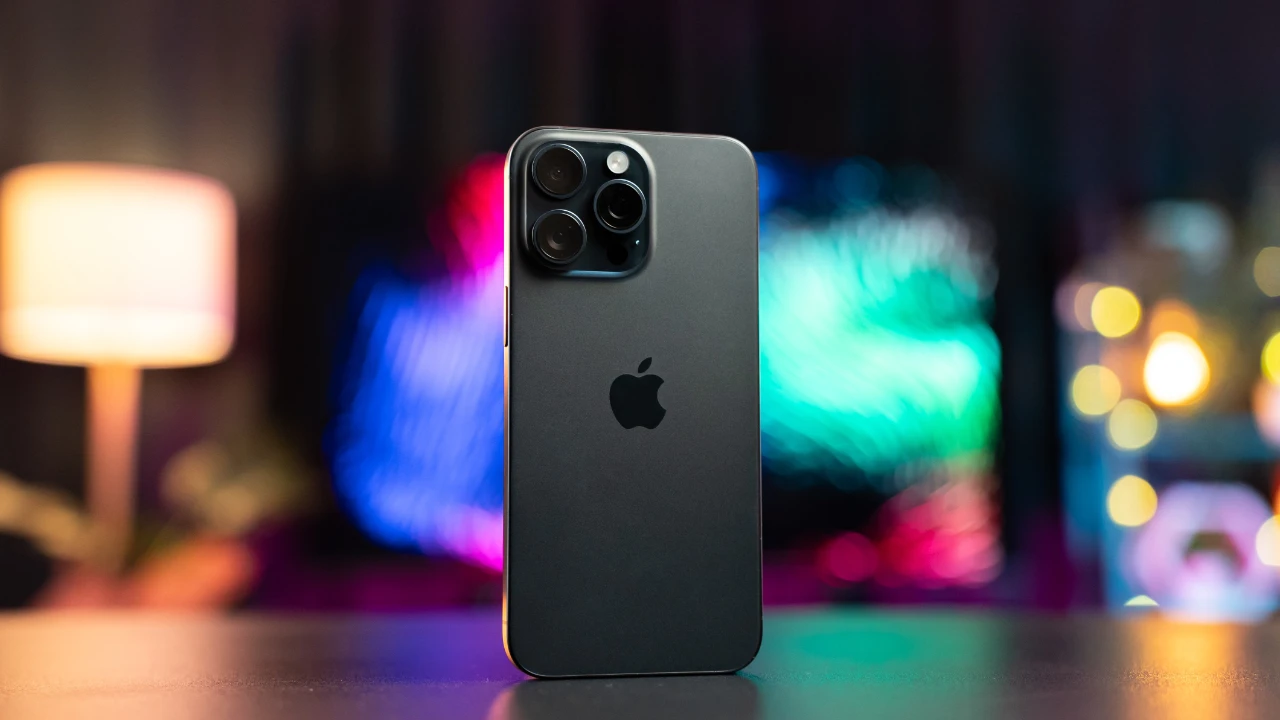
In today’s fast-paced world, smartphone usage has become ubiquitous, and managing incoming calls can be a challenge, especially when you’re away from your device or need to prioritize specific calls. To address these scenarios, Apple provides two valuable features called Call Forwarding and Call Waiting. These features empower you to control how your iPhone handles incoming calls based on your individual requirements.
Mastering Call Forwarding: Diverting Calls to Your Convenience
Call forwarding is a feature that automatically sends incoming calls to a different phone number or voicemail. This can be highly beneficial if you’re temporarily unavailable, traveling, or want to divert calls to a different device.
To enable Call Forwarding on your iPhone, follow these straightforward steps:
- Embark on the Settings app on your iPhone.
- Navigate to the Phone section by scrolling down.
- Tap on the Call Forwarding option.
- Enter the phone number where you want your calls to be forwarded.
- Finally, tap on Enabled to activate call forwarding.
To disable call forwarding, simply repeat these steps and tap on Disabled.
Navigating Different Call Forwarding Scenarios
Apple offers three types of call forwarding to cater to various needs:
- Always: This mode forwards all incoming calls, regardless of whether your iPhone is ringing or not.
- When unanswered: This option forwards calls after a specified number of rings, which you can customize in the settings.
- When busy: With this setting, calls are forwarded if your iPhone is already in use.
Unleashing Call Waiting: Juggling Multiple Conversations Seamlessly
Call waiting allows you to accept an incoming call while you’re already engaged in a conversation. This feature proves invaluable when juggling multiple calls or ensuring that important messages don’t go unnoticed.
To enable call waiting on your iPhone, follow these easy-to-follow steps:
- Open the Settings app on your iPhone.
- Scroll down and tap on the Phone section.
- Locate the Call Waiting option and tap on it.
- Toggle the Call Waiting switch to the On position.
- To disable call waiting, simply repeat these steps and toggle the switch to Off.
Understanding Call Waiting Behavior
When call waiting is activated, you’ll receive a beep or vibration to indicate an incoming call. At this point, you can put your current call on hold and answer the new one using the Speakerphone button. Alternatively, you can merge the two calls into a three-way conference call by pressing the Merge button.
Additional Considerations for Effective Call Management
Call forwarding and call waiting services may incur charges from your cellular carrier. Check with your provider for specific pricing information.
If you encounter any issues with call forwarding or call waiting, reach out to your cellular carrier’s customer support for assistance.
By utilizing call forwarding and call waiting effectively, you can streamline your iPhone’s handling of incoming calls, ensuring that important messages reach you whenever and wherever you are. You can find out more details about managing call forwarding on your iPhone over at Apple’s website.
Image Credit: Amanz
Disclosure: Some of our articles include affiliate links. If you buy something through one of these links, Geeky Gadgets may earn an affiliate commission. Learn about our Disclosure Policy.
