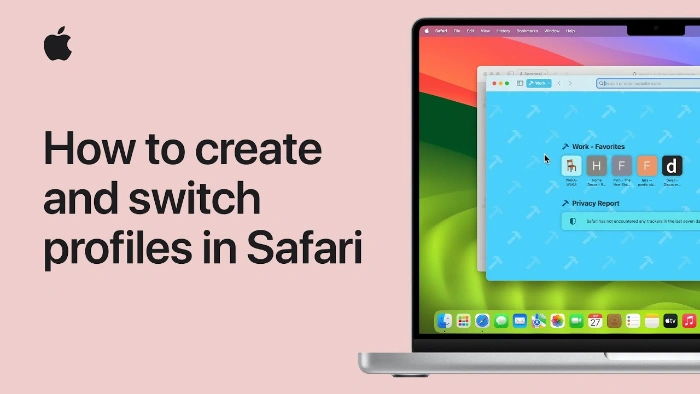
The new macOS Sonoma software update has been released and it brings a range of new features to the Mac, one of these is the ability to create individual profiles on Apple’s Safari, this guide will show you how to create these profiles on your Mac.
Whether it’s for work, personal use, or a specific project, having separate browser profiles can be a game-changer. Apple’s Safari browser offers a robust feature set for creating and managing multiple profiles. In this article, we’ll delve into the step-by-step process of setting up Safari profiles, and explore the customization options that come along with it.

Creating a New Profile
To kickstart your journey into personalized browsing, open Safari and navigate to the menu bar. Here, you’ll find the option to ‘Create Profile’. Clicking on this will bring up a description that outlines what the new profile will entail. Essentially, it will be a fresh slate based on your current settings. To proceed, simply click on ‘Start Using Profiles’.
Naming and Customization
Once you’ve initiated the profile creation process, Safari will prompt you to name your new profile. This is your chance to make it uniquely yours. Alongside naming, you can also choose a symbol to represent your profile. While Safari will automatically assign a color to your new profile, you have the freedom to change it according to your preference.
Bookmarking Made Easy
A new profile also gives you the option to create a new Favorites folder. If you already have a folder filled with your go-to websites in your bookmarks, you can opt to use that instead. This feature offers a convenient way to keep your most-visited sites easily accessible.
Switching Between Profiles
Navigating between different profiles is a breeze. All you need to do is click on your profile icon located in the top-left corner of your start page. From there, you can either switch to another profile or open a new window with a different profile. This makes it incredibly easy to manage multiple online tasks simultaneously.
Data Segregation
One of the standout features of Safari profiles is data segregation. Each profile comes with its own set of bookmarks, AutoFill information, browsing history, favorites, cookies, and website data. This ensures that your different online activities remain distinct and organized.
Managing Extensions
Extensions can greatly enhance your browsing experience, and Safari allows you to manage these independently for each profile. Whether it’s an ad-blocker for your personal profile or a project management tool for your work profile, you can customize each to suit your specific needs.
Additional Features
When you switch profiles, you’ll still have access to all your bookmarks and AutoFill information like saved passwords, payment information, addresses, emails, and phone numbers. This adds an extra layer of convenience, making the transition between profiles smooth and hassle-free.
Summary
Creating and managing Safari profiles is a straightforward process that offers a multitude of benefits. From data segregation to personalized customization, Safari profiles provide a seamless way to juggle your various online activities. So go ahead, start creating your Safari profiles today and experience a more organized and efficient browsing experience.
Source & Image Credit: Apple / YouTube
Disclosure: Some of our articles include affiliate links. If you buy something through one of these links, Geeky Gadgets may earn an affiliate commission. Learn about our Disclosure Policy.
