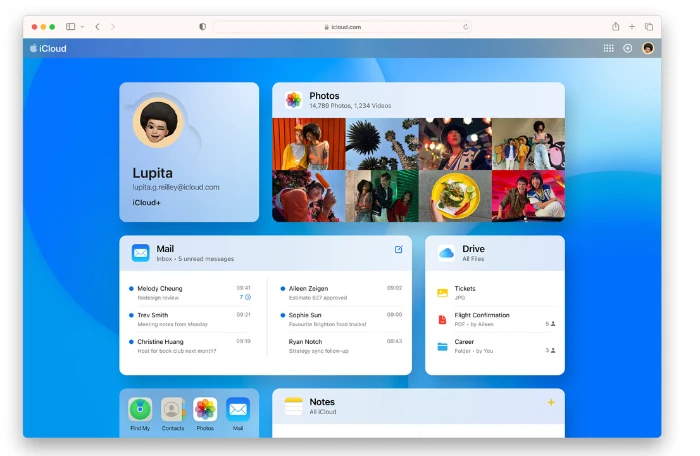
We previously looked at how to free up space on your iPhone, in this guide we will discover how to clear up iCloud storage, so you have more space in iCloud. As we embrace the digital age, we generate an increasing amount of digital content. Photos, videos, documents, backups, and apps take up significant storage space. If you’re an Apple user, you know that your iCloud storage is a precious commodity. Before you rush to purchase more storage space, consider a clean-up. Here’s how to efficiently manage and clear up your iCloud storage.
Firstly, it’s essential to understand what exactly is taking up your iCloud storage. Apple provides each iCloud account with 5GB of free storage. The storage space is primarily used for backups, photos, documents, and data from apps that use iCloud. Additional storage can be purchased, with options ranging from 50GB to 2TB.
Checking Your iCloud Storage
To find out how much storage you’re using:
- On your iPhone, iPad, or iPod touch, go to Settings > [your name] > iCloud.
- Tap “Manage Storage”.
Here, you can view a bar that displays the amount of storage used and available, as well as a list of apps that use iCloud and the amount of storage each is consuming.
How to Free Up iCloud Storage
1. Manage Your Backups
Backups can take up a lot of your iCloud storage. They include information such as app data, device settings, messages, photos, and more. If you’ve upgraded to a new device and kept the old backup, this could be consuming unnecessary space.
- Go to Settings > [your name] > iCloud > Manage Storage > Backups.
- Tap the name of the device whose backup you don’t need, then tap “Delete Backup”.
Also, you can reduce the size of your future backups by choosing which apps to back up.
2. Delete Unnecessary Documents and Data
You might be storing unnecessary files in your iCloud Drive.
- Go to iCloud Drive and tap “Select”.
- Choose the files or folders you want to delete, then tap the trash icon.
Remember, when you delete files from iCloud Drive, they’re also deleted from any devices set up to access iCloud Drive.
3. Manage Photos and Videos
Photos and videos can be some of the most significant space consumers, especially if you have iCloud Photos turned on.
You have two choices here:
- Disable iCloud Photos and store them only on your device. Go to Settings > [your name] > iCloud > Photos, then turn off iCloud Photos.
- Alternatively, enable ‘Optimize Storage’ under iCloud > Photos. This option keeps full-resolution versions of your photos and videos in iCloud and smaller, space-saving versions on your device.
4. Clean Up Mail
If you use iCloud for your email, your mail account can also take up space.
- To free up space, delete emails and attachments you no longer need. Remember to also empty the trash in your mail account by selecting “Edit” while viewing the trash folder, and then “Delete All”.
5. Limit the Storage for Apps Using iCloud
Many third-party apps use iCloud to store data, documents, and information.
- You can manage this by going to Settings > [your name] > iCloud > Manage Storage.
- Here, select an app under “Apps Using iCloud”, then choose “Delete Data” or turn off iCloud for that specific app.
Freeing up iCloud storage may seem like a daunting task, but with these steps, you’ll find it’s manageable. Remember to review your storage regularly to avoid filling it up with unnecessary data. If you need more storage despite cleaning up, you can always purchase one of Apple’s iCloud storage plans starting at $0.99 per month. You can find out more information about managing your iCloud storage over at Apple.
Clearing up your iCloud storage ensures you have space for what matters most and keeps your devices running smoothly. Don’t let digital clutter weigh you down. We hope that you find this guide information, if you have any comments, questions, or suggestions, please let us know in the comments section below.
Image Credit: Apple
Disclosure: Some of our articles include affiliate links. If you buy something through one of these links, Geeky Gadgets may earn an affiliate commission. Learn about our Disclosure Policy.
