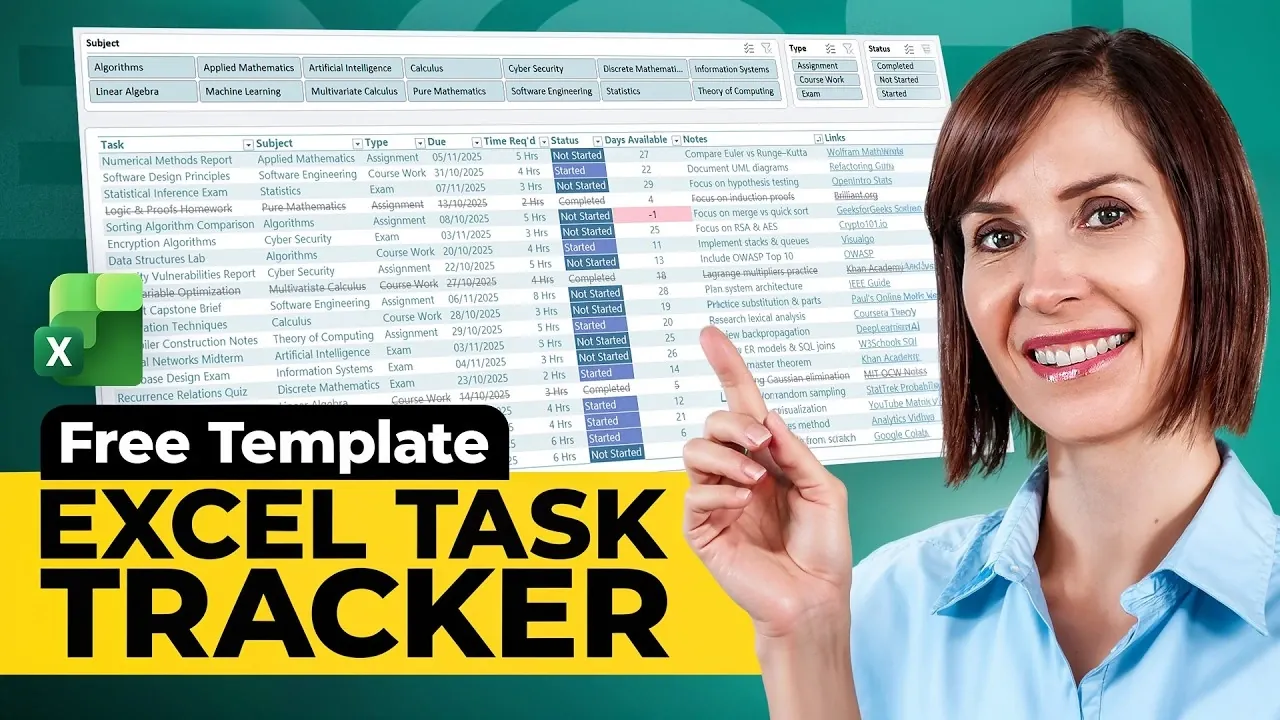
Have you ever wondered why we pay for expensive task-management apps when a tool you likely already have, Excel, can do the job just as well, if not better? Despite the hype around sleek, subscription-based productivity platforms, many of them offer features that can be replicated with a bit of creativity and Excel’s built-in tools. From automated calculations to color-coded visual cues, Excel is more than just a spreadsheet, it’s a powerhouse for organization. And the best part? It’s free if you already have access to it through your workplace, school, or personal software suite. Why spend money on yet another app when you can streamline your workflow with a tool you already know?
Below My Online Training Hub explain how a free Excel template can replace costly task-management apps without sacrificing functionality or customization. We’ll explore how Excel’s features, like dropdown menus for clean data entry, conditional formatting for visual clarity, and even calendar-style scheduling, can transform a simple spreadsheet into a dynamic task tracker. Whether you’re managing complex work projects, personal goals, or academic deadlines, this guide will show you how to build a system that adapts to your needs. By the end, you might just find yourself questioning why you ever paid for task-management software in the first place.
Why Excel is an Ideal Tool for Task Management
TL;DR Key Takeaways :
- Excel is a versatile and cost-effective tool for task management, offering full customization to suit individual workflows without the need for expensive apps.
- Key features include dropdown menus for consistent data entry, data validation for accuracy, and automated calculations to track deadlines dynamically.
- Conditional formatting and interactive filtering with slicers enhance visual clarity and usability, making it easier to prioritize and manage tasks efficiently.
- Additional formatting options like banded rows and freeze panes improve readability and navigation, especially for large task lists.
- Excel’s flexibility and scalability allow users to create tailored task trackers that grow with their workload, making it suitable for professional, academic, or personal use.
Excel’s versatility and accessibility make it an excellent choice for task tracking. Unlike dedicated apps, Excel allows you to fully customize your tracker to align with your unique workflow. Its built-in tools, such as formulas, conditional formatting, and data validation, enable you to create a system that is both intuitive and highly functional. Additionally, Excel’s affordability, often included in workplace or school software packages, makes it a practical option for individuals and teams alike.
Key Features of an Excel Task Tracker
1. Dropdown Menus for Consistent Data Entry
Dropdown menus are a simple yet powerful feature that ensures uniformity in your task tracker. By standardizing entries for categories like task type, priority, or status, dropdown menus reduce errors and improve data consistency. Using Excel tables and named ranges, you can create dynamic dropdowns that automatically update when new options are added. This feature is particularly useful for maintaining a clean and organized tracker, even as your task list grows.
2. Data Validation for Accuracy
Data validation is another essential tool for maintaining the integrity of your tracker. By restricting input to predefined values, you can minimize inconsistencies and errors. For example, you can limit the “Status” column to options such as “Not Started,” “In Progress,” or “Completed.” This ensures that all entries align with your predefined criteria, making it easier to analyze and manage your tasks effectively.
3. Automated Calculations for Deadlines
Excel’s formula capabilities allow you to automate time-sensitive calculations, saving effort and improving accuracy. For instance, you can use the `TODAY()` function to calculate the number of days remaining until a task’s deadline. Adding a “Days Left” column that dynamically updates based on the current date helps you prioritize tasks and stay on track. This automation ensures that your tracker remains up-to-date without requiring constant manual adjustments.
4. Conditional Formatting for Visual Clarity
Conditional formatting enhances the usability of your tracker by applying color-coded cues to your data. For example:
- Red can indicate overdue tasks.
- Yellow can highlight tasks that are currently in progress.
- Green can signify completed tasks.
These visual indicators make it easier to assess your progress at a glance, helping you quickly identify areas that need attention.
5. Interactive Filtering with Slicers
Slicers provide an intuitive way to filter tasks based on specific criteria, such as status, priority, or category. For example, selecting “In Progress” from a slicer will instantly display only those tasks, streamlining your workflow. Cleanly formatted slicers improve usability and make your tracker more interactive, allowing you to focus on the information that matters most.
6. Calendar-Style Schedule for Deadlines
A calendar-style view offers a clear and organized overview of your tasks and their deadlines. By using formulas like `SORT`, `FILTER`, and `SEQUENCE`, you can create a lightweight schedule that arranges tasks by due date. Conditional formatting can further enhance this view by highlighting tasks on their respective dates, making it easier to plan your workload and avoid missed deadlines.
Free Excel Task Tracker Template with Calendar and Slicers

Discover other guides from our vast content that could be of interest on Excel functions.
- 10 New Excel Functions to improve your formulas
- Top Excel Functions You Need to Know According to Harvard
- How to Use Modern Excel Functions Like XLOOKUP & TEXTJOIN
- Top Excel Formulas for Speed & Performance in Large Worksheets
- Beginner’s Guide to Excel AI Copilot : Tips, AI Tools & Functions
- Master Advanced Excel Functions BYROW vs MAP vs SCAN vs
- Using Excel BYROW & BYCOL Functions for Faster Data Analysis
- Why You Should Stop Using Excel’s INDIRECT Function Today
- How to Use Excel’s SCAN Function for Advanced Analytics in 2025
- How to use Excel GROUPBY and PIVOTBY Functions
Enhancing Usability with Formatting
1. Banded Rows for Improved Readability
Alternating row colors, also known as banded rows, significantly improve the readability of large datasets. This simple formatting choice makes it easier to scan through tasks, especially when dealing with extensive lists. By applying this feature, you can ensure that your tracker remains visually organized and user-friendly.
2. Freeze Panes for Seamless Navigation
When working with large trackers, freezing panes is a practical way to keep key information visible as you scroll. For instance, freezing the top row ensures that column headers remain in view, while freezing the first column locks task names. This feature simplifies navigation, allowing you to focus on your tasks without losing track of important details.
Customizing Your Excel Task Tracker
One of Excel’s greatest strengths is its flexibility, which allows you to adapt your task tracker to suit your specific needs. Whether you’re managing complex projects, tracking academic assignments, or organizing personal goals, you can customize columns, formulas, and formatting to align with your workflow. Excel’s scalability also ensures that your tracker can grow with your workload. As you add more tasks, the tracker will automatically adjust, maintaining its functionality and ease of use.
Maximizing the Benefits of Your Tracker
By combining features like dropdown menus, automated calculations, and interactive filtering, an Excel-based task tracker offers a comprehensive solution for managing tasks and deadlines. It eliminates the need for expensive task-management apps, providing a free, customizable tool that adapts to your unique requirements. Whether you’re organizing professional projects, personal goals, or academic responsibilities, this tracker enables you to stay on top of your workload and achieve your objectives with confidence.
Media Credit: MyOnlineTrainingHub
Disclosure: Some of our articles include affiliate links. If you buy something through one of these links, Geeky Gadgets may earn an affiliate commission. Learn about our Disclosure Policy.
