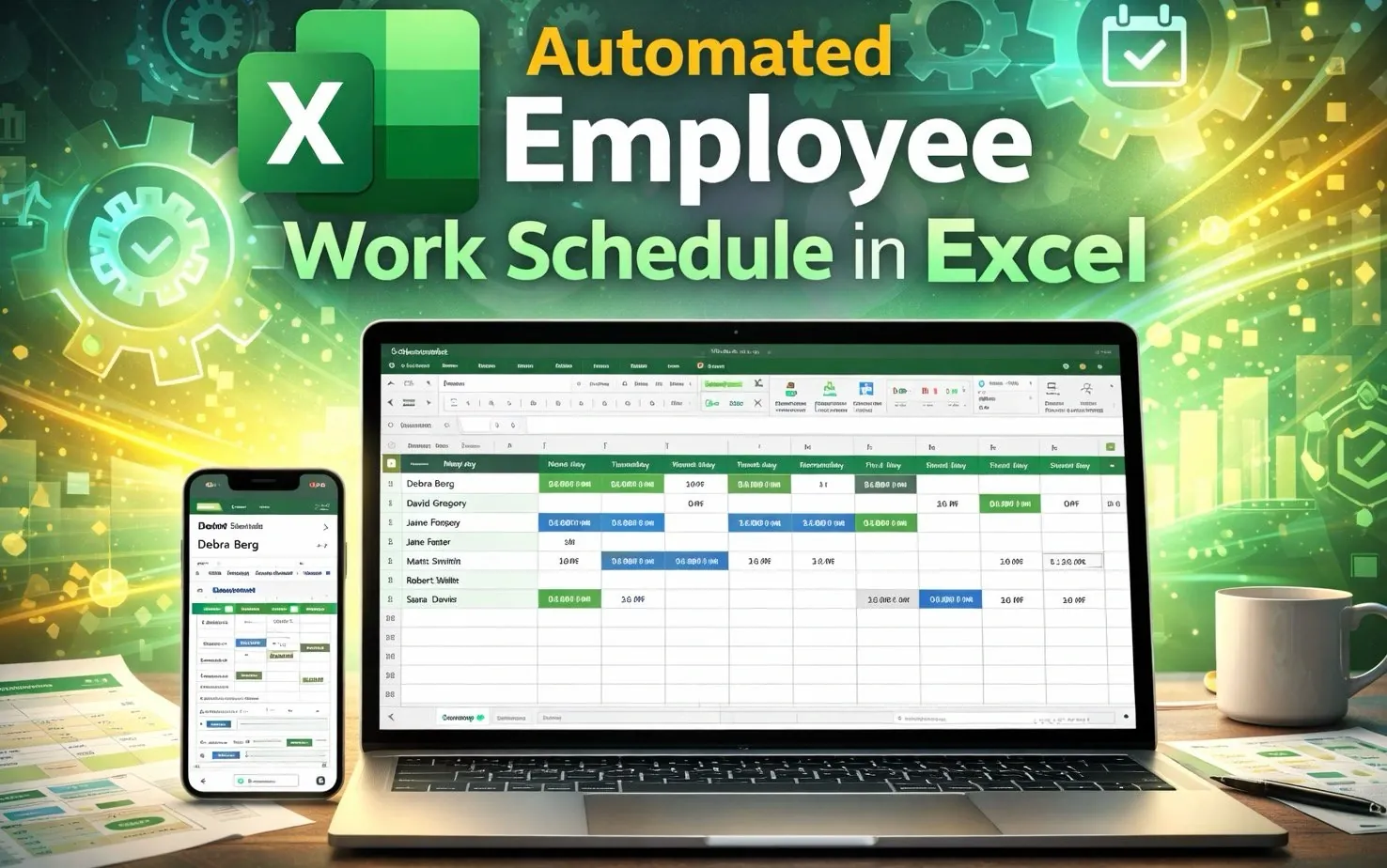
Have you ever found yourself buried under the chaos of managing employee schedules, struggling to balance coverage and fairness while avoiding costly errors? In this guide, Kenji Explains explains how to transform that chaos into clarity by creating an automated employee work schedule in Excel. Imagine a system that not only updates itself with each new month but also highlights gaps in coverage and ensures every shift is accounted for, all with minimal effort. By using Excel’s advanced features, this approach promises to save time, reduce stress, and bring order to one of the most tedious aspects of workforce management.
What makes this method so compelling is its adaptability and precision. From dynamic date updates that eliminate manual adjustments to color-coded shifts that make patterns and gaps instantly visible, this breakdown offers a step-by-step roadmap to building a schedule that works for you, not the other way around. You’ll also discover how to use powerful formulas like `COUNTIF` and `SEQUENCE` to monitor workloads and ensure fairness across your team. Whether you’re a seasoned Excel user or just starting out, this guide provides the clarity and structure needed to create a system that evolves with your needs. It’s not just about saving time, it’s about rethinking how you manage your team’s most valuable resource: their time.
Automated Excel Scheduling
TL;DR Key Takeaways :
- Automating employee schedules in Excel saves time, reduces errors, and ensures consistency by using advanced functions like `SEQUENCE`, `EOMONTH`, and `TEXT` for dynamic date updates.
- Excel tools such as dropdown menus, data validation, and conditional formatting simplify shift management, improve clarity, and enhance user-friendliness.
- Coverage monitoring with formulas like `COUNTIF` and `MIN` helps identify gaps and ensure balanced workload distribution, promoting operational efficiency.
- Totals overviews using functions like `COUNTIF` and `SUM` provide insights into shift distribution and employee workload, allowing data-driven scheduling adjustments.
- Reusable templates, clear instructions, and thoughtful formatting (e.g., freeze panes, color coding) enhance usability, adaptability, and long-term effectiveness of the schedule.
Automating your employee work schedule offers several advantages. It eliminates manual errors, saves time, and ensures consistency across the board. Excel’s advanced functions allow you to dynamically update dates, manage shifts, and monitor coverage with minimal effort. By automating this process, you can focus on higher-priority tasks while maintaining a well-organized and efficient scheduling system.
Dynamic Date Updates
One of the most critical aspects of an automated schedule is its ability to update dates automatically. Excel functions such as `SEQUENCE`, `EOMONTH`, and `TEXT` make this possible. These functions work together to ensure your schedule always reflects the correct month and weekdays without requiring manual adjustments.
- `SEQUENCE`: Generates a sequential list of dates for the month, making sure all days are accounted for.
- `EOMONTH`: Calculates the last day of the month, adapting to varying month lengths.
- `TEXT`: Formats dates to display both the calendar date and the corresponding weekday.
By integrating these functions into your schedule, you can reduce errors and ensure a seamless transition between months. This automation not only saves time but also enhances the accuracy of your scheduling process.
Automated Employee Work Schedule in Excel 2026

Explore further guides and articles from our vast library that you may find relevant to your interests in Microsoft Excel.
- Master Advanced Excel Functions BYROW vs MAP vs SCAN vs
- Quick Start Guide to Microsoft Excel on iPad in 2026
- New Excel Features 2026 : 17 Tools to Speed up Work
- Microsoft Excel Copilot Beginner Guide to Cleaning Data and
- Beginner’s Guide to Excel AI Copilot : Tips, AI Tools & Functions
- Excel Copilot 2025 : A Deep Dive into Its AI-Powered Features
- How to Use SuperXLOOKUP for Advanced Excel Data Analysis
- Excel Skills for Analysts Guide 2026: Power Query, Copilot & More
- Copilot Agent Mode in Excel for Fast Models, Formulas, and Sheets
- Excel Skills for Resumes Employers Want in Data Roles in 2026
Effective Shift Management
Managing shifts is a fundamental component of any work schedule. Excel offers several tools to simplify this process, making it easier to assign and adjust shifts as needed.
- Dropdown Menus: Enable you to select predefined shifts, such as Morning (M), Afternoon (A), or Night (N), making sure consistency in shift assignments.
- Data Validation: Restricts input to specific shift codes, reducing the likelihood of errors and maintaining uniformity across the schedule.
- Conditional Formatting: Applies distinct colors to each shift type, making it easier to identify patterns, gaps, or overlaps in the schedule.
These features not only improve the clarity of your schedule but also make it more user-friendly, allowing for quick adjustments and better visualization of shift allocations.
Making sure Coverage and Identifying Gaps
Making sure adequate shift coverage is essential for maintaining smooth operations. Excel formulas like `COUNTIF` and `MIN` can help you monitor coverage and identify potential gaps.
- `COUNTIF`: Tracks the number of shifts assigned to each day, providing a clear overview of coverage levels.
- `MIN`: Highlights days with insufficient coverage, allowing you to address issues proactively.
By incorporating a “Coverage Check” feature into your schedule, you can quickly identify and resolve gaps, making sure fairness and preventing overburdening specific employees. This approach promotes operational efficiency and helps maintain a balanced workload distribution.
Analyzing Workload with Totals Overviews
A totals overview is a valuable tool for analyzing shift distribution and employee workload. By using Excel functions like `COUNTIF` and `SUM`, you can generate detailed summaries that provide insights into your scheduling patterns.
- Summarize the total number of shifts worked by each employee over a specific period.
- Break down shifts by type (e.g., Morning, Afternoon, Night) to identify trends and imbalances.
Visual aids, such as data bars or charts, can further enhance these overviews, making it easier to compare workloads at a glance. This transparency fosters equitable shift allocation and helps you make informed decisions about future scheduling adjustments.
Improving Usability with Formatting
A well-designed schedule is not only functional but also visually appealing and easy to navigate. Implementing thoughtful formatting techniques can significantly enhance the usability of your schedule.
- Freeze Panes: Keep employee names visible while scrolling through the schedule, making sure easy reference.
- Color Coding: Use distinct colors to differentiate between shift types and highlight the current date for quick identification.
- Borders: Add clear borders to separate sections, improving readability and organization.
These formatting enhancements make your schedule more professional and user-friendly, reducing the likelihood of errors and improving overall efficiency.
Extending the Schedule for Future Use
To ensure your schedule remains adaptable and functional over time, it’s important to design it with reusability in mind. When preparing for upcoming months, duplicate your existing schedule template and update the relevant functions, such as `SEQUENCE` and `EOMONTH`, to reflect the new month’s dates. This approach allows you to maintain a consistent structure while preserving historical data for long-term trend analysis.
Adding Instructions for Reusability
Including clear instructions within your schedule can significantly enhance its long-term usability, especially as team members or requirements change. These instructions should cover key aspects of maintaining and updating the schedule.
- Steps for updating dates and shift assignments to reflect new months or changes in staffing.
- Guidelines for resetting formatting and conditional rules to maintain consistency.
- Instructions for generating overviews and analyzing data to monitor trends and ensure fairness.
Providing detailed, accessible instructions ensures that your schedule remains effective and easy to use, regardless of who is managing it.
Maximizing Efficiency with an Automated Schedule
An automated employee work schedule in Excel is a powerful tool for managing shifts, making sure coverage, and analyzing workload distribution. By using dynamic date updates, dropdown menus, data validation, and advanced formulas, you can create a schedule that is both efficient and adaptable. Features like totals overviewing, conditional formatting, and reusable templates simplify the scheduling process while promoting fairness and transparency. With these tools in place, you can reduce administrative burdens and focus on achieving your team’s goals effectively.
Media Credit: Kenji Explains
Disclosure: Some of our articles include affiliate links. If you buy something through one of these links, Geeky Gadgets may earn an affiliate commission. Learn about our Disclosure Policy.
