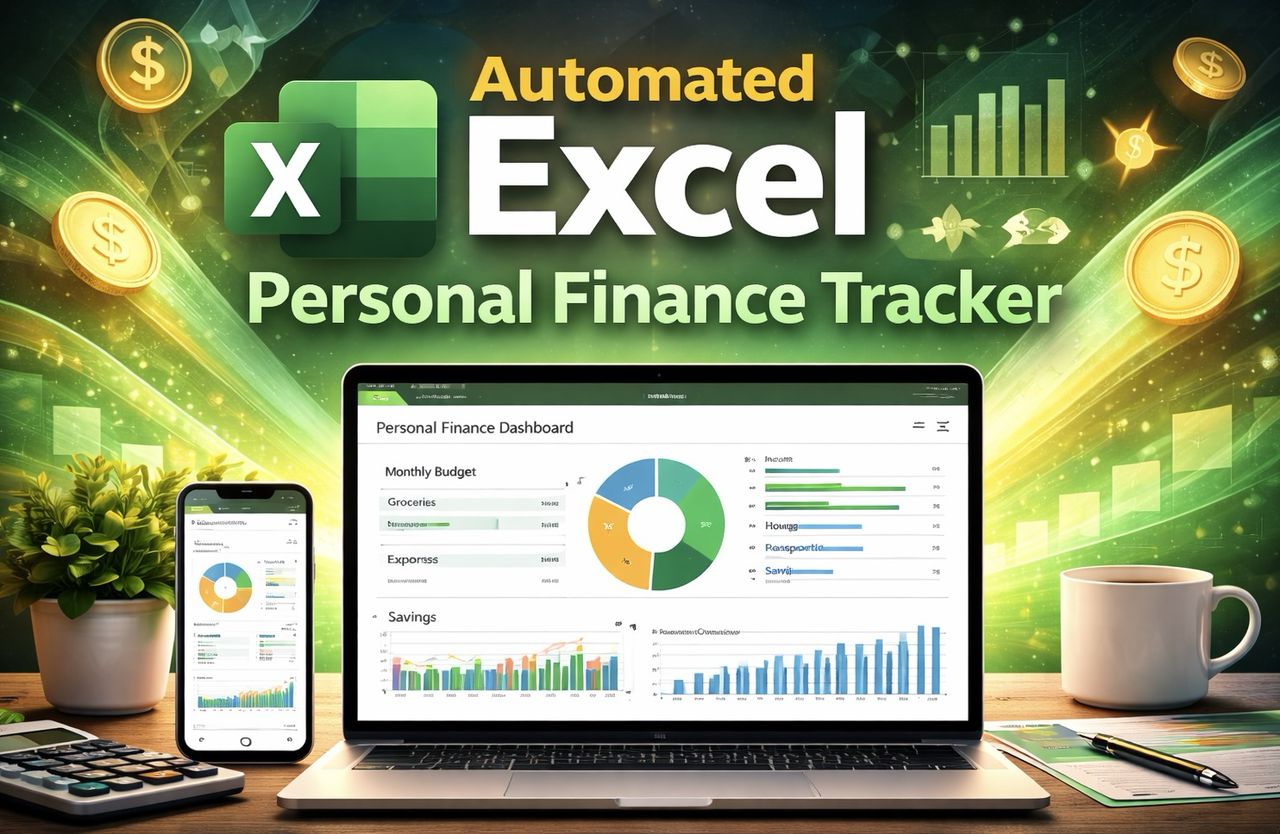
Have you ever felt like your finances are slipping through the cracks, no matter how many budgeting apps you try? In this walkthrough, Kenji Explains shows how you can take control of your money by building a fully customizable personal finance tracker in Excel. Forget the one-size-fits-all solutions, this approach enables you to create a system tailored to your unique financial habits. From tracking every dollar to automating calculations, this guide breaks down the process into manageable steps, proving that Excel isn’t just for spreadsheets, it’s a gateway to financial clarity and confidence.
By the end of this breakdown, you’ll discover how to transform a blank Excel sheet into a dynamic tracker that organizes your income, expenses, and savings with ease. Learn how to use features like conditional formatting and automated formulas to eliminate tedious manual updates while gaining real-time insights into your financial health. Whether you’re aiming to save for a big goal or simply want to stop wondering where your money goes, this guide will leave you with a system that works as hard as you do. The question is: are you ready to take the reins of your financial future?
Create a Personal Finance Tracker
TL;DR Key Takeaways :
- Organize your personal finance tracker by creating a transaction sheet with dropdown lists for categories and automated date-based sorting using Excel functions like TEXT.
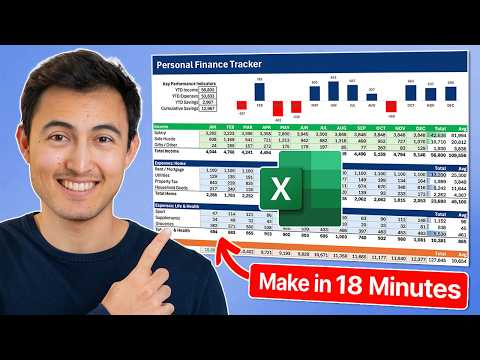
- Design a clear layout with sections for income, expenses, and savings, using conditional formatting for better readability and tracking monthly totals, averages, and cumulative savings.
- Automate calculations with Excel formulas like SUMIFS to track income, expenses, and savings, making sure real-time accuracy and reducing manual effort.
- Incorporate visualizations such as dynamic charts and key performance indicators (KPIs) to monitor trends, expense breakdowns, and savings growth effectively.
- Customize and scale your tracker by using structured tables, adding efficiency features like auto-updating calculations, and personalizing the design for long-term usability and adaptability.
1: Setting Up the Transaction Sheet
The transaction sheet serves as the foundation of your finance tracker. It is where you will record all income and expense transactions, making sure that your data is both accurate and consistent. To set up this critical component:
- Use Excel’s data validation feature to create dropdown lists for categories such as “Rent,” “Groceries,” “Utilities,” or “Salary.” This ensures consistency in data entry and reduces the likelihood of errors.
- Incorporate the TEXT function to automatically extract the month from each transaction date. For example, if a transaction is dated February 10, the formula can assign it to “February” without manual input.
This structured approach ensures that your transactions are well-organized and ready for analysis, forming the backbone of your tracker.
2: Designing the Tracker Layout
Once your transaction sheet is complete, the next step is to design a clear and intuitive layout for your tracker. A well-structured layout allows you to easily monitor your financial performance. Divide the tracker into distinct sections for income, expenses, and savings, and include rows for:
- Monthly totals for each category
- Averages to track spending and income trends
- Cumulative savings to monitor long-term progress
To enhance readability and usability, apply conditional formatting. For instance:
- Use color coding to differentiate between positive and negative savings, such as green for surplus and red for deficits.
- Add borders to separate sections, making the tracker visually organized and easier to navigate.
This layout not only provides a comprehensive overview of your finances but also ensures that key information is accessible at a glance.
DIY Personal Finance Tracker in Excel
Here are additional guides from our expansive article library that you may find useful on Microsoft Excel.
- Master Advanced Excel Functions BYROW vs MAP vs SCAN vs
- Quick Start Guide to Microsoft Excel on iPad in 2026
- New Excel Features 2026 : 17 Tools to Speed up Work
- Microsoft Excel Copilot Beginner Guide to Cleaning Data and
- Excel Copilot 2025 : A Deep Dive into Its AI-Powered Features
- How to Use SuperXLOOKUP for Advanced Excel Data Analysis
- Beginner’s Guide to Excel AI Copilot : Tips, AI Tools & Functions
- Endex for Excel : PDF Extraction, Model Cleanup & DCF Builds
- Copilot Agent Mode in Excel for Fast Models, Formulas, and Sheets
- Excel Skills for Analysts Guide 2026: Power Query, Copilot & More
3: Automating Calculations
Automation is a key feature of an efficient personal finance tracker. By using Excel’s powerful formulas, you can eliminate the need for manual calculations and ensure accuracy. Key automation steps include:
- Using the SUMIFS formula to calculate totals for income and expenses based on categories and months. This allows you to filter and analyze data effortlessly.
- Tracking savings by subtracting total expenses from total income. For cumulative savings, create a formula that adds each month’s savings to the previous balance, providing a running total.
These automated calculations provide real-time insights into your financial progress, allowing you to focus on analysis rather than data entry.
4: Adding Visualizations and KPIs
Visualizing your financial data is essential for identifying trends and making informed decisions. Excel’s dynamic charting tools allow you to create graphs and charts that display:
- Monthly income trends
- Expense breakdowns by category
- Savings growth over time
For example, a line chart can illustrate how your savings fluctuate month by month, with positive months highlighted in green and negative months in red.
Additionally, include key performance indicators (KPIs) to provide a quick snapshot of your financial health. Examples of KPIs include:
- Year-to-date income
- Total expenses for the year
- Overall savings percentage relative to income
These visualizations and metrics make it easier to track your financial goals and adjust your spending or saving habits as needed.
5: Customizing and Scaling Your Tracker
A good personal finance tracker should adapt to your evolving financial needs. To ensure scalability and flexibility:
- Use structured tables in Excel, which automatically expand to include new data. This ensures that your formulas and charts remain functional as you add transactions over time.
- Design the tracker to accommodate additional categories, months, or even years without requiring extensive modifications.
You can also personalize the tracker’s appearance by adjusting fonts, colors, and chart styles to suit your preferences. A visually appealing and intuitive design enhances usability and encourages consistent use.
6: Incorporating Efficiency Features
To maximize the efficiency of your tracker, consider adding features that streamline updates and improve functionality. These features include:
- Making sure that all calculations and charts update automatically as you input new transactions. This eliminates the need for manual adjustments and reduces the risk of errors.
- Adding a column for notes, allowing you to clarify transaction details or document specific rules for categorization.
These enhancements make your tracker a powerful tool for managing your finances with minimal effort, allowing you to focus on analyzing data and making strategic decisions.
Empower Your Financial Management
Building a personal finance tracker in Excel equips you with a practical and customizable tool to take control of your financial future. By combining structured data entry, automated calculations, and dynamic visualizations, you can gain a clear understanding of your income, expenses, and savings. This tracker simplifies financial management while providing actionable insights to help you achieve your goals. Its scalable design ensures that it remains a reliable resource as your financial needs evolve, empowering you to make smarter financial decisions and stay on track toward long-term success.
Media Credit: Kenji Explains
Disclosure: Some of our articles include affiliate links. If you buy something through one of these links, Geeky Gadgets may earn an affiliate commission. Learn about our Disclosure Policy.
