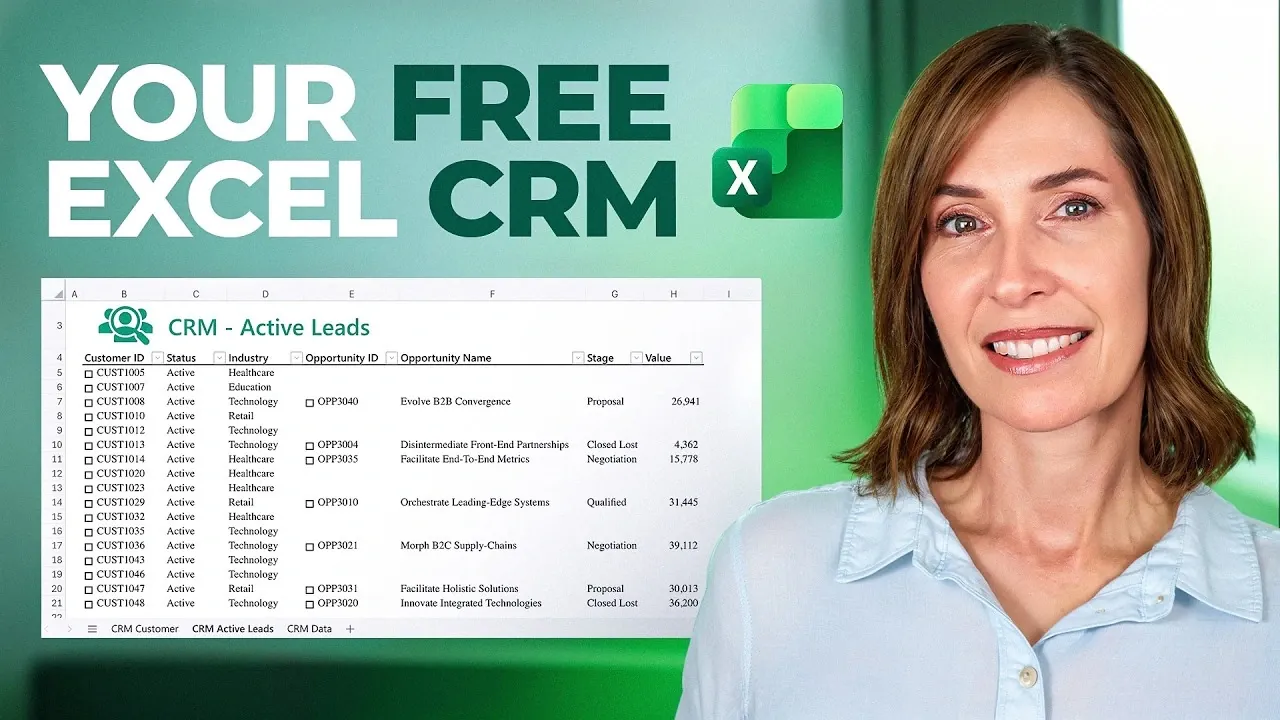
What if the perfect Customer Relationship Management (CRM) system was already at your fingertips, no expensive software, no steep learning curve, and no coding required? Imagine transforming the humble Excel spreadsheet into a dynamic, fully functional CRM tailored to your business needs. It might sound too good to be true, but with Excel’s powerful features like Power Query and custom data types, this is entirely possible. Whether you’re a small business owner managing a growing client list or a team leader seeking a cost-effective solution, Excel’s flexibility can empower you to take control of your customer data without relying on complex tools or outside developers. The best part? You already have the skills to make it happen.
In this exploration, My Online Training Hub explain how to harness Excel’s potential to build a CRM system that’s as unique as your business. From organizing scattered customer data into clean, centralized tables to creating actionable reports and automating updates, you’ll learn how to turn Excel into a tool that doesn’t just store information but actively works for you. Along the way, we’ll explore features like custom data types for simplifying workflows and Power Query for seamless data integration. By the end, you’ll not only have a deeper appreciation for Excel’s capabilities but also a practical, scalable CRM system that evolves with your needs. After all, why settle for off-the-shelf solutions when you can craft one perfectly suited to your goals?
Build a No-Code Excel CRM
TL;DR Key Takeaways :
- Excel can be transformed into a fully functional, no-code CRM system using features like Power Query, custom data types, and formulas to organize and manage customer data effectively.
- Start by preparing and consolidating customer data into structured Excel tables, using Power Query to centralize and clean data from multiple sources.
- Enhance usability with custom data types, which group related information into single cells, making the CRM system more compact and intuitive.
- Create actionable reports and dashboards using Excel functions like `FILTER` and `XLOOKUP`, making sure real-time updates and insights for decision-making.
- Excel’s flexibility allows for customization, scalability, and automation, allowing businesses to adapt their CRM system as they grow while minimizing manual effort.
1: Prepare and Import Your Data
The foundation of any CRM system is well-organized data. Begin by structuring your customer information into clearly defined Excel tables. These tables should cover key categories such as:
- Customer details (e.g., names, contact information, company names)
- Interactions (e.g., meeting dates, follow-up notes, communication history)
- Opportunities (e.g., deal statuses, potential revenue, expected close dates)
If your data is scattered across multiple files or external sources, use Excel’s Power Query to consolidate it into a single, centralized workbook. Power Query simplifies the process of importing data by connecting to various sources, such as CSV files, databases, and online services. This ensures your data is not only centralized but also clean and ready for analysis, providing a solid starting point for your CRM system.
2: Enhance Data with Custom Data Types
Once your data is organized, you can make it more compact and user-friendly by using custom data types. This feature allows you to group related information into a single cell, making your workbook easier to navigate and reducing clutter. For example, you can represent each customer as a custom data type containing fields like name, email, phone number, and industry.
To create custom data types:
- Use Power Query to structure and transform your data into a clean format.
- Assign meaningful names to your queries to ensure clarity and ease of use.
Custom data types not only streamline your CRM system but also make it more intuitive, allowing you to access detailed information with minimal effort. This step is particularly useful for businesses managing large volumes of customer data.
Turn Excel Into Your Own CRM System (No Coding Needed)

Here is a selection of other guides from our extensive library of content you may find of interest on Excel.
- Master Advanced Excel Functions BYROW vs MAP vs SCAN vs
- How to Use Excel’s Copilot() for Smarter Data Analysis
- Excel Skills for Analysts Guide 2026: Power Query, Copilot & More
- How to Use Excel’s Dot Operator and Trim Range for Smarter
- How to Use SuperXLOOKUP for Advanced Excel Data Analysis
- How to create Excel dashboards with Claude 3 AI in minutes
- Copilot Excel Agent Mode: Merge Sheets and Validate Data Faster
- How to Create a Custom Sidebar in Excel for Improved Navigation
- Beginner’s Guide to Excel AI Copilot : Tips, AI Tools & Functions
- Top Excel Formulas for Speed & Performance in Large Worksheets
3: Build Your CRM System
With your data prepared, the next step is to construct the CRM system itself. Consolidate all relevant data into a single workbook and use custom data types to simplify the layout. Excel’s dot notation feature enables you to extract specific fields from these data types, such as a customer’s industry or the status of an opportunity.
To make your CRM system interactive and user-friendly:
- Create dropdown lists that allow users to dynamically select customers or opportunities.
- Set up formulas that automatically update data when changes occur, making sure real-time accuracy.
This approach ensures that your CRM system remains responsive and adaptable, allowing you to manage customer relationships efficiently as new data is added or updated.
4: Generate Actionable Reports
A well-designed CRM system should provide actionable insights through dynamic reporting. Excel’s powerful formulas and functions enable you to create reports that are both informative and easy to update. For instance:
- Use the `FILTER` function to display active leads, opportunities, or customers based on specific criteria, such as deal stage or region.
- Use the `XLOOKUP` function to retrieve detailed customer information, such as recent interactions or contact details.
You can design customized reports tailored to your business needs, such as:
- A detailed customer profile page summarizing key information
- A dashboard highlighting open opportunities and their potential revenue
These reports update automatically as your data changes, making sure you always have the most current information at your fingertips. This capability allows you to make informed decisions and prioritize tasks effectively.
5: Customize and Scale Your System
Excel’s flexibility makes it an ideal platform for building a CRM system that grows with your business. You can customize your system to meet specific requirements, such as:
- Adding filters to sort and analyze records by criteria like industry, opportunity stage, or geographic location.
- Expanding your CRM to include additional data sources, such as marketing campaign results or customer feedback.
As your business evolves, your CRM system can scale to accommodate more data and new functionalities without requiring significant rework. This adaptability ensures that your system remains relevant and effective over time, regardless of changes in your business environment.
6: Automate and Maintain Your CRM
To minimize manual effort, Excel offers automation features that keep your CRM system up to date. For example, Power Query allows you to refresh data with a single click, making sure that your reports and dashboards always reflect the latest information. Additionally, you can use Excel’s built-in tools, such as macros or conditional formatting, to automate repetitive tasks and highlight important data points.
Once your CRM system is set up, maintenance is straightforward. Periodically updating the source data is often the only requirement, making your system both efficient and reliable. This simplicity allows you to focus on managing customer relationships rather than troubleshooting technical issues.
Transform Excel Into a Powerful CRM Solution
By following these steps, you can turn Excel into a versatile, no-code CRM system tailored to your business needs. From organizing and consolidating data to creating custom data types, generating actionable reports, and automating updates, Excel provides all the tools necessary to manage customer relationships effectively. This approach not only saves time and resources but also demonstrates Excel’s potential as a scalable and practical platform for data management. Whether you’re a small business owner or part of a larger organization, Excel’s flexibility and functionality make it a valuable tool for building a CRM system that grows with your business.
Media Credit: MyOnlineTrainingHub
Disclosure: Some of our articles include affiliate links. If you buy something through one of these links, Geeky Gadgets may earn an affiliate commission. Learn about our Disclosure Policy.
