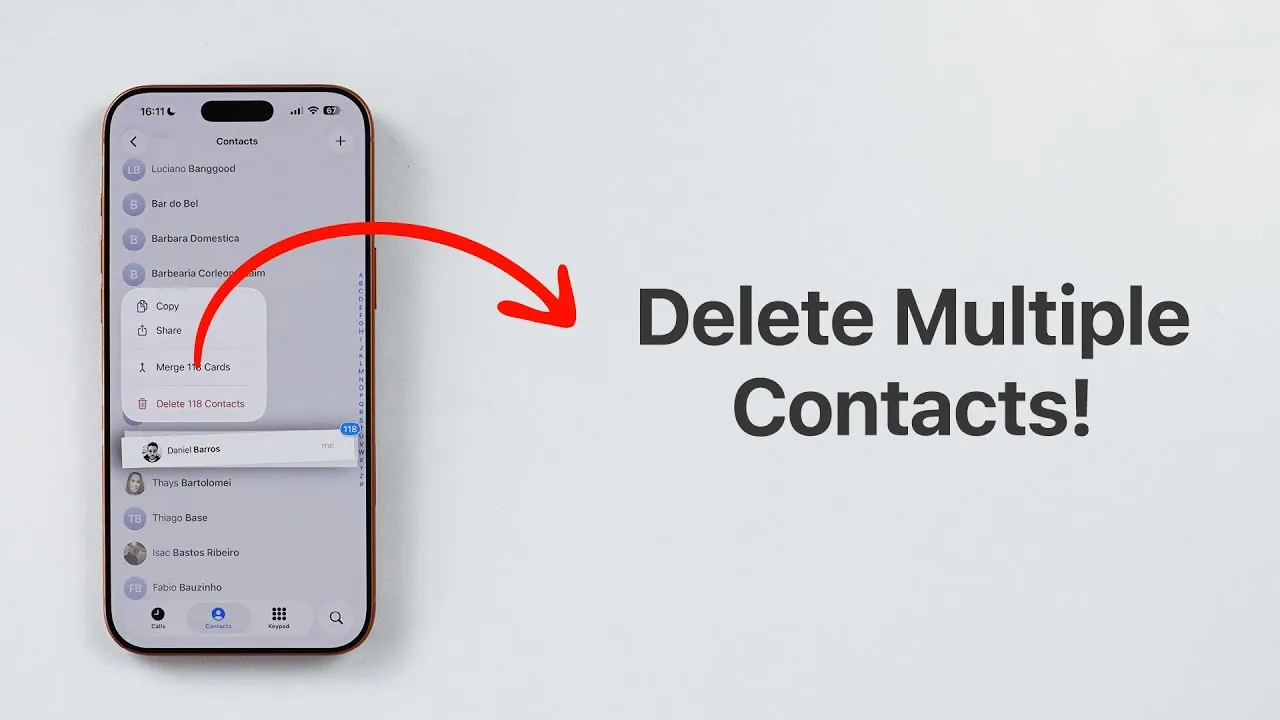
Managing your iPhone contacts can become a daunting task, especially when you need to delete several entries simultaneously. While iOS lacks a built-in “select all” feature, it does provide a gesture-based method that simplifies the process. The video below from Daniel About Tech outlines how to efficiently delete multiple contacts and offers practical strategies to maintain an organized contact list.
Why Efficient Contact Management Is Essential
Your contact list serves as a critical tool for communication, connecting you to colleagues, friends, and family. Over time, however, it can become cluttered with outdated, irrelevant, or duplicate entries. Regularly managing your contacts ensures that your list remains relevant, easy to navigate, and free of unnecessary clutter.
The iPhone’s native Contacts app offers more functionality than the Phone app, making it an ideal tool for managing your contacts. If you need to delete multiple entries quickly, the gesture-based selection method is an effective solution. This intuitive feature saves time and provides precise control over which contacts to remove.
How to Use Gesture-Based Input for Selecting Contacts
The gesture-based input method is a convenient feature for selecting multiple contacts at once. Follow these steps to use it effectively:
- Open the Contacts app on your iPhone.
- Place two fingers on the screen and drag them up or down across the contact list.
- This action highlights multiple contacts in one continuous motion, allowing you to select several entries at once.
This method is particularly useful for managing large contact lists, as it enables you to skip over entries you want to keep while focusing on those you wish to delete. If you encounter any issues using this gesture in the Phone app, switch to the Contacts app, where the feature functions more reliably.
Steps to Delete Selected Contacts
Once you’ve selected the contacts you want to delete, follow these steps to remove them:
- Tap and hold on any of the highlighted contacts.
- A menu will appear with the option to delete all selected contacts.
- Confirm the deletion to remove the selected entries in one action.
This process eliminates the need to delete contacts one by one, saving you significant time and effort. If you only need to delete a single contact, you can still use the gesture-based method to highlight one entry, then tap and hold to access the delete option.
Best Practices for Maintaining an Organized Contact List
Keeping your contact list organized not only saves time but also ensures that you can quickly find the information you need. Here are some best practices to help you maintain a streamlined contact list:
- Review your contacts regularly: Periodically go through your list to identify and remove outdated or duplicate entries.
- Use the search bar: Use the search feature in the Contacts app to quickly locate specific entries for editing or deletion.
- Back up your contacts: Before making significant changes, back up your contact list to iCloud or another secure platform to prevent accidental data loss.
- Organize into groups: Create groups such as family, work, or friends to make navigation and management more efficient.
- Merge duplicates: Use the “Merge Contacts” feature in iCloud or third-party apps to consolidate duplicate entries.
By implementing these strategies, you can ensure that your contact list remains functional, organized, and easy to manage.
Streamline Your Contact Management
Deleting multiple contacts on your iPhone doesn’t have to be a time-consuming process. The gesture-based selection method in the Contacts app provides a quick and efficient way to manage your contact list. By following the steps outlined above and adopting the recommended best practices, you can maintain an organized and relevant contact list with minimal effort. Regular maintenance and the smart use of iOS tools will help you keep your contacts up-to-date, making sure they remain a valuable resource for both personal and professional communication.
Here are more detailed guides and articles that you may find helpful on iPhone contact management.
- How to Organize and Manage Contacts on Your iPhone Effectively
- 20 Hidden iOS 26 Features Apple Didn’t Tell You About
- How to Delete Multiple iPhone Contacts
- How Apple’s 26.2 Update Improves iOS, iPadOS, and macOS
- How to Block Spam and Robocalls on Your iPhone
Source & Image Credit: Daniel About Tech
Disclosure: Some of our articles include affiliate links. If you buy something through one of these links, Geeky Gadgets may earn an affiliate commission. Learn about our Disclosure Policy.
