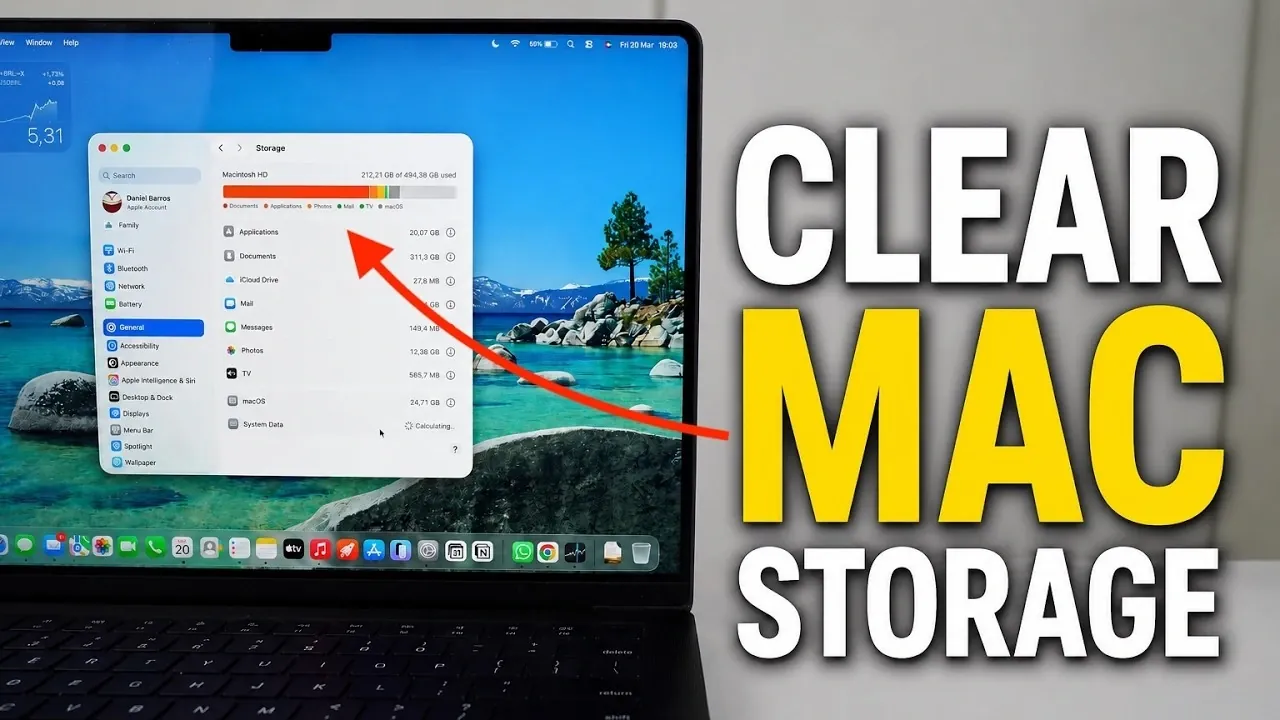
Efficient storage management on your Mac is essential for maintaining optimal performance and making sure you have sufficient space for critical files and applications. By using macOS’s built-in tools and adopting a few practical strategies, you can reclaim substantial storage space without relying on third-party software. The video below from Daniel About Tech outlines clear, actionable steps to help you optimize your Mac’s storage effectively and keep it running smoothly.
1: Analyze Your Storage Usage
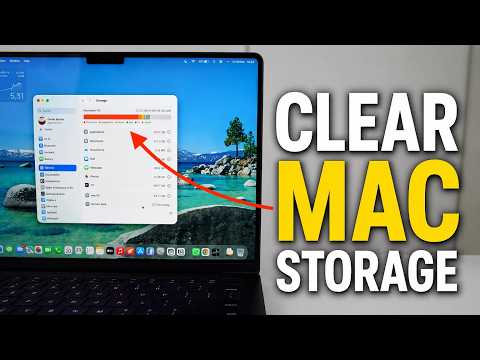
Understanding how your Mac’s storage is allocated is the first step toward effective management. Navigate to System Settings > General > Storage to view a detailed breakdown of your storage. Here, macOS categorizes data into sections such as Applications, Documents, System Data and more. This overview allows you to identify which categories are consuming the most space, helping you target areas where storage can be reduced.
Key Tip: Pay special attention to categories like “System Data” and “Documents,” as these often contain hidden or unnecessary files that can be addressed.
2: Use macOS Storage Recommendations
macOS provides built-in recommendations to simplify storage management. These recommendations are designed to help you free up space with minimal effort. Some of the most effective options include:
- Allowing automatic deletion of watched Apple TV content, which removes videos you no longer need.
- Setting your Trash to empty automatically after 30 days, making sure old files don’t accumulate unnecessarily.
- Storing files in iCloud to offload local storage while keeping your data accessible.
By allowing these features, you can reclaim storage space without manually managing every file.
Pro Tip: Regularly review these recommendations to ensure they align with your storage needs and usage habits.
3: Manage and Remove Unnecessary Applications
Applications can occupy a significant portion of your Mac’s storage, especially if they include large libraries or assets. To identify and remove space-consuming apps:
- Open the Storage section in System Settings and sort applications by size to locate the largest ones.
- Uninstall apps you rarely use or no longer need, such as outdated games, design tools, or video editing software.
Removing unused applications can free up gigabytes of storage, making a noticeable difference in available space.
Important Note: Before uninstalling, ensure you don’t need any associated files or settings, as some apps may store critical data.
4: Review and Clear Large Files
Large files, such as videos, project libraries and archived documents, can quickly consume storage space. To address this:
- Use the Storage Management tool to locate and review large files on your Mac.
- Delete files you no longer need or transfer them to an external drive or cloud storage for safekeeping.
- Check your Downloads folder for outdated files, installers, or duplicates that can be safely removed.
Regularly reviewing and clearing these files prevents unnecessary clutter and ensures your Mac remains efficient.
Quick Tip: Consider organizing your files into folders or categories to make future reviews faster and more effective.
5: Disable Unused Features
Certain macOS features, such as Siri and Spotlight, can consume system resources and storage. If you don’t rely on these features, disabling them can streamline your system. To do this:
- Navigate to System Settings > Siri & Spotlight and turn off Siri if you don’t use voice commands.
- Adjust Spotlight settings to limit indexing to only the most relevant file types or locations.
While this step may not immediately free up storage, it can reduce system resource usage over time, contributing to a leaner and more efficient setup.
Consideration: Evaluate whether these features add value to your workflow before disabling them, as some users may find them beneficial.
6: Optimize System Data
System Data, which includes cached files, logs and other system-related data, can occupy a surprising amount of storage. Although macOS doesn’t allow you to delete all system data directly, you can reduce its size by:
- Clearing cache files through your browser or specific applications.
- Uninstalling unused apps that may leave behind residual data.
- Restarting your Mac regularly to clear temporary files and refresh system processes.
For older Macs, these steps are particularly important to maintain performance and free up valuable storage space.
Reminder: Be cautious when clearing cache files, as some applications may require these files for optimal functionality.
Maintain a Clutter-Free Mac
By implementing these strategies, you can reclaim a significant amount of storage on your Mac without the need for external tools. From analyzing storage usage and managing applications to clearing large files and optimizing system settings, these steps ensure your Mac remains efficient and clutter-free. Regular maintenance, such as reviewing storage usage and allowing automatic deletion features, is key to keeping your Mac in top condition and making sure it performs at its best.
Source & Image Credit: Daniel About Tech
Disclosure: Some of our articles include affiliate links. If you buy something through one of these links, Geeky Gadgets may earn an affiliate commission. Learn about our Disclosure Policy.
