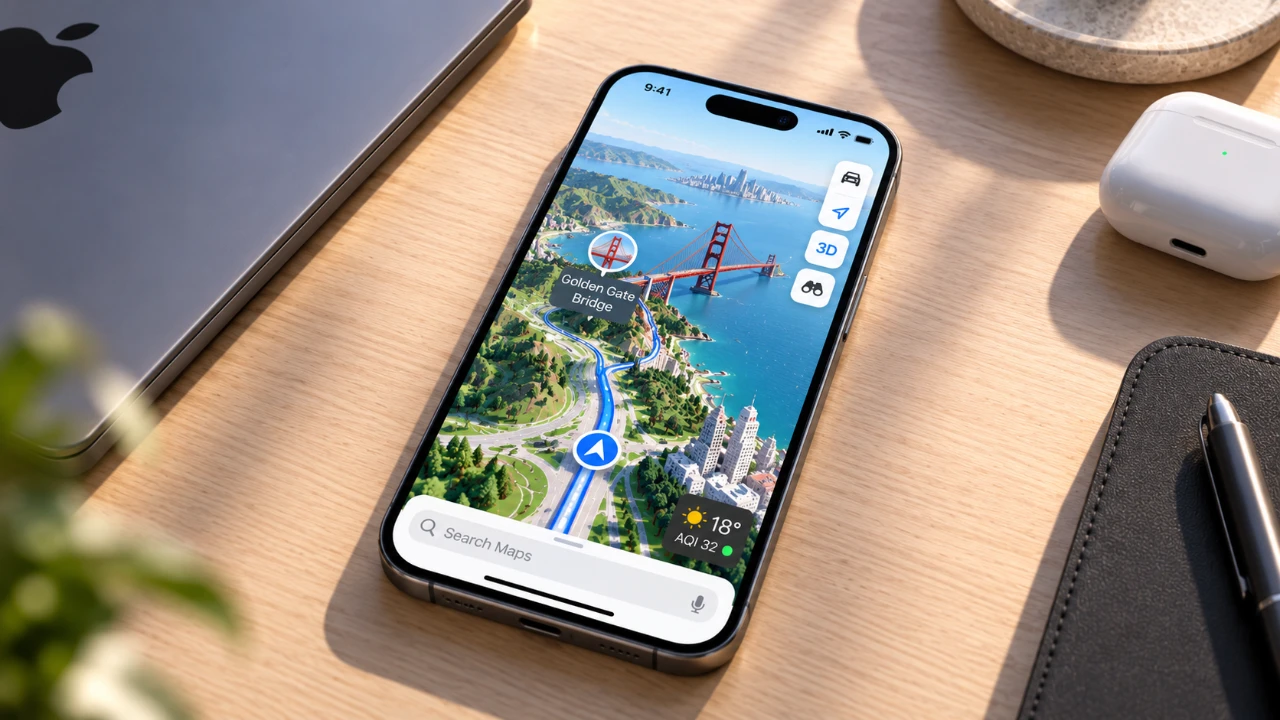
Apple Maps is more than just a navigation app; it’s a powerful tool designed to simplify travel, enhance planning, and improve exploration. While many users rely on it for basic directions, the app offers a wide range of features that can significantly elevate your experience. By learning how to use these tools effectively, you can transform your journeys into seamless and enjoyable adventures. The video below from Proper Honest Tech gives us a look at the essential tips to help you make the most of Apple Maps.

1. Zoom with One Hand for Seamless Navigation
Navigating a map while multitasking can be challenging, especially when one hand is occupied. Apple Maps offers a one-handed zoom feature to make this easier. Simply double-tap the screen and hold, then swipe up or down to zoom in or out. This intuitive gesture ensures you can adjust your view effortlessly, even when you’re on the move. Whether you’re walking through a busy city or driving, this feature keeps navigation simple and efficient.
2. Explore Indoor Maps for Complex Venues
Apple Maps provides detailed indoor maps for large venues such as airports, shopping malls and stadiums. These maps include floor-level navigation, helping you locate specific stores, gates, or amenities. For example, at an airport, you can quickly find restrooms, lounges, or baggage claim areas. This feature is especially useful in unfamiliar or crowded spaces, where finding your way can otherwise be overwhelming. By using indoor maps, you can save time and reduce stress in complex environments.
3. Create Customizable Guides for Personalized Planning
The Guides feature allows you to curate and share lists of locations tailored to your interests. Whether you’re planning a vacation, organizing a food tour, or compiling favorite hiking spots, Guides keep everything organized in one place. You can even explore pre-made guides from trusted sources for inspiration. For instance, if you’re visiting a new city, you can use a guide to discover popular attractions, restaurants and hidden gems. This feature makes planning more efficient and ensures you don’t miss out on must-see locations.
4. Use Detailed Place Cards for Better Decision-Making
Place Cards in Apple Maps provide comprehensive information about locations, including operating hours, amenities and accessibility details. You can even add personal notes for future reference. For example, if you discover a highly rated restaurant, you can save it and jot down a reminder to visit during your next outing. This feature is particularly helpful when exploring new areas or planning activities, as it allows you to make informed decisions based on detailed and accurate information.
5. Add Stops to Routes for Flexible Travel Plans
Apple Maps lets you insert multiple stops into your navigation routes, making it easy to customize your journey. By searching for additional destinations and rearranging their order, you can include detours or planned breaks. This feature is especially useful for road trips, where you might want to stop at scenic spots, restaurants, or gas stations along the way. It’s also helpful for running errands, as you can optimize your route to save time and fuel.
6. Plan Custom Walking Routes for Outdoor Adventures
For walking or hiking enthusiasts, Apple Maps allows you to create and save personalized walking routes. Whether you prefer loops or out-and-back paths, this feature ensures your outdoor activities are well-organized and aligned with your fitness goals. You can also use it to explore new neighborhoods or scenic trails, making it a valuable tool for both urban and rural adventures. By planning your routes in advance, you can enjoy a more structured and enjoyable experience.
7. Download Offline Maps for Reliable Navigation
In areas with limited or no cellular coverage, Apple Maps’ offline maps feature ensures uninterrupted access. By downloading maps in advance, you can navigate confidently without worrying about losing your connection. This is particularly helpful for remote travel or international trips where data usage may be restricted. Whether you’re exploring a national park or navigating a foreign city, offline maps provide peace of mind and reliable guidance.
8. Check Real-Time Weather with Integrated Updates
Apple Maps integrates real-time weather data directly into the app, allowing you to check conditions for any location. Whether you’re planning a picnic, preparing for a long drive, or deciding what to pack for a trip, the weather widget provides temperature, precipitation and forecast details at a glance. This feature helps you make informed decisions and ensures you’re always prepared for changing weather conditions.
9. Customize Navigation Preferences for Tailored Routes
Apple Maps lets you adjust navigation settings based on your preferred mode of travel. Whether you’re driving, walking, cycling, or using public transport, you can optimize routes to suit your needs. You can also avoid tolls, highways, or ferries if desired. This flexibility ensures the app adapts to your specific preferences, making your journeys more efficient and enjoyable. By customizing your settings, you can take full control of your travel experience.
10. Locate Your Parked Car with Ease
Never lose track of your car again with Apple Maps’ parked car feature. When connected to Bluetooth or Apple CarPlay, the app automatically saves your car’s location. You can then use the map to navigate back to your parking spot, saving time and frustration in busy areas. This feature is particularly useful in large parking lots, urban centers, or during events where finding your car can be a challenge.
Maximize Your Apple Maps Experience
Apple Maps is a robust tool that goes far beyond basic navigation. By using features like offline maps, indoor navigation and customizable routes, you can enhance your travel experience and streamline daily tasks. Whether you’re exploring a new city, planning a trip, or managing errands, these tips will help you unlock the full potential of Apple Maps. With its versatile capabilities, the app ensures that every journey is efficient, enjoyable and stress-free.
Source: Proper Honest Tech
Disclosure: Some of our articles include affiliate links. If you buy something through one of these links, Geeky Gadgets may earn an affiliate commission. Learn about our Disclosure Policy.
