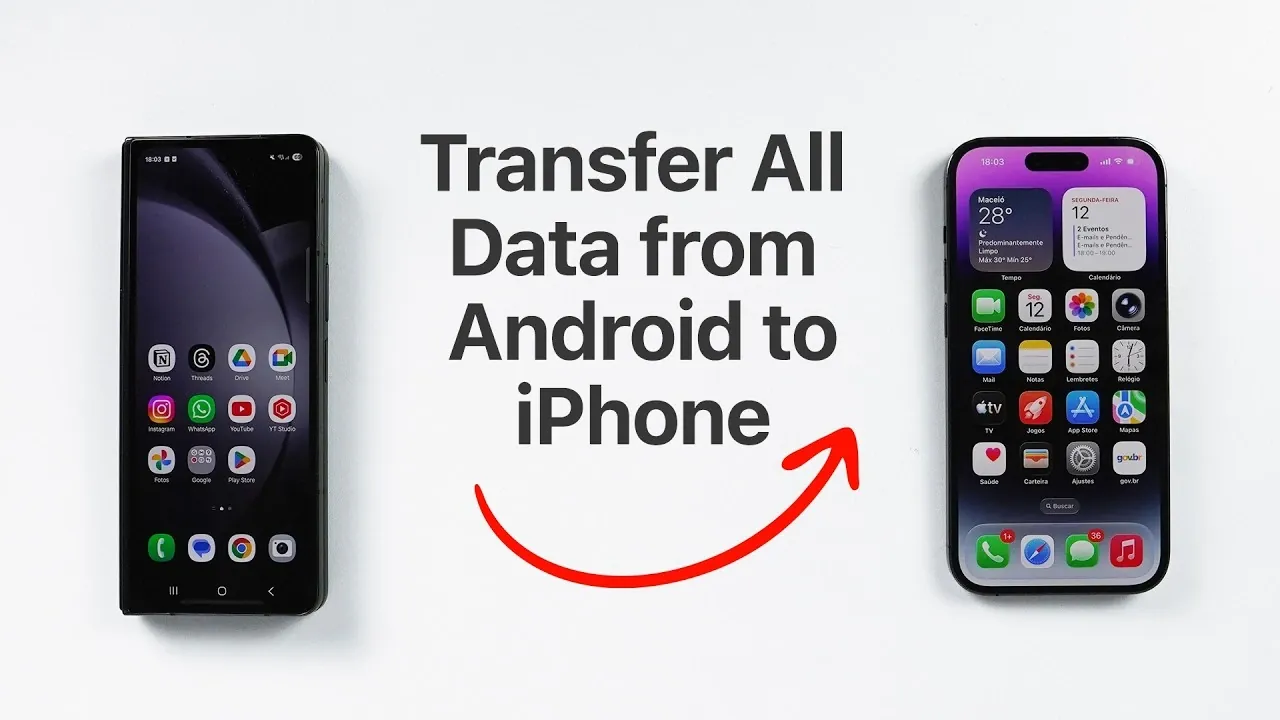
Switching from an Android device to an iPhone can seem like a daunting task, but with the right tools and clear instructions, the process is more manageable than you might expect. Apple’s “Move to iOS” app simplifies the transfer of essential data, including photos, videos, contacts, messages, and even Google account details. The video below from Daniel About Te provides a detailed walkthrough to help you transition seamlessly, whether you prefer a wireless or wired transfer method.
Step 1: Prepare Your Devices for the Transfer
Proper preparation is key to making sure a smooth data migration. Follow these steps to get your devices ready:
- Set Up Your iPhone: Ensure your iPhone is at the initial setup screen displaying the “Hello” message. If it has already been set up, you’ll need to reset it to factory settings, before resetting, back up any important data on the iPhone to avoid losing anything.
- Prepare Your Android Device: Download and install the “Move to iOS” app from the Google Play Store. This app is essential for transferring your data efficiently.
- Check Wi-Fi and Battery Levels: Both devices should be connected to a reliable Wi-Fi network and have sufficient battery life to complete the transfer without interruptions.
- Optional Cables: If you prefer a wired transfer, have a USB-C to Lightning cable or USB-C to USB-C cable ready, depending on your iPhone model.
Step 2: Initiate the Data Transfer
Once your devices are prepared, you can begin transferring your data. Follow these steps carefully:
- On your iPhone, proceed through the setup process until you reach the “Apps & Data” screen. Select “Move Data from Android.”
- Launch the “Move to iOS” app on your Android device. Accept the terms and conditions, then tap “Next.”
- Your iPhone will display a unique code. Enter this code on your Android device to establish a secure connection between the two devices.
- Select the data you wish to transfer. Options typically include contacts, messages, call history, photos, videos, Google accounts and settings. Note that some app data, such as WhatsApp, may require additional steps for restoration.
- Begin the transfer process. The duration will depend on the volume of data and the speed of your Wi-Fi network. Keep both devices connected and powered on until the transfer is complete.
Step 3: Transfer Your Cellular Plan
If your iPhone supports eSIM technology, you may need to transfer your cellular plan during the migration. Here’s how to handle this step:
- eSIM Transfer: If the automatic transfer does not work, contact your carrier to deactivate the eSIM on your Android device and activate it on your iPhone. This process may vary depending on your carrier and region.
- Physical SIM Card: If you use a physical SIM card, simply remove it from your Android device and insert it into your iPhone after completing the data transfer.
It’s important to verify eSIM compatibility with your carrier to avoid any disruptions in your cellular service.
Step 4: Complete the iPhone Setup
Once the data transfer is finished, finalize the setup process on your iPhone by following these steps:
- Sign in with your Apple ID or create a new one if you don’t already have an account. This step is essential for accessing Apple services like iCloud and the App Store.
- Configure key settings such as Face ID or Touch ID, passcode, location services and Apple Pay for added security and convenience.
- Visit the App Store to download any transferred apps. While the “Move to iOS” app transfers app data, you’ll need to reinstall the apps themselves from the App Store.
- For apps like WhatsApp, follow platform-specific instructions to restore chat histories and other data. This often involves backing up data on your Android device and restoring it on your iPhone.
Step 5: Additional Considerations for a Smooth Transition
While the “Move to iOS” app handles most data types, there are a few additional factors to keep in mind for a complete migration:
- Wired Transfers: Using a USB-C to Lightning or USB-C to USB-C cable can provide a faster and more stable connection, particularly for large data transfers. This method is ideal if you have a significant amount of photos or videos to move.
- Manual File Transfers: Certain files, such as music or documents stored outside standard apps, may require manual transfer. Use cloud storage services like Google Drive, Dropbox, or iCloud Drive, or transfer these files via a computer.
- App Compatibility: Some Android-specific apps may not have iOS equivalents. Research alternatives for these apps in advance or determine if they are essential to your workflow.
- Backup Your Data: After completing the migration, back up your iPhone using iCloud or iTunes to ensure your data is secure moving forward.
By addressing these considerations, you can ensure a more comprehensive and hassle-free transition to your new iPhone.
Start Exploring Your iPhone
With your data successfully transferred, your iPhone is now ready for use. Take some time to explore its features, customize your settings and familiarize yourself with the iOS ecosystem. Whether you’re using FaceTime, iMessage, or the App Store, you’ll find plenty of tools and apps to enhance your experience. By following this guide, you’ve ensured that your important information is preserved, allowing you to enjoy your new device without missing a beat.
Here are additional guides from our expansive article library that you may find useful on Android to iPhone data transfer.
Source & Image Credit: Daniel About Tech
Disclosure: Some of our articles include affiliate links. If you buy something through one of these links, Geeky Gadgets may earn an affiliate commission. Learn about our Disclosure Policy.
