If your iPhone’s battery is depleting faster than expected after updating to iOS 26, you’re not alone. Many users have reported similar issues, but the good news is that there are effective ways to address this. By making a few adjustments to your settings and adopting smarter usage habits, you can significantly reduce power consumption, enhance daily performance, and protect your device’s long-term health. These practical steps will help you get the most out of your iPhone without compromising its functionality. The video below from iDeviceHelp gives us more information on how to improve the battery life of your iPhone.
Optimize Your iPhone with Dark Wallpapers
For iPhones equipped with OLED displays, using a dark or black wallpaper can lead to noticeable energy savings. OLED technology lights up individual pixels, meaning darker areas require less power. By switching to a dark wallpaper, you can reduce daily power consumption by approximately 2-3%. This simple change not only conserves battery life but also gives your device a sleek and modern look. To implement this:
- Navigate to your iPhone’s wallpaper settings.
- Select a dark or black image from your gallery or the default options.
This adjustment is a quick and effective way to improve battery efficiency with minimal effort.
Adjust Always-On Display Settings
The Always-On Display feature is a convenient tool for checking notifications, time, or other essential information at a glance. However, it can contribute to unnecessary battery drain if not optimized. To make the most of this feature while conserving energy:
- Disable the wallpaper display within the Always-On Display settings to reduce power usage.
- Turn off the feature entirely if you find it unnecessary for your daily routine.
These small changes allow you to retain the functionality you need while minimizing energy consumption.
Control Background App Refresh
Background App Refresh is a useful feature that keeps apps updated even when they’re not actively in use. However, it’s also one of the leading causes of battery drain. Managing this feature effectively can make a significant difference in your device’s power consumption. Here’s how to optimize it:
- Disable Background App Refresh for apps that don’t require constant updates, such as games or rarely used utilities.
- Restrict the feature to Wi-Fi connections to save both battery life and cellular data.
- Customize settings for specific apps, allowing critical ones like email or messaging apps to refresh while restricting less essential ones like social media apps.
This targeted approach ensures that only necessary apps consume power, helping to extend your battery life throughout the day.
Use Adaptive Power Mode
iOS 26 introduces Adaptive Power Mode, a feature designed to conserve energy during periods of heavy use. This mode dynamically adjusts your iPhone’s performance to prioritize battery life without compromising essential functions. When enabled, Adaptive Power Mode works by:
- Reducing background activity, such as app refresh and system updates.
- Limiting non-essential processes to focus on critical tasks.
This feature is particularly useful during long trips, busy workdays, or any situation where charging opportunities are limited. By activating Adaptive Power Mode, you can ensure your device lasts longer when you need it most.
Enable Optimized Battery Charging
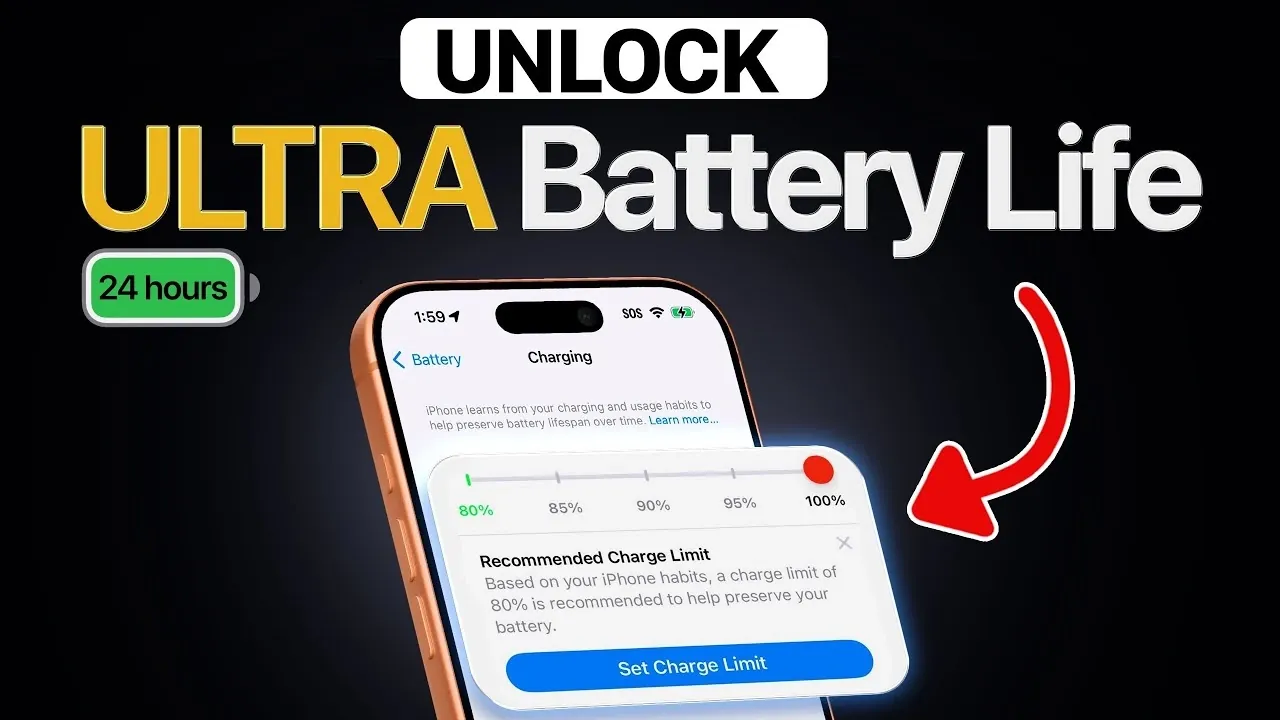
Optimized Battery Charging is a built-in feature that helps maintain your battery’s health over time. It works by learning your daily charging habits and slowing the charge rate once the battery reaches 80%, completing the charge just before you typically unplug your device. To further enhance this feature:
- Consider setting a manual charging limit, such as unplugging your device at 90%, to reduce long-term wear on the battery.
This practice not only preserves battery performance but also extends its overall lifespan, making sure your iPhone remains reliable for years to come.
Maximize Battery Life with Smart Adjustments
Enhancing your iPhone’s battery life doesn’t require drastic changes or technical expertise. By implementing these strategies, using dark wallpapers, fine-tuning Always-On Display settings, managing Background App Refresh, using Adaptive Power Mode and allowing Optimized Battery Charging, you can significantly reduce battery drain and improve your device’s performance. These adjustments not only enhance your daily experience but also protect your iPhone’s long-term reliability, making sure it continues to meet your needs well into the future.
Enhance your knowledge on iPhone battery drain fix by exploring a selection of articles and guides on the subject.
- Best Tips to Fix iOS 26 Battery Drain Issues
- : iOS 26.4.1 is OUT! Finally, Fixes iPhone Battery Drain
- How to Fix iOS Battery Drain on iPhone: iOS 26.4 Guide
- How to fix iPhone battery drain in iOS 17.4.1
- How to Fix iOS 26.3 Battery Drain
Source & Image Credit: iDeviceHelp
Disclosure: Some of our articles include affiliate links. If you buy something through one of these links, Geeky Gadgets may earn an affiliate commission. Learn about our Disclosure Policy.
