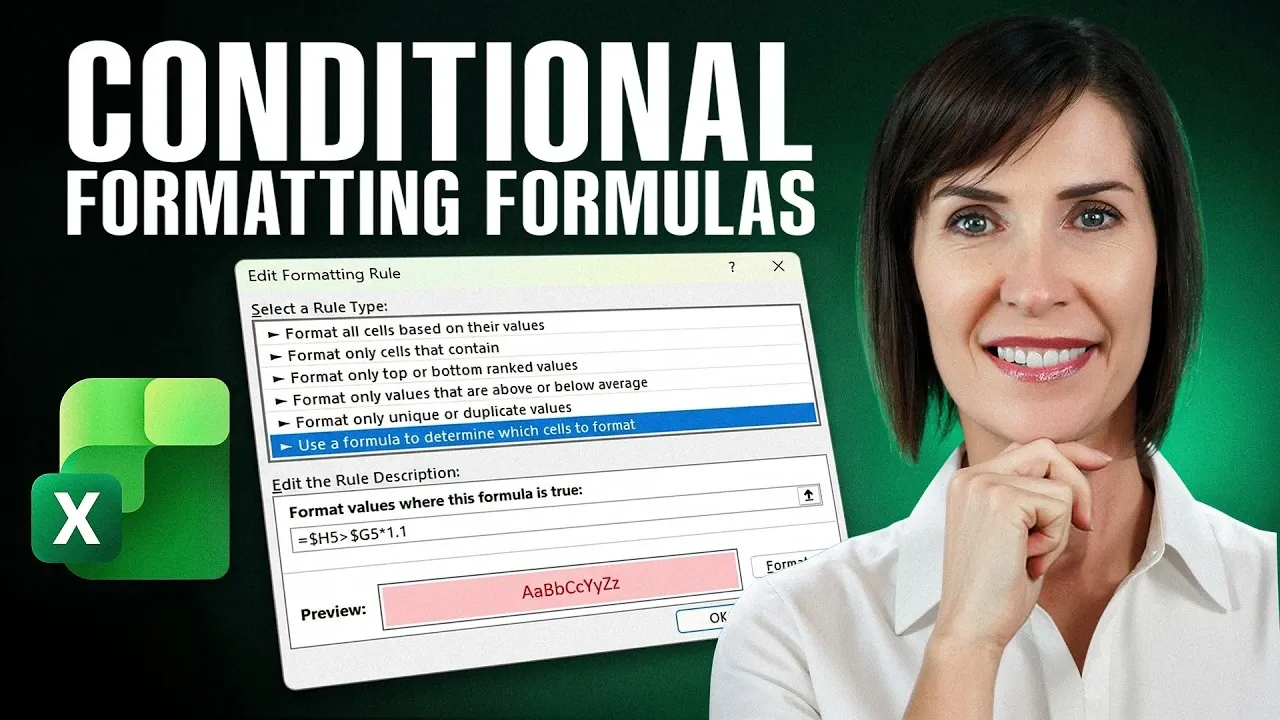
Conditional formatting in Excel is often associated with basic tasks like highlighting cells based on their values, but its potential goes far beyond these surface-level features. My Online Training Hub demonstrates how formula-based rules can be used to tackle more complex scenarios, such as dynamically highlighting entire rows based on specific conditions. For example, you can create a rule to flag rows where a “Status” column indicates canceled orders, using a combination of relative and absolute references to ensure consistent application across your dataset. These advanced techniques not only save time but also enhance the clarity and accuracy of your data analysis.
Dive into this breakdown to learn how to apply conditional formatting in ways that streamline your workflow and improve decision-making. You’ll explore methods for comparing columns to identify discrepancies, such as flagging rows where actual spending exceeds budget thresholds. Additionally, you’ll gain insight into detecting missing data using the `ISBLANK` function and uncover strategies for tracking deadlines with dynamic rules based on the `TODAY` function. Each approach is designed to help you manage large datasets more effectively and maintain data integrity with minimal effort.
Highlight Entire Rows Based on Specific Criteria
TL;DR Key Takeaways :
- Excel’s conditional formatting can dynamically highlight rows based on specific criteria, such as trends, anomalies, or canceled orders, improving data analysis efficiency.
- Advanced techniques like comparing columns, detecting discrepancies and identifying missing data enhance accuracy and streamline data review processes.
- Conditional formatting can be applied to text fields to highlight keywords, prioritize tasks and monitor qualitative data effectively.
- Time-sensitive tasks and deadlines can be tracked using functions like `TODAY`, with color-coded rules to distinguish overdue and upcoming tasks for better project management.
- Advanced functions like `XLOOKUP`, `SUMIFS`, and `COUNTIFS` expand conditional formatting capabilities, allowing automation and improving data visualization and reliability.
Conditional formatting can dynamically highlight entire rows based on specific cell values, making it easier to identify trends or anomalies within your data. For instance, you can highlight rows for canceled orders by evaluating a “Status” column. Here’s how to implement this effectively:
- Use a formula that combines relative and absolute references to ensure consistent application across your dataset.
- Define a rule that formats rows dynamically based on the condition you specify, such as “Status = Canceled.”
This approach is particularly beneficial when working with large datasets, as it allows you to quickly focus on specific categories or conditions without manually scanning through rows.
Compare Columns to Identify Discrepancies
Comparing two columns to spot mismatches or variances is simplified with conditional formatting. For example, you can flag rows where actual spending exceeds the budget. To refine this process:
- Layer multiple rules to highlight significant discrepancies, such as variances exceeding a specific percentage of the budget.
- Apply distinct formatting to emphasize critical deviations, making sure that high-priority issues stand out.
This method streamlines your review process, helping you focus on discrepancies that require immediate attention while maintaining a clear overview of your data.

Deep dive into the latest in Excel by exploring our other resources and articles.
- The Hidden Excel Shortcuts Missing from Your Standard Cheat Sheet
- Why Excel Power Users Are Switching to “Zero-Click” Workflows
- How to convert a PDF file to Excel without software
- How to Unlock Excel Sheets Without a Password
- 10 Excel Formula Symbols You Wish You Knew Years Ago
- 14 New Microsoft Excel Features for Fall 2024 You Should Know
- The Only Microsoft Excel Tutorial Beginners Need In 2026
- Master Advanced Excel Functions BYROW vs MAP vs SCAN vs REDUCE
- Claude for Office Adds Real-Time Co-Editing in Excel & PowerPoint
- 17 New Excel Features for 2026 to Speed up Your Work
Detect Missing or Incomplete Data
Missing data can disrupt analysis and lead to inaccurate conclusions. Conditional formatting allows you to quickly identify gaps in your dataset. By using the `ISBLANK` function, you can highlight rows with blank cells. To maximize its effectiveness:
- Apply the rule to columns where missing data is most likely to occur, such as mandatory fields in a overview.
- Use bold or contrasting colors to make gaps visually prominent, prompting immediate corrective action.
This ensures your datasets remain complete and reliable, reducing the risk of errors in your analysis.
Search for Keywords in Text Fields
Conditional formatting is not limited to numerical data; it can also be applied to text fields. For example, you can highlight rows containing specific keywords like “urgent” or “error” in a comments column. To enhance its utility:
- Create separate rules for different keywords, assigning unique formatting styles to each for better differentiation.
- Use this feature to prioritize tasks, address critical feedback, or monitor recurring issues in qualitative data.
This technique is particularly useful for managing customer feedback, tracking project updates, or analyzing qualitative datasets.
Track Deadlines and Time-Sensitive Tasks
Managing deadlines becomes more efficient with conditional formatting. By using the `TODAY` function, you can dynamically highlight tasks that are overdue or approaching their due dates. To stay organized:
- Create layered rules to distinguish between overdue tasks and those nearing their deadlines.
- Use color coding, such as red for overdue tasks and yellow for upcoming deadlines, to visually prioritize responsibilities.
This ensures you remain on top of your schedule, reducing the likelihood of missed deadlines and improving project management.
Eliminate Duplicate Entries
Duplicate entries can compromise data integrity, but conditional formatting provides an efficient way to detect and address them. Using the `COUNTIF` function, you can flag duplicates within a single column. For more complex scenarios:
- Use `COUNTIFS` to identify duplicates based on multiple criteria, such as matching email addresses and session data.
- Apply formatting to highlight duplicates, allowing quick identification and correction.
This helps maintain the accuracy of your records, making sure that your data remains clean and trustworthy.
Enhance Readability with Alternating Row Colors
Alternating row colors, or banded rows, improve the visual clarity of large datasets. Conditional formatting allows you to create dynamic banding that adjusts automatically when data is filtered. To implement this feature:
- Use the `MOD` function to alternate row colors based on row numbers, creating a clear visual distinction between rows.
- Combine it with the `SUBTOTAL` function to ensure the banding remains consistent even when filters are applied.
This technique makes your spreadsheets easier to navigate, especially when working with extensive datasets.
Use Advanced Functions for Greater Flexibility
Advanced Excel functions like `XLOOKUP` and `SUMIFS` can significantly expand the capabilities of conditional formatting. For example:
- Use `XLOOKUP` to format rows based on lookup results, such as highlighting rows that match specific criteria in another table.
- Apply `SUMIFS` to highlight rows that meet numerical thresholds, such as total sales exceeding a predefined target.
These advanced techniques automate complex data visualization tasks, reducing manual effort while improving the accuracy and efficiency of your analysis.
Maximize the Potential of Your Data
Excel’s conditional formatting offers a robust set of tools for enhancing data analysis and visualization. By mastering these advanced techniques, you can streamline workflows, improve data clarity and make more informed decisions. Whether you’re tracking deadlines, identifying discrepancies, or visualizing trends, these features empower you to manage your spreadsheets with precision and efficiency. Start exploring these capabilities today to unlock new possibilities in your data management.
Media Credit: MyOnlineTrainingHub
Disclosure: Some of our articles include affiliate links. If you buy something through one of these links, Geeky Gadgets may earn an affiliate commission. Learn about our Disclosure Policy.
