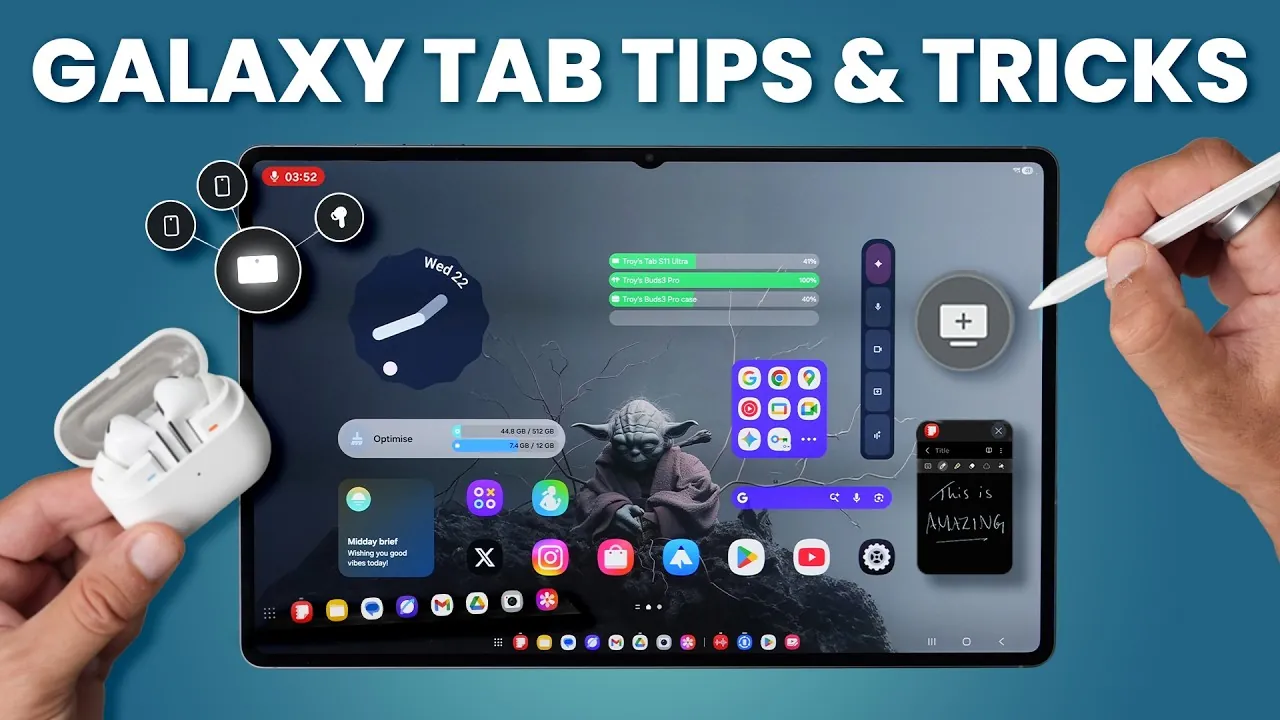
The Samsung Galaxy Tab S11 and S11 Ultra are powerful and versatile devices designed to enhance productivity, creativity, and entertainment. Whether you’re new to tablets or an experienced user, the detailed video below from WhatGear provides a detailed walkthrough to help you set up, customize, and maximize the potential of your device. By following these steps, you can ensure a seamless experience tailored to your needs.

Getting Started: Initial Setup
Properly setting up your Galaxy Tab S11 is essential for optimal performance. Begin by completing these key steps:
- Update all pre-installed apps through the Play Store and Galaxy Store to access the latest features, bug fixes, and security updates.
- Organize your home screen for both landscape and portrait orientations. Group frequently used apps into folders for quick and easy access.
- Sort your app drawer alphabetically to streamline navigation and make finding apps more intuitive.
These steps ensure your device is ready to deliver a smooth and efficient user experience.
Personalizing Your Tablet
Customizing your Galaxy Tab S11 allows you to create a device that reflects your preferences and enhances usability:
- Select wallpapers that suit your style, or use AI-generated options that adapt dynamically to weather conditions or time of day.
- Modify the lock screen, widgets, and Google search bar with personalized colors, layouts, and themes.
- Activate the Daily Board to display useful information like calendars, weather updates, or personal photos when the tablet is idle.
Personalization not only improves aesthetics but also makes your tablet more functional and enjoyable to use.
Maximizing the S Pen
The S Pen is a standout feature of the Galaxy Tab S11, offering a range of tools to boost creativity and productivity:
- Use Air Command to access features like Translate, Magnify, and PenUp for drawing, coloring, or note-taking.
- Annotate screenshots, write directly on calendars, or translate on-screen text with precision and ease.
- Explore AI-assisted drawing tools for tracing, coloring, or creating original artwork, making it ideal for both beginners and professionals.
The S Pen transforms your tablet into a versatile tool for work, study, and creative expression.
Boosting Productivity
The Galaxy Tab S11 is designed to streamline multitasking and enhance efficiency, making it a valuable tool for productivity:
- Enable split-screen mode to run two apps side by side, or create app pairs for quick access to frequently used combinations.
- Switch to desktop mode for a PC-like experience with resizable windows and a taskbar for improved multitasking.
- Use floating windows for quick reference tasks and advanced edge panels to access apps, tools, and clipboard history with a simple swipe.
These features allow you to work smarter and accomplish more in less time.
AI-Powered Writing and Browsing
Use the Galaxy Tab S11’s AI capabilities to enhance your writing and browsing experience:
- Refine your documents with grammar correction and text composition tools that ensure professional-quality writing.
- Use the Samsung Internet browser for AI-powered features like page translations, text-to-speech functionality, and content summaries.
- Streamline research and communication with tools that simplify complex tasks and improve efficiency.
These AI-driven features are particularly useful for students, professionals, and content creators.
Photo and Video Editing
The Galaxy Tab S11 offers advanced tools for photo and video editing, catering to both casual users and professionals:
- Remove unwanted objects, enhance image resolution, or adjust angles using AI-powered editing tools.
- Create GIFs from videos or edit content directly within the Samsung Gallery Studio for quick and easy adjustments.
- Produce high-quality visuals with features designed to meet the needs of photographers, videographers, and social media enthusiasts.
These capabilities make the Galaxy Tab S11 a powerful device for creating and sharing stunning visuals.
Enhancing Security and Privacy
Protecting your data is a top priority, and the Galaxy Tab S11 includes robust security features to safeguard your information:
- Enable Samsung’s Find My Device to locate your tablet if it’s lost or misplaced.
- Store sensitive files in the secure folder, and activate Samsung’s free VPN (Secure Wi-Fi) for safe browsing on public networks.
- Use app pinning to restrict access when sharing your device, and manage credentials securely with Google Password Manager.
These features ensure your personal data remains safe and secure at all times.
Optimizing Device Performance
Maintaining your Galaxy Tab S11’s performance is essential for a seamless experience. Follow these tips to keep your device running smoothly:
- Enable auto-restart and RAM Plus to optimize system performance and free up memory.
- Activate dark mode and adaptive brightness to conserve battery life and reduce eye strain during extended use.
- Add the Device Care widget to your home screen for quick access to performance optimization tools.
Regular maintenance ensures your tablet remains responsive and efficient over time.
Exploring Advanced Features
The Galaxy Tab S11 offers seamless integration with other Samsung devices and includes unique features to enhance your experience:
- Use Nearby Devices to share files or copy and paste text and images across devices effortlessly.
- Customize notifications with unique animations and colors for better visibility and organization.
- Explore the Now Bar for live updates on sports, news, and other real-time information.
These advanced features add convenience and functionality to your daily tasks.
Enhancing Audio
The Galaxy Tab S11 delivers an immersive audio experience with customizable settings:
- Enable Dolby Atmos for rich, surround sound quality that enhances movies, music, and games.
- Use Adapt Sound to create a personalized audio profile tailored to your hearing preferences.
- Boost dialogue clarity in movies or shows with dedicated sound settings for a better viewing experience.
These audio enhancements ensure a superior listening experience, whether you’re watching, gaming, or listening to music.
Take a look at other insightful guides from our broad collection that might capture your interest in Samsung Galaxy Tab S11 setup guide.
- Samsung Galaxy Tab S11 Ultra: Features, Specs, and More
- Notevibes Text to Speech Personal Pack: Lifetime Subscription
- Samsung Galaxy Tab S11 Ultra: Design, Features, and More
- Samsung Galaxy Tab S11 Ultra: Is This the Ultimate iPad Pro Rival?
- Samsung Galaxy Tab S11 Ultra Features, Specs, and Release Date
Source & Image Credit: WhatGear
Disclosure: Some of our articles include affiliate links. If you buy something through one of these links, Geeky Gadgets may earn an affiliate commission. Learn about our Disclosure Policy.
