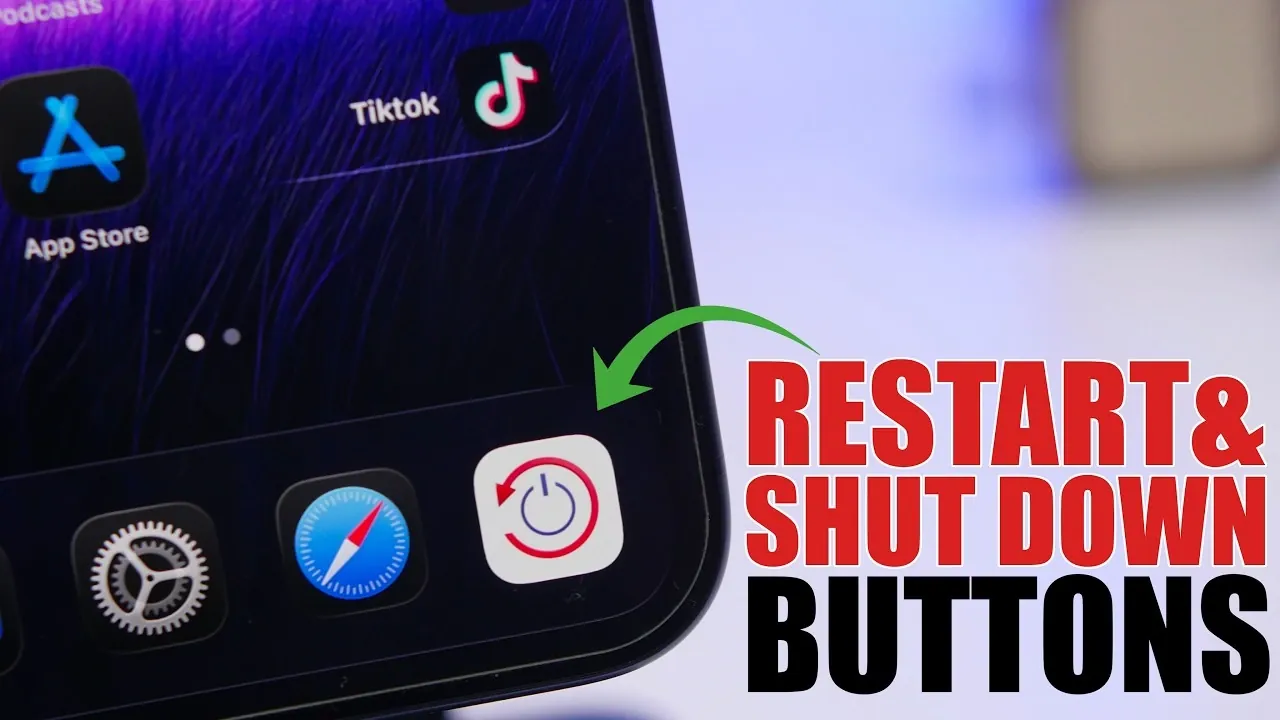
Managing your iPhone’s power functions has become more intuitive with the release of iOS 26. By using the built-in Shortcuts app, you can now create a custom power button directly on your home screen or lock screen. The video below from iReviews provides a step-by-step explanation of how to set up, personalize, and maximize the utility of this feature, offering a streamlined approach to managing your device.

Why Create a Custom Power Button?
A custom power button introduces a faster and more accessible way to control your iPhone’s power functions. Instead of relying on physical buttons or navigating through menus, this feature allows you to perform actions like restarting or shutting down your device with a single tap. Unlike the default Control Center options, this button can also include a reboot function, giving you greater control over your device. Whether you’re troubleshooting or simply seeking quicker access to essential power functions, this feature enhances both convenience and usability.
How to Create a Custom Power Button
Setting up a custom power button is straightforward with the Shortcuts app, which comes pre-installed on iOS 26 devices. Follow these steps to create your button:
- Launch the Shortcuts app and tap the + icon to create a new shortcut.
- In the action library, search for “Shut Down” or “Restart” and select the desired action.
- Once the action is added, tap the Share icon and choose Add to Home Screen.
- Assign a name to your shortcut, such as “Power” or “Restart,” and confirm the setup.
After completing these steps, the shortcut will appear as a functional button on your home screen. With a single tap, you can execute the selected command, making it a practical addition to your device.
Customizing Your Power Button
One of the standout features of this functionality is the ability to customize the button’s appearance to suit your preferences. Personalization options include:
- Adjusting the button’s color to align with your home screen theme.
- Choosing from default icons, such as a power symbol, or uploading a custom image for a unique design.
- Renaming the shortcut to clearly reflect its function, such as “Restart iPhone” or “Quick Shutdown.”
For instance, you might select a bold red icon to signify a shutdown button or a circular arrow to represent a restart shortcut. These visual cues not only make the button easy to identify but also allow it to blend seamlessly with your device’s layout.
Adding the Button to Your Lock Screen
To make the power button even more accessible, you can add it to your lock screen as a widget. iOS 26 enables users to replace default lock screen widgets, such as the flashlight or camera, with custom shortcuts. Here’s how to do it:
- Navigate to the Lock Screen Customization menu in your device settings.
- Select the widget area and locate the shortcut you created.
- Drag and position the widget in a location that’s most convenient for you.
This placement is particularly useful for users who frequently need to restart or shut down their iPhone without unlocking it. By integrating the button into your lock screen, you can save time and simplify your device management.
Benefits of a Custom Power Button
Adding a custom power button to your iPhone provides several practical advantages, making it a valuable tool for everyday use:
- Improved Accessibility: Perform power functions without navigating through menus or relying on physical buttons.
- Enhanced Flexibility: Place the button on your home screen, lock screen, or both for maximum convenience.
- Personalization: Tailor the button’s appearance to match your preferences and device theme.
For example, if you frequently restart your iPhone to resolve performance issues, having a dedicated button can save significant time and effort. Additionally, this feature is particularly beneficial for users with physical accessibility challenges, offering an easier way to manage power functions.
Streamline Your iPhone Experience
Creating a custom power button on your iPhone’s home screen or lock screen is a simple yet effective way to enhance device management. By using the Shortcuts app, you can design a button tailored to your specific needs, whether for restarting, shutting down, or rebooting your device. The ability to customize its appearance and placement ensures it integrates seamlessly into your daily routine. With iOS 26, managing your iPhone has become more efficient, accessible and user-friendly.
Source & Image Credit: iReviews
Disclosure: Some of our articles include affiliate links. If you buy something through one of these links, Geeky Gadgets may earn an affiliate commission. Learn about our Disclosure Policy.
