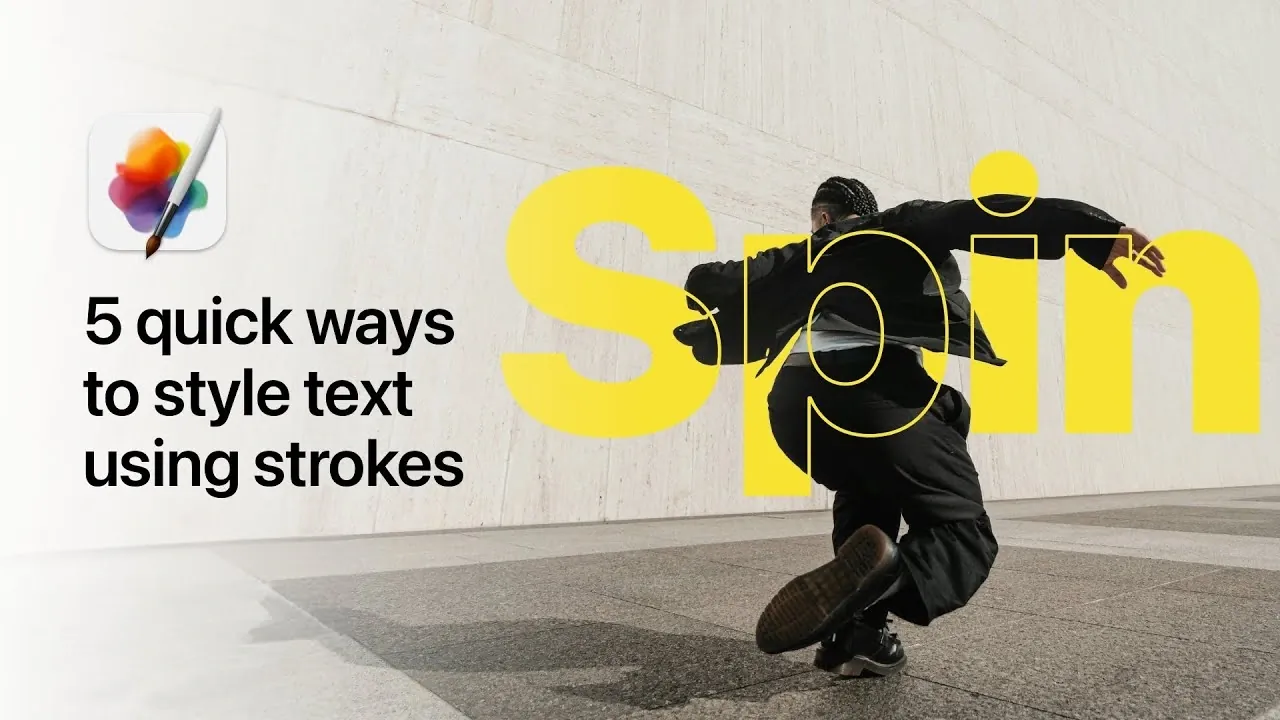
Styling text with strokes can enhance both the visual appeal and functionality of your designs, whether for digital projects or print media. According to Pixelmator, features like customizable stroke width, alignment and patterns allow for precise control over text appearance. For example, the dotted outline effect creates a clean, spaced-dot border around text, offering a minimalist solution that works well in professional layouts or understated designs. This method also keeps the text fully editable, making it easy to refine without starting over.
Discover how to create layered effects like the floating sticker design, which uses strokes and shadows to add depth, or experiment with the transparent text effect, where text and imagery combine for dynamic compositions. Learn techniques for bold, artistic styles such as graffiti-inspired lettering or structured approaches like the blueprint effect. Each method provides practical ways to expand your design options across different projects.
Dotted Outline Effect
TL;DR Key Takeaways :
- Pixelmator Pro offers versatile stroke tools that allow designers to create visually striking and editable text effects for various projects.
- The dotted outline effect provides a minimalist and modern design option, ideal for clean and understated layouts.
- The floating sticker effect adds depth and a playful 3D appearance, perfect for vibrant and attention-grabbing designs.
- Techniques like the blueprint text design and transparent text effect cater to professional, structured and visually rich projects.
- The graffiti text effect delivers bold, urban-inspired designs, showcasing the creative potential of Pixelmator Pro’s stroke customization features.
The dotted outline effect is a modern and minimalist way to make your text stand out. It’s particularly effective for clean, understated designs or when you want to subtly emphasize specific text elements. To create this effect:
- Apply a stroke to your text and adjust its width and alignment to suit your design.
- Switch the stroke style to a dotted pattern using the stroke settings.
- Refine the spacing between the dots to achieve a polished and cohesive appearance.
One of the key benefits of this technique is its flexibility. Your text remains fully editable, allowing you to make changes to the content or style without starting over. This effect works well in minimalist layouts, branding materials, or digital interfaces where clarity and simplicity are essential.
Floating Sticker Effect
The floating sticker effect is a playful and eye-catching design technique that combines layered strokes with subtle shadows to create a three-dimensional appearance. It’s ideal for vibrant, attention-grabbing designs. To achieve this effect:
- Start by applying a thick outer stroke to your text, followed by a thinner inner stroke to create a layered look.
- Add a soft shadow beneath the text to enhance the illusion of depth and make the text appear as though it’s floating.
- Save the completed design as a style preset to easily replicate the effect in future projects.
This technique is perfect for creating sticker-like text that pops in both digital and print designs. It’s particularly effective for social media graphics, posters, or any project that requires a fun and dynamic visual element.

Discover other guides from our vast content that could be of interest on Pixelmator Pro.
- Pixelmator Pro Update Brings iPad App & Powerful Warp Tool
- Pixelmator Pro Mac photo editing app 50% off
- Is Apple’s Creator Studio Worth It? : Plans, Trials, Tips & Perks
- iPhone Fold 2026: Features, Price and Release Date Explained
- Apple Creator Studio vs Adobe Creative Cloud vs Microsoft 365
- Apple Creator Studio Subscription: Pricing, Features and Benefits
Blueprint Text Design
The blueprint text design is a structured and technical style that works well for engineering-themed projects, architectural presentations, or creative designs requiring a clean, professional aesthetic. To create this effect:
- Apply dashed strokes to your text and adjust the settings to include rounded caps and corners for a softer, more refined look.
- Incorporate complementary textures or background elements, such as grid patterns, to add depth and context to the design.
- Save your stroke settings as a preset to streamline your workflow for similar projects in the future.
This effect is particularly useful for projects that require a balance between creativity and precision. The combination of dashed strokes and structured elements creates a visually appealing yet professional design.
Transparent Text Effect
The transparent text effect is a sophisticated way to blend text with imagery, making it a popular choice for posters, advertisements and other visually rich projects. To achieve this effect:
- Mask an image layer and overlay your text with a stroke to define its edges.
- Adjust the stroke width and color to ensure it complements the overall design and enhances readability.
- Experiment with the placement of the text to allow the image to remain visible through the letters, creating a seamless integration of text and imagery.
This technique is highly versatile and works well in designs where you want to emphasize both text and background imagery without compromising either element. It’s particularly effective for creating visually engaging marketing materials or artistic compositions.
Graffiti Text Effect
The graffiti text effect is a bold and dynamic style that mimics the look of spray-painted street art. It’s ideal for urban-themed projects or designs that require an edgy, artistic touch. To create this effect:
- Apply a brush stroke to your text and customize the brush settings to achieve the desired texture and style.
- Add additional strokes or painted details to enhance the realism and depth of the graffiti effect.
- Experiment with different fonts, colors and layering techniques to create a vibrant, street-art-inspired design.
This effect is perfect for projects that aim to capture the energy and creativity of urban art. It works well in posters, album covers, or any design that benefits from a bold and unconventional aesthetic.
Unlocking Creative Potential with Pixelmator Pro
Pixelmator Pro’s stroke tools provide a powerful and versatile way to elevate your text designs. From the clean and modern appeal of the dotted outline effect to the bold and artistic graffiti text effect, these techniques demonstrate the wide range of possibilities available to designers. By using features such as presets, masking and layering, you can streamline your workflow while maintaining the flexibility to adapt your designs as needed. Whether you’re a beginner exploring new creative avenues or an experienced designer refining your craft, these methods offer a solid foundation for unlocking the full potential of text styling in Pixelmator Pro.
Media Credit: Pixelmator
Disclosure: Some of our articles include affiliate links. If you buy something through one of these links, Geeky Gadgets may earn an affiliate commission. Learn about our Disclosure Policy.
