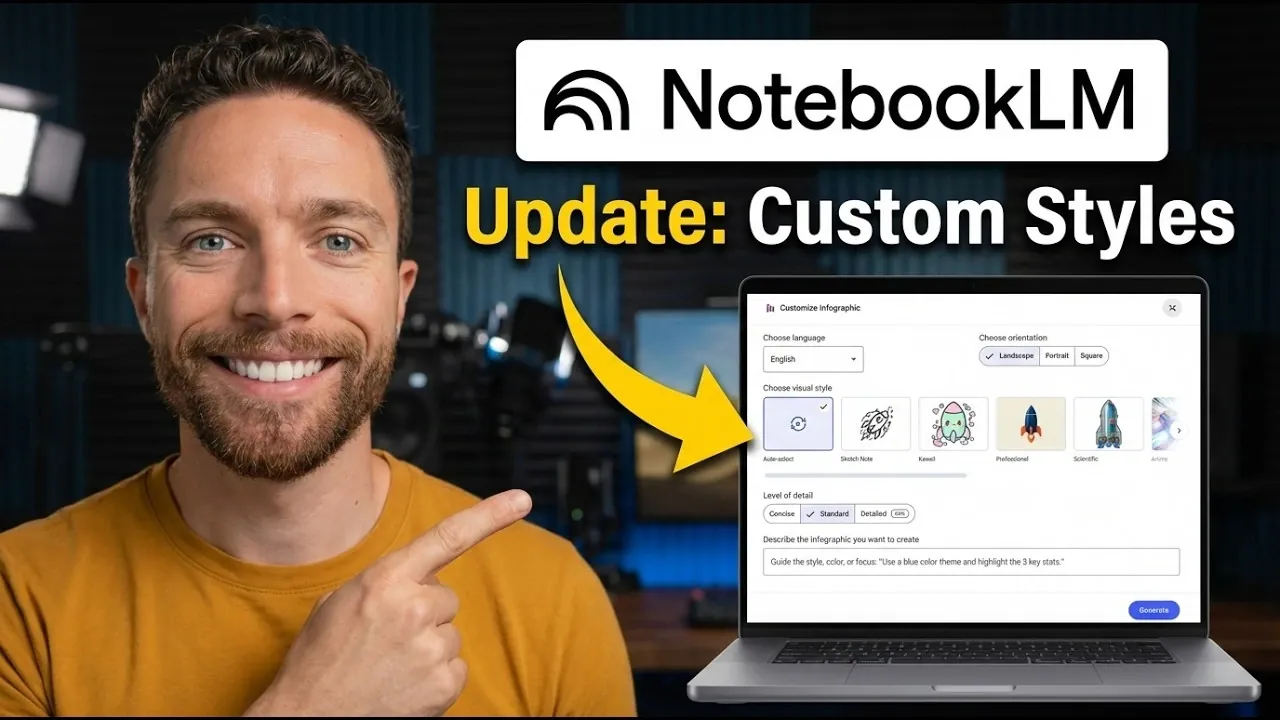
NotebookLM has introduced a new feature aimed at enhancing the way users create visual content: customizable infographic styles. With 10 preset options like “Professional,” “Instructional,” and “Kawaii,” this update provides a range of designs tailored to different scenarios, from corporate overviews to creative projects. Paul Lipsky highlights how these styles can be accessed directly within the platform, offering a streamlined process for selecting and applying the most suitable visual format. This addition not only simplifies the design process but also ensures that your infographics are both visually appealing and contextually appropriate.
In this overview, you’ll learn how to navigate the platform’s new “Choose Visual Style” feature and explore practical applications for various use cases. Whether you’re preparing an academic presentation or crafting a playful, informal design, the guide will walk you through selecting and customizing styles to meet your needs. Additionally, it touches on future possibilities like user-defined custom styles, offering a glimpse into how the platform might evolve to support even more personalized content creation. These insights will help you make the most of NotebookLM’s latest update.
Custom Infographic Styles Update
TL;DR Key Takeaways :
- NotebookLM has introduced 10 customizable infographic styles, catering to professional, educational and creative use cases, with plans for user-defined custom styles in the future.
- The platform offers a user-friendly interface, allowing users to easily select and apply preset styles to enhance their visual content without requiring advanced design skills.
- The 10 preset styles include options like “Professional,” “Scientific,” “Kawaii,” and “Bento Grid,” each tailored to specific scenarios for maximum versatility and impact.
- Future updates may include the ability to create and save custom styles, further enhancing personalization and usability for diverse projects.
- The feature is being rolled out globally in phases, with user feedback encouraged to refine and expand the platform’s capabilities over time.
How to Access and Use the New Feature
Accessing the custom infographic styles is straightforward, making sure that users of all experience levels can benefit from this update. Follow these steps to get started:
- Open any notebook within NotebookLM.
- Click on the pencil icon to access the “Choose Visual Style” option.
- Select one of the 10 preset styles or experiment with creative combinations to personalize your content.
The interface is designed to be user-friendly, allowing you to enhance your visuals quickly and effectively, even if you have minimal design expertise. This intuitive approach ensures that your focus remains on creating impactful content rather than navigating complex tools.
Exploring the 10 Preset Styles
The update introduces 10 preset visual styles, each crafted to suit different scenarios and preferences. These styles provide a versatile foundation for creating infographics that align with your specific needs. Here’s an overview of the available options:
- Instructional: A step-by-step layout ideal for guides, tutorials, or processes, making sure clarity and structure.
- Professional: A clean, formal design tailored for corporate presentations, business overviews, or proposals.
- Sketch: A hand-drawn aesthetic that adds a creative and authentic touch to your visuals.
- Scientific: A structured, textbook-like style perfect for educational or research-based content.
- Kawaii: A playful, lighthearted design suited for informal or fun projects.
- Anime: Character-driven visuals with a creative, animated feel, ideal for imaginative storytelling.
- Clay: A vibrant, visually appealing style with a modern and dynamic edge.
- Editorial: A vintage, newspaper-inspired design with aged effects for a classic and timeless look.
- Bento Grid: An organized, sectioned layout resembling a bento box, perfect for structured and concise content.
- Bricks: A blocky, Lego-inspired design that offers a playful and dynamic approach to visual storytelling.
These styles empower you to adapt your infographics to various contexts, making sure that your message is effectively communicated to your audience.
NotebookLM Custom Infographic Styles 2026
Gain further expertise in NotebookLM by checking out these recommendations.
- NotebookLM Update Expands Prompt Limit to 10,000 Characters
- Using Google NotebookLM with Gemini 3.0 for Smarter Research
- NotebookLM Data Tables Explained, Free for All Google Users
- NotebookLM Alternative Open Notebook Lets You Build a Private AI Notebook
- NotebookLM Guide: Summaries, Slide Decks, SOPs & Data Tables
- Claude Projects vs NotebookLM: Research Notes or Buildable Workflows
- NotebookLM Update: Automate Research & Build Overviews in Minutes
- NotebookLM-Gemini Integration for Faster Plans, Briefs, Answers
- 5 Excellent NotebookLM Features You’re Probably Not Using
- How to Use NotebookLM & Gemini 3 for Fast, Accurate Research
Future Enhancements: Custom Style Creation
While the current update focuses on preset styles, NotebookLM has hinted at exciting future developments, including the ability to create and save your own custom styles. This feature would allow you to design unique visual themes tailored to your specific needs and reuse them across multiple projects. For now, you can use tools like Gemini to analyze and replicate desired styles, offering a temporary solution for advanced customization. This potential for personalization underscores NotebookLM’s commitment to evolving its platform to meet diverse user demands.
Practical Applications of Custom Infographic Styles
The versatility of the new infographic styles makes them suitable for a wide range of applications. Depending on your objectives, you can select a style that aligns with your content and audience. Here are some practical examples:
- Professional: The “Professional” style is ideal for polished business overviews, corporate presentations, or client proposals.
- Educational: Use the “Scientific” style for academic content, research papers, or data-driven presentations. The “Instructional” style works well for step-by-step guides or tutorials.
- Creative: Styles like “Kawaii,” “Anime,” and “Clay” add a playful or artistic flair, making them perfect for informal, imaginative, or personal projects.
This flexibility ensures that your infographics are not only visually appealing but also effectively tailored to your specific communication goals.
Global Rollout and User Engagement
The custom infographic styles feature is being introduced globally in phases, meaning it may not yet be available to all users. During this gradual rollout, NotebookLM encourages you to explore the new styles and provide feedback. Your input is invaluable in refining the feature and shaping future updates, such as additional preset styles or expanded functionality. By sharing your experiences, you contribute to the platform’s ongoing development and ensure that it continues to meet the needs of its diverse user base.
Looking Ahead: What’s Next for NotebookLM?
This update represents a significant advancement in NotebookLM’s visual design capabilities. With the potential for custom style creation and integrations with tools like Gemini, the platform is evolving into a more powerful resource for generating tailored, impactful infographics. As these features continue to develop, you can anticipate greater flexibility and functionality, making sure that your visual content remains engaging, effective and aligned with your unique needs. NotebookLM’s commitment to innovation positions it as a valuable tool for professionals, educators and creatives alike.
Media Credit: Paul J Lipsky
Disclosure: Some of our articles include affiliate links. If you buy something through one of these links, Geeky Gadgets may earn an affiliate commission. Learn about our Disclosure Policy.
