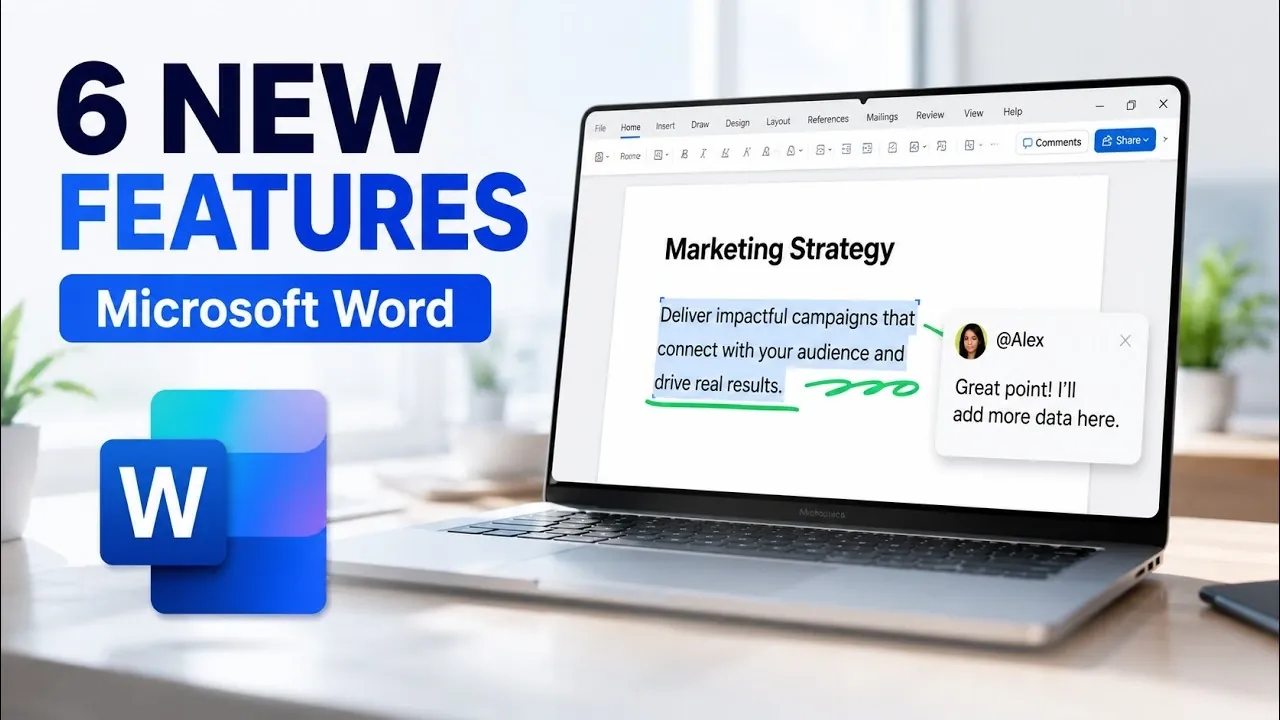
Microsoft Word has introduced several updates in 2026 that focus on improving efficiency and usability for document creation. One notable addition is the ability to paste hyperlinks directly onto selected text using the “Ctrl + V” shortcut, bypassing the traditional hyperlink dialog box. This update is particularly useful for users working on detailed reports or research documents, as it reduces the time required to link external resources. According to Mike Tholfsen, these changes address common challenges faced by users while streamlining key workflows.
Discover how these updates enhance functionality, including automatically generated alt text for images to support accessibility and a contextual tab for headers and footers that simplifies formatting. Gain insight into improved commenting features and streamlined permissions management, both of which aim to make collaboration more straightforward. This guide provides a closer look at how these features can support a variety of document-related tasks.
Microsoft Word 2026 Updates
TL;DR Key Takeaways :
- Streamlined Hyperlinking: Users can now paste hyperlinks directly onto selected text using “Ctrl + V,” eliminating the need for the hyperlink dialog box and improving workflow efficiency.
- Automatic Alt Text for Images: Microsoft Word now generates detailed alt text for images automatically, enhancing accessibility for users with vision impairments and aligning with global standards.
- Simplified Permissions Management: Word for the Web allows users to request editing or reviewing permissions directly within the document interface, streamlining collaboration and reducing delays.
- Improved Comment Design and Functionality: The updated commenting system features a modern design and enhanced usability, allowing users to resolve or update comments more efficiently during collaborative editing.
- Contextual Tab for Headers and Footers: A new contextual tab consolidates tools for formatting headers, footers and page numbers, simplifying customization and making sure consistency across documents.
1. Streamlined Hyperlinking
Adding hyperlinks to documents is now faster and more intuitive. With the latest update, you can paste a hyperlink directly onto selected text using the “Ctrl + V” shortcut. This eliminates the need to open the hyperlink dialog box, saving valuable time and effort. The feature is available on both desktop and web versions, making sure a seamless experience across platforms. For instance, if you’re preparing a overview and need to link to an external source, you can now accomplish this in seconds, significantly improving your workflow efficiency.
2. Automatically Generated Alt Text for Images
Accessibility remains a priority in Microsoft Word’s 2026 updates, with the introduction of automatic alt text generation for images. This feature, accessible through the “Check Accessibility” tool in the Review tab, automatically provides detailed descriptions of images, enhancing inclusivity for users with vision impairments. For example, when you insert a chart or photo, Word analyzes the content and suggests descriptive alt text. This functionality aligns with global accessibility standards, making sure your documents are more inclusive and usable by a broader audience.

Here are additional guides from our expansive article library that you may find useful on Microsoft Word.
- How to customize and change Line spacing in Word
- See the New AI Features Microsoft Just Added to Teams and Word
- 4 Best Microsoft Office Alternatives for Linux Users
- How to make hearts on Microsoft Word
- How to add check boxes to a MS Word document
- How to combine and merge Microsoft Word Documents
- How to remove section breaks in Microsoft Word
- Stop Typing! Convert Audio to Text in Word Like a Pro
3. Simplified Permissions Management in Word for the Web
Collaboration in Word for the Web has been improved with a simplified permissions management feature. If you’re working on a view-only document and require editing or reviewing access, you can now request permissions directly within the document interface. This eliminates the need for external communication, such as emails, to gain access. For teams working on shared projects, this feature reduces delays and enhances productivity by streamlining the approval process, making collaboration smoother and more efficient.
4. Improved Comment Design and Functionality
The commenting system in Word for the Web has undergone a significant upgrade, featuring a modern, rounded design that improves both aesthetics and usability. Beyond the visual enhancements, the functionality has been refined to make managing feedback more efficient. You can now resolve or update comments with ease, making sure clear and effective communication during collaborative editing. For example, when reviewing a colleague’s suggestions, you can quickly mark comments as resolved or reply with updates, keeping the editing process organized and transparent.
5. Contextual Tab for Headers and Footers
Formatting headers, footers and page numbers has been simplified with the addition of a contextual tab in Word for the Web. This new tab consolidates tools for customizing page elements, such as inserting page numbers, applying section-specific numbering and choosing formats like Roman numerals. Whether you’re creating a formal overview or a multi-section document, this feature makes formatting tasks more intuitive and ensures consistency across your work. By centralizing these tools, Word reduces the time spent navigating menus, allowing you to focus on content creation.
6. Line Numbering for Legal and Technical Documents
For users working with legal, academic, or technical documents, the new line numbering feature in Word for the Web is an essential addition. You can now add continuous line numbers or restart numbering on each page, depending on your specific requirements. Additionally, the feature allows you to customize the starting point for numbering, aligning it with the functionality available in the desktop version. This ensures that your documents meet precise formatting standards without requiring additional effort, making it particularly useful for legal briefs, research papers and technical manuals.
Enhancing Your Workflow with Microsoft Word in 2026
The 2026 updates to Microsoft Word reflect a strong commitment to improving user experience across both desktop and web platforms. From faster hyperlinking and enhanced accessibility tools to streamlined collaboration features and advanced formatting options, these updates cater to a wide range of user needs. By incorporating these tools into your workflow, you can create documents that are more professional, accessible and efficiently formatted. Whether you’re managing a team project, preparing a detailed overview, or simply organizing your thoughts, these features are designed to save time and elevate the quality of your work.
Media Credit: Mike Tholfsen
Disclosure: Some of our articles include affiliate links. If you buy something through one of these links, Geeky Gadgets may earn an affiliate commission. Learn about our Disclosure Policy.
