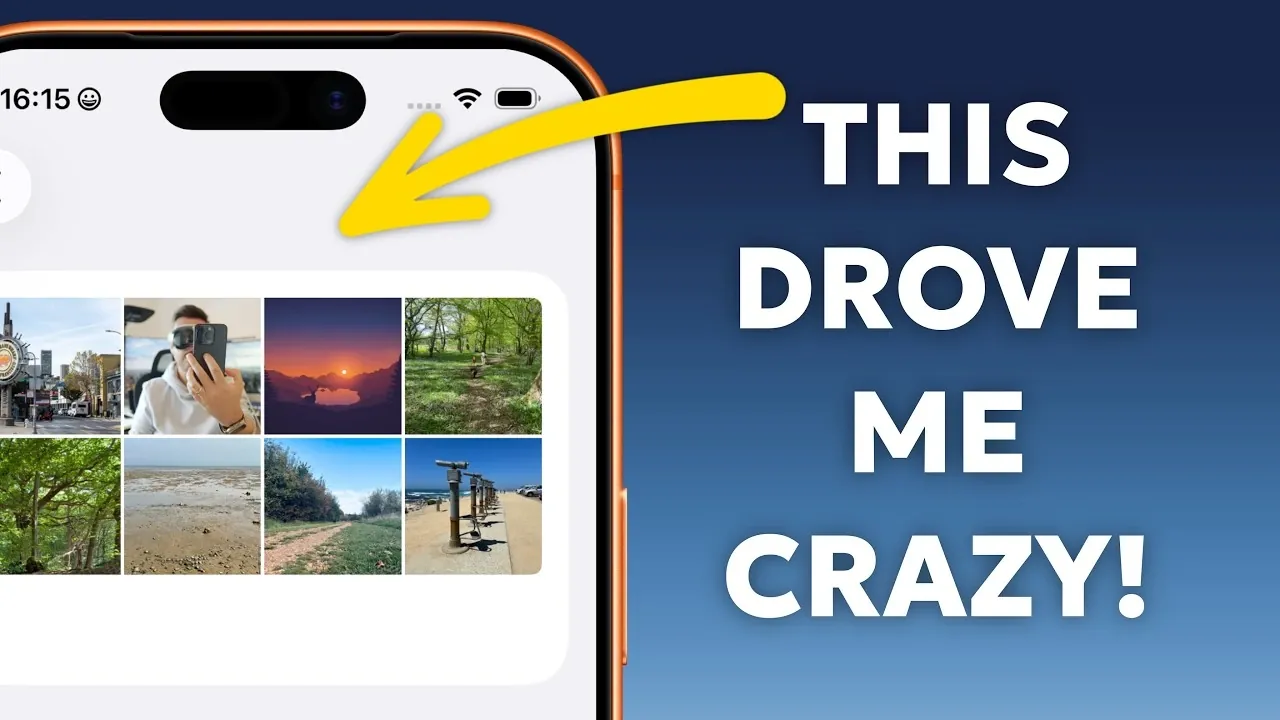
iPhones are renowned for their sleek design and intuitive interface, but even the most advanced devices can present challenges. If you’ve encountered frustrations with certain features or settings, you’re not alone. The video below from Proper Honest Tech provides practical solutions to 10 common iPhone issues, helping you optimize usability, enhance privacy, and improve overall efficiency.

1. Customize Accessibility Settings for Individual Apps
Accessibility features are invaluable for tailoring your iPhone experience, but applying them universally can sometimes cause unintended inconveniences. Instead, you can customize these settings for specific apps to ensure a more personalized experience. For example, if you need larger text in one app but not others:
- Navigate to Settings > Accessibility > Per-App Settings.
- Add the app you want to customize.
- Adjust features such as text size, contrast, or motion preferences.
This approach allows you to fine-tune accessibility options for each app without affecting others, making sure a seamless user experience.
2. Streamline Your Control Center
The Control Center is a powerful tool for quick access to essential features, but a cluttered layout can reduce its effectiveness. To optimize it:
- Open Settings > Control Center.
- Reorder or remove icons to prioritize the tools you use most frequently.
- Add useful controls like flashlight, screen recording, or quick access to Wi-Fi settings.
A well-organized Control Center not only saves time but also minimizes frustration when navigating your device.
3. Simplify Your Mail App
Apple’s Mail app is feature-rich, but its default categorization can feel overwhelming. If you prefer a more streamlined inbox:
- Open the Mail app and tap Edit in the top-right corner.
- Disable categories such as “Unread” or “Flagged” to focus on a unified inbox view.
- Use Filters to create custom views for specific email types, such as work or personal emails.
This method keeps your inbox organized and manageable, making it easier to stay on top of important communications.
4. Fine-Tune Focus Mode
Focus Mode is designed to help you minimize distractions, but it can sometimes block notifications you don’t want to miss. To adjust it for your needs:
- Go to Settings > Focus and select a mode (e.g., Do Not Disturb or Work).
- Add specific contacts or apps to your “Allowed Notifications” list.
- Enable repeated call bypasses to ensure urgent calls come through.
These adjustments allow you to maintain focus while making sure you don’t miss critical updates or communications.
5. Manage Screenshot Previews
The screenshot preview feature can interrupt your workflow, especially when taking multiple screenshots in quick succession. While you can’t fully disable this feature in most iOS versions, you can quickly dismiss the preview:
- After taking a screenshot, swipe the preview off-screen.
This simple action keeps your workflow uninterrupted while still allowing access to editing tools if needed.
6. Control Photo Library Permissions
Privacy concerns often arise when apps request access to your photo library. Instead of granting full access, you can limit permissions to specific photos:
- Go to Settings > Privacy > Photos.
- Select an app and choose “Selected Photos.”
- Manually pick the images the app can access.
This ensures your privacy is protected while still allowing apps to function as intended.
7. Optimize iCloud Storage
Running out of iCloud storage can disrupt your device’s functionality, but managing it effectively can free up space and prevent issues. To optimize your storage:
- Open Settings > [Your Name] > iCloud > Manage Storage.
- Review backups, large files and app data.
- Delete unnecessary backups or transfer files to external storage.
Regularly managing your iCloud storage ensures your data remains accessible and prevents disruptions.
8. Improve AI Photo Categorization
Your iPhone’s AI categorizes photos into collections like “Selfies” or “Screenshots,” but these groupings aren’t always accurate. To improve categorization:
- Open the Photos app and manually tag relevant photos.
- Add them to existing collections or create new albums.
Over time, this helps the AI refine its sorting, making your photo library easier to navigate and more organized.
9. Separate Volume Controls
Adjusting your iPhone’s volume can sometimes unintentionally change ringtone and alert levels. To prevent this:
- Go to Settings > Sounds & Haptics.
- Disable the “Change with Buttons” option.
This separates media volume from ringtone volume, giving you precise control over each and avoiding unintended disruptions.
10. Change Default Download Locations
By default, downloads often save to your iPhone’s internal storage, which can make accessing files across devices inconvenient. To change this setting:
- Go to Settings > Safari > Downloads.
- Select “iCloud Drive” as the default location.
This ensures your downloads are accessible across all your Apple devices, streamlining file management and improving convenience.
Enhance Your iPhone Experience
By addressing these 10 common iPhone issues, you can significantly improve your device’s functionality and usability. From customizing settings to managing storage and enhancing privacy, these adjustments empower you to create a more seamless and efficient iPhone experience. Take the time to explore these tips and enjoy a smoother, more personalized interaction with your device.
Source & Image Credit: Proper Honest Tech
Disclosure: Some of our articles include affiliate links. If you buy something through one of these links, Geeky Gadgets may earn an affiliate commission. Learn about our Disclosure Policy.
