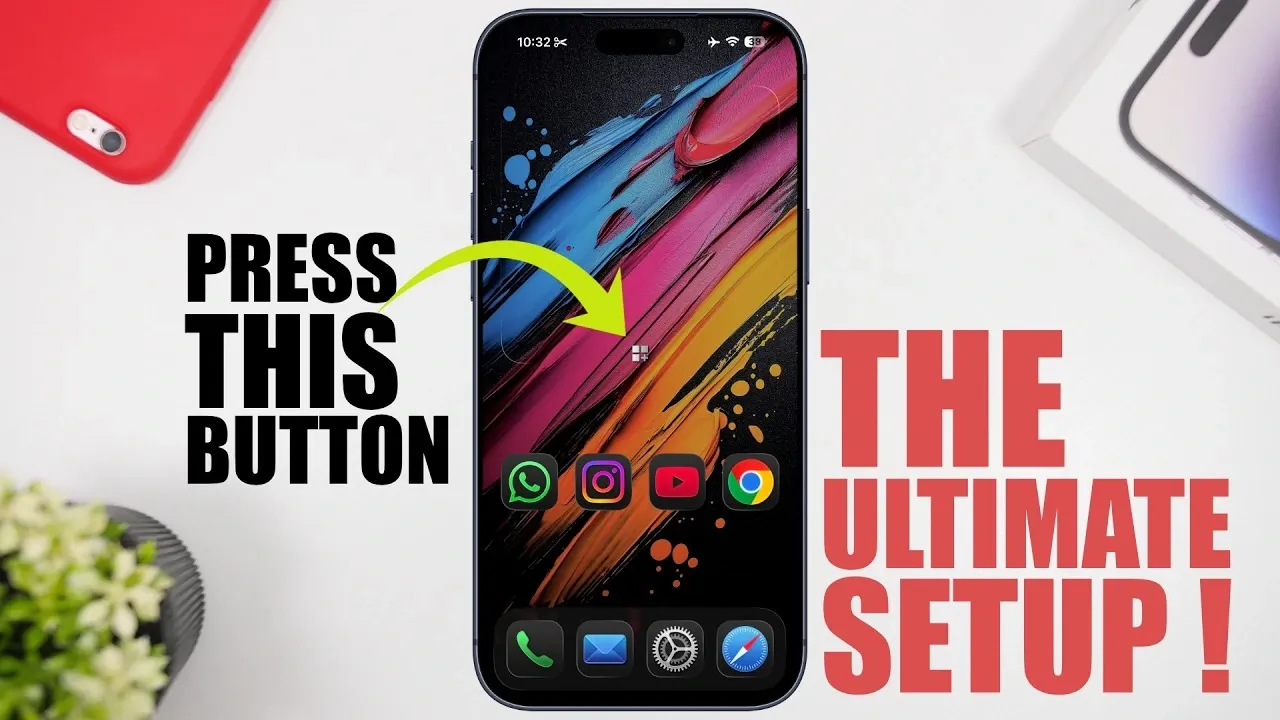
Simplifying your iPhone’s home screen to a single page can transform your device into a sleek, efficient tool. By carefully curating apps, widgets, and shortcuts, you can achieve a minimalist design that balances functionality with aesthetic appeal. The video below from iReviews will help you create a one-screen setup that prioritizes productivity, ease of access, and visual harmony.

Designing a Minimalist Home Screen
A successful one-screen setup begins with a thoughtful layout. Limit your home screen to essential apps that you use daily. Start by placing four key apps in the dock for quick access. Common choices include:
- Messages
- Safari
- Phone
- Music
Above the dock, select four additional apps that align with your routine, such as Calendar, Notes, Mail, or Photos. This approach ensures that your most-used tools are always within reach.
To enhance the visual appeal, consider customizing your icons and wallpaper. A dark mode theme paired with a subtle gradient or liquid glass background can create a modern, polished look. These small adjustments can make your home screen feel both functional and stylish, while also reducing eye strain in low-light environments.
Maximizing Widget Functionality
Widgets are a powerful way to add functionality without cluttering your home screen. Use a multifunctional widget app to consolidate key information into a single widget. For example, you can display:
- Weather updates
- Calendar events
- Reminders
- Fitness stats
- Battery levels
To maintain a clean aesthetic, enable transparency in your widgets so they blend seamlessly with your wallpaper. Position them strategically to ensure they are both accessible and visually balanced. A well-placed widget can provide critical information at a glance without overwhelming your screen, making it easier to stay organized and informed.
Efficient Access to Additional Apps
Even with a one-screen setup, you can still access all your apps efficiently. Siri Suggestions widgets dynamically display frequently used apps, adapting to your habits over time. Adding one or more of these widgets to your home screen ensures quick access to the apps you rely on most.
For less frequently used apps, the App Library is your best friend. Swipe right from your home screen to access this feature, which organizes all your apps into categorized folders. This eliminates the need for multiple home screen pages while keeping everything easily accessible. The App Library’s intuitive design ensures that even rarely used apps are just a few taps away.
Decluttering with Shortcuts and the Control Center
To free up space on your home screen, move shortcuts to the Control Center. This feature allows you to access key functions without crowding your main page. Customize the Control Center by adding shortcuts for tasks such as:
- Allowing dark mode
- Launching specific apps
- Controlling smart home devices
You can also adjust the size and placement of these shortcuts to suit your preferences. This customization ensures that your most-used features are always just a swipe away. By using the Control Center, you can maintain a clean and organized home screen while still having quick access to essential tools.
Personalizing Your Setup
Customization is key to making your one-screen setup feel uniquely yours. Experiment with icon sizes, background tints and widget designs to create a cohesive appearance. Transparent widgets and liquid glass backgrounds can add a sleek, modern touch that enhances the overall aesthetic.
Additionally, toggle between light and dark modes based on your environment or personal preference. Light mode can be ideal for bright settings, while dark mode offers a more subdued and elegant appearance in dimly lit spaces. These options allow you to create a home screen that is both practical and visually appealing, tailored to your needs and style.
Mastering Navigation
Efficient navigation is crucial for maintaining a streamlined setup. Use swipe gestures to access key features quickly:
- Swipe down from the top-right corner to open the Control Center.
- Swipe up from the bottom to return to the home screen.
- Swipe right to access the App Library.
You can also hide or reveal widgets as needed to keep your interface clutter-free. This flexibility ensures that your home screen remains organized while still providing access to essential tools and information. By mastering these gestures, you can navigate your device with ease and efficiency.
Creating a Seamless Experience
A one-screen iPhone setup is the perfect blend of simplicity and functionality. By curating essential apps, integrating widgets and using features like the App Library and Control Center, you can create a home screen that enhances productivity and complements your personal style. Thoughtful customization, combined with efficient navigation, transforms your iPhone into a streamlined tool designed to meet your needs while maintaining a clean, modern aesthetic.
With these strategies, your iPhone becomes more than just a device; it becomes an extension of your daily routine, tailored to your preferences and optimized for ease of use. Whether you prioritize productivity, aesthetics, or both, a one-screen setup offers a practical and visually appealing solution.
Enhance your knowledge of the iPhone by exploring a selection of articles and guides on the subject.
- Apple’s Foldable iPhone: Features, Design, and Release Date
- Apple’s iPhone Fold: Everything We Know So Far
- Iphone Fold Leak: 8-inch Display and a $2,500 Price Point
- No iPhone 18 In 2026? Here’s What Apple is Doing Instead
- iPhone 18 Pro Max: Apple’s Leap into Proprietary Hardware
- Apple Foldable iPhone: Design, Features, and Pricing Revealed
Source & Image Credit: iReviews
Disclosure: Some of our articles include affiliate links. If you buy something through one of these links, Geeky Gadgets may earn an affiliate commission. Learn about our Disclosure Policy.
