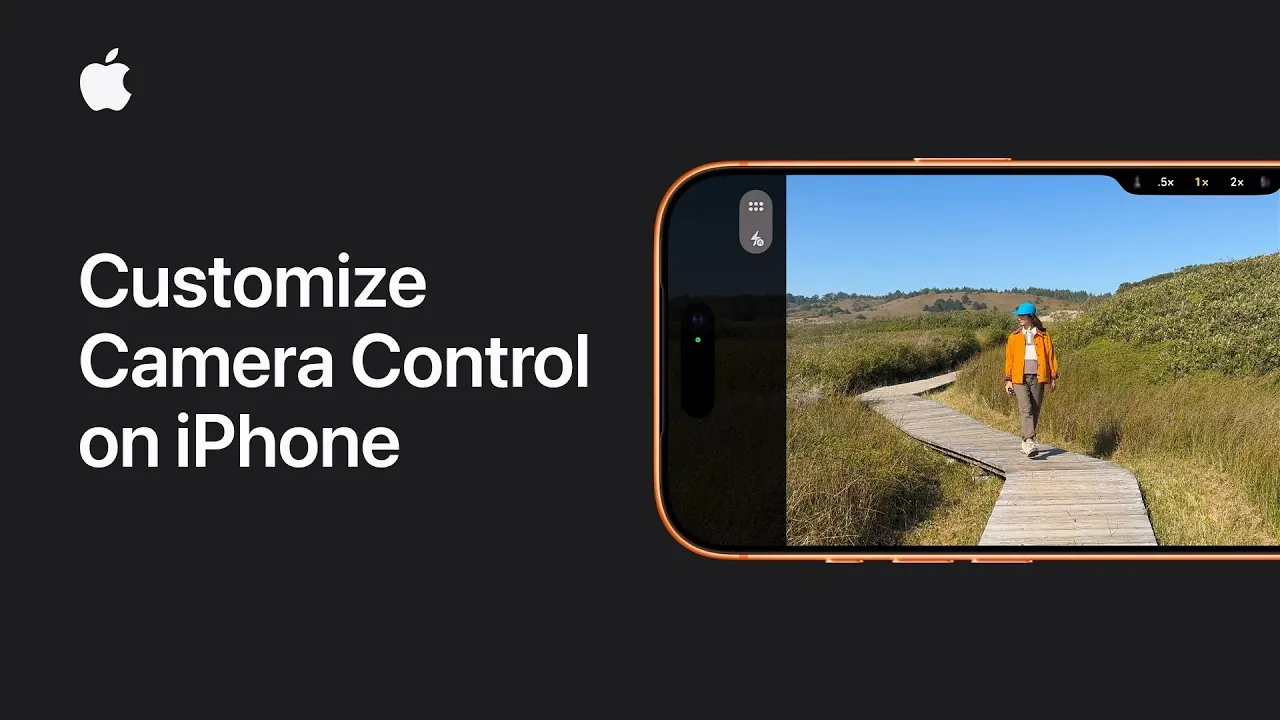
Apple’s iOS 26 introduces a comprehensive suite of advanced camera control features, designed to enhance your photography experience. Whether you’re capturing quick snapshots or crafting detailed compositions, these tools provide a new level of personalization and efficiency. With options ranging from quick access configurations to gesture-based controls, iOS 26 enables you to unlock the full potential of your iPhone’s camera. The video below from Apple explores the key features and how they can transform your approach to mobile photography.
Quick Access to Your Camera
iOS 26 makes capturing moments faster and more convenient by offering customizable quick access to your camera. You can now choose between a single or double click to launch the camera, making sure you never miss a fleeting moment.
To activate this feature:
- Navigate to your iPhone’s Camera Settings.
- Select your preferred click option: single or double.
This simple yet effective adjustment is particularly useful when you’re on the go or need to react quickly to capture an unexpected scene. By reducing the time it takes to open the camera, iOS 26 ensures you’re always ready to shoot.
Enhanced Camera Settings for Precision
The updated camera interface in iOS 26 brings advanced settings directly to your fingertips, allowing you to fine-tune your shots with greater precision. Key features such as zoom and depth adjustments are now more accessible, allowing you to achieve professional-quality results effortlessly.
For example:
- When taking a portrait, you can adjust the depth to create a soft, blurred background that highlights your subject.
- Zoom controls allow you to frame your subject with precision, whether you’re capturing expansive landscapes or intricate close-ups.
These intuitive controls are designed to enhance your creative process, making it easier to experiment with different settings without disrupting your workflow.
Customizable Camera Gestures
One of the standout innovations in iOS 26 is the ability to customize camera gestures, giving you greater control over how the camera responds to your inputs. This feature allows you to assign specific actions to gestures such as light presses, swipes, or combinations of both, creating a more intuitive and personalized experience.
For instance:
- A light press could bring up the settings overlay for quick adjustments.
- A swipe might toggle between photo and video modes, streamlining your shooting process.
By tailoring these gestures to your preferences, you can create a seamless workflow that aligns with your unique photography style. This customization ensures that the camera interface feels natural and responsive, enhancing your overall experience.
Personalizing the Settings Overlay
The settings overlay in iOS 26 is fully customizable, allowing you to prioritize the tools and features that matter most to you. This flexibility ensures that your camera interface is both functional and efficient, helping you focus on capturing the perfect shot.
For example:
- If you frequently adjust exposure settings but rarely use filters, you can move exposure controls to a more prominent position and minimize or hide the filter option.
- Rearrange items within the settings menu using a simple drag-and-drop interface to create a layout that suits your workflow.
This level of personalization not only saves time but also ensures that your most-used tools are always within easy reach, making your photography sessions more productive and enjoyable.
Testing and Refining Your Customizations
Once you’ve set up your camera preferences, it’s essential to test them in various real-world scenarios to ensure they meet your needs. Experimenting with different gestures and settings will help you determine whether your customizations feel intuitive and effective.
Here’s how to test your setup:
- Switch between photo and video modes using your customized gestures to confirm they work seamlessly.
- Access the settings overlay during a photo session to ensure the layout is practical and easy to navigate.
By testing and refining your customizations, you can create a camera interface that enhances your photography experience across a wide range of shooting conditions.
Elevate Your Photography with iOS 26
The advanced camera control features in iOS 26 provide a new level of personalization and efficiency, empowering you to tailor your iPhone’s camera to your unique needs. From quick access options to customizable gestures and settings overlays, these tools are designed to make photography more intuitive and enjoyable. By exploring and refining these features, you can elevate your skills and capture moments with greater ease and precision. Whether you’re a casual user or a dedicated photography enthusiast, iOS 26 offers the tools you need to take your mobile photography to the next level.
Take a look at other insightful guides from our broad collection that might capture your interest in iPhone camera control.
- iPhone 16 Camera Control Button: Features and Benefits Explained
- iOS 26 AirPods Update: Live Translation, Camera Control & More
- 7 iPhone 16 Pro Camera Tricks You Didn’t Know Existed
- iOS 26 Camera App Redesign: Features, Tips, and Tricks
- Unlock the FULL Potential of Your iPhone 16 Pro Camera
Source & Image Credit: Apple Support
Disclosure: Some of our articles include affiliate links. If you buy something through one of these links, Geeky Gadgets may earn an affiliate commission. Learn about our Disclosure Policy.
