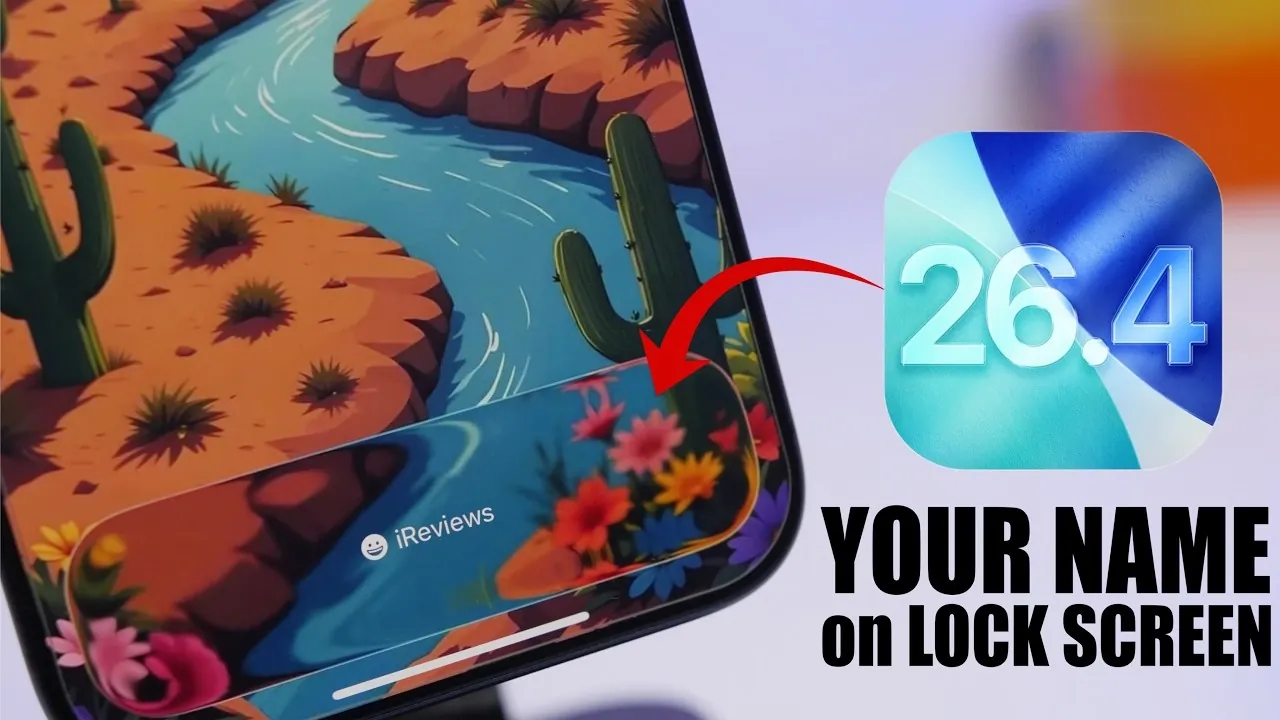
Customizing your iPhone lock screen with your name is a simple yet effective way to make your device feel more personal. With the release of iOS 26.4, Apple has introduced enhanced tools that make this process easier and more intuitive. This guide will walk you through two practical methods to achieve this: using the Focus feature or the Battery widget. Both approaches are straightforward, allowing you to personalize your lock screen while maintaining full control over your device’s functionality. The video below from iReviews gives us more details.

Method 1: Using the Focus Feature
The Focus feature in iOS 26.4 is a versatile tool designed to help you manage notifications and device settings. However, it also offers a creative way to display your name on the lock screen. Follow these steps to set it up:
- Open the Settings app and navigate to the Focus section.
- Tap the + icon to create a new Focus. When prompted, enter your desired name, such as your first name, full name, or even a nickname. You can also select an optional icon to represent this Focus mode.
- Customize the Focus settings to ensure no additional features, such as notification silencing or app restrictions, are enabled unless you prefer them. This ensures your device continues to function normally.
- Activate the Focus mode. Once enabled, your chosen name will appear prominently on the lock screen in the area where the Focus status is displayed.
This method is ideal for users who prefer a clean and minimalistic way to personalize their lock screen without making significant changes to other device settings.
Method 2: Using the Battery Widget
Another effective way to display your name on the lock screen is by customizing the Battery widget. This method involves renaming your device and configuring the widget to reflect the updated name. Here’s how to do it:
- Go to Settings and select General. Tap on About, then update the Device Name field with your desired name.
- Return to the lock screen customization menu by pressing and holding the lock screen, then selecting Customize.
- Add the Battery widget to your lock screen. This widget displays the battery status of your device and any connected accessories, such as AirPods or an Apple Watch.
- Ensure the widget settings are configured to show the updated device name. Your name will now appear alongside the battery percentage on the lock screen.
This approach not only personalizes your lock screen but also provides practical functionality by keeping you informed about your device’s battery status. It’s a great option for those who want to combine aesthetics with utility.
Why Personalize Your Lock Screen?
Customizing your lock screen with your name offers several benefits, both aesthetic and practical. On a personal level, it makes your device feel uniquely yours, reflecting your individuality. From a practical standpoint, it can help in situations where identification is necessary, such as distinguishing your iPhone from others in a shared space or during group settings.
Additionally, with iOS 26.4, Apple has streamlined the customization process, eliminating the need for third-party apps or complex configurations. This ensures that you can make these changes quickly and securely, all within the native iOS environment.
By taking advantage of these features, you can enhance your device’s appearance while maintaining its functionality. Whether you use the Focus feature or the Battery widget, the process is designed to be user-friendly, making it accessible to all iPhone users.
Enhance Your iPhone Experience
Adding your name to your iPhone lock screen is a simple yet impactful way to personalize your device. Both the Focus feature and the Battery widget offer intuitive methods to achieve this, requiring only a few minutes of setup. These options not only allow you to customize your lock screen but also ensure that your device remains functional and easy to use.
With iOS 26.4, Apple continues to prioritize user customization, making it easier than ever to tailor your iPhone to your preferences. By following the steps outlined above, you can create a lock screen that is both visually appealing and uniquely yours.
Gain further expertise in iOS 26.4 features by checking out these recommendations.
- iOS 26.4 Released: New AI Playlists, Keyboard Fixes & Features
- iOS 26.4 Release Date, Features and Performance Details
- iOS 26.4 Hidden Features: 10 New iPhone Tips You Need to Know
- iOS 26.4 RC Features: What’s New in the Final 2026 Beta?
- iOS 26.4 Beta 2: Key Features, Bug Fixes and Design Updates
Source & Image Credit: iReviews
Disclosure: Some of our articles include affiliate links. If you buy something through one of these links, Geeky Gadgets may earn an affiliate commission. Learn about our Disclosure Policy.
