iDeviceHelp
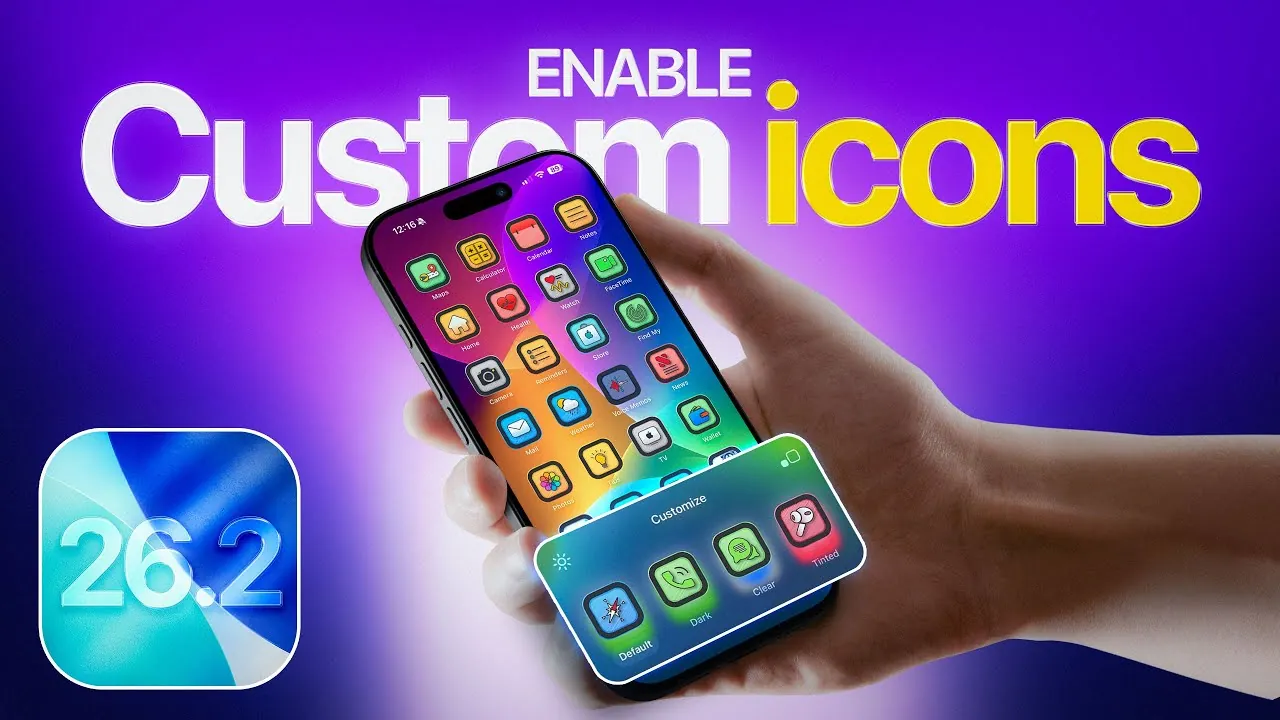
With the release of iOS 26.2, personalizing your iPhone has become more intuitive and accessible than ever. This update introduces enhanced tools for installing custom icon packs and themes, allowing you to tailor your device to reflect your personal style. Whether you prefer minimalist aesthetics, bold designs, or something entirely unique, iOS 26.2 offers a seamless way to transform your iPhone while maintaining its functionality. This guide will walk you through the process, from selecting themes to fine-tuning settings, making sure an enjoyable and efficient customization experience.
iOS 26.2 – install CUSTOM icons to n iPhone

The Benefits of Customizing Your iPhone
Customizing your iPhone is about more than just aesthetics—it’s about creating a device that feels uniquely yours. iOS 26.2 expands on this concept by offering a wide array of themes and icon packs to suit diverse tastes and preferences. Whether you’re drawn to sleek, minimalist designs or vibrant, colorful layouts, customization allows you to enhance both the visual appeal and usability of your device. By tailoring your iPhone’s appearance, you can create a more intuitive and enjoyable user experience that aligns with your daily needs and personal style.
Getting Started with Custom Icon Packs and Themes
iOS 26.2 introduces a variety of custom icon packs and themes, accessible through dedicated platforms and apps. These resources make it easy to explore and select designs that resonate with your preferences. Here’s how to begin:
- Browse platforms that offer free and premium themes. Many platforms allow you to filter results based on categories, color schemes, or design styles.
- Take advantage of the preview feature to see how a theme will look on your device before committing to it.
- Choose a theme that balances aesthetics with functionality, making sure it complements your usage habits.
Previewing themes is a critical step, as it helps you make informed decisions and avoid unnecessary changes later. This feature ensures that the theme you select aligns with your expectations and enhances your device’s usability.
Installing Themes with Ease
The installation process for custom themes in iOS 26.2 has been streamlined for user convenience. Follow these steps to apply a theme effortlessly:
- Sign in with your Apple ID to enable seamless integration with your device.
- Browse the available themes and use the preview feature to evaluate their appearance on your home screen.
- Once you’ve selected a theme, initiate the installation process with a single tap.
The system automatically applies the theme, including custom icons, dock adjustments, and other visual elements. This one-click installation process eliminates the need for manual configurations, making it accessible even for users new to customization.
Fine-Tuning Your Customized iPhone
After applying a theme, you can further refine your iPhone’s appearance to suit your preferences. iOS 26.2 provides several options for fine-tuning:
- Hide or rearrange stock icons that you no longer use to maintain a clean and organized layout.
- Adjust accessibility settings, such as motion reduction or contrast adjustments, to enhance usability and comfort.
- Experiment with widget placements to create a cohesive and functional home screen design.
These adjustments ensure that your customized iPhone is not only visually appealing but also practical for everyday use. By focusing on these details, you can create a personalized experience that enhances both form and function.
Reverting to the Default Look
If you decide to return to your iPhone’s original appearance, iOS 26.2 makes it simple to revert changes. Follow these steps to restore the default settings:
- Remove the installed profiles associated with the custom theme through your device’s settings.
- Once the profiles are removed, your iPhone will automatically restore its default icons, dock, and layout.
This flexibility allows you to experiment with different themes and designs without worrying about making permanent changes. It also ensures that you can easily switch between customized and default appearances as your preferences evolve.
Maximizing Your Customization Experience
To make the most of your iPhone customization journey, consider these practical tips:
- Organize your home screen by grouping similar apps or hiding unused ones to maintain a cohesive design.
- Choose themes optimized for performance to avoid potential slowdowns or glitches.
- Experiment with different styles and layouts to find the perfect balance between aesthetics and functionality.
- Regularly update your themes and icon packs to take advantage of new designs and features.
By following these suggestions, you can create a personalized iPhone experience that stands out while remaining efficient and user-friendly. Customization is an ongoing process, and these tips will help you refine your device’s appearance over time.
Enhancing Your iPhone with iOS 26.2
iOS 26.2 enables users to take control of their iPhone’s appearance with tools that make customization straightforward and enjoyable. From exploring a wide range of themes to applying them with a single tap, the process is designed to be both accessible and efficient. The ability to fine-tune settings and revert to default layouts ensures that your customization journey is flexible and stress-free. Whether you’re experimenting with free themes or investing in premium designs, iOS 26.2 provides the tools you need to create a device that reflects your unique style while maintaining its performance and usability.
Expand your understanding of Custom Icon Packs with additional resources from our extensive library of articles.
- How to Customize Your iOS 26 Home Screen with Liquid Glass
- Best Android Customization Apps to Personalize Your Smartphone
- How to customize Android 14
- Get the Most Out of iOS 18.1: 5 Awesome Home Screen Setups
- BLOW UP Your iPhone: Epic Shortcuts for Wallpapers & Icons
Source & Image Credit: iDeviceHelp
Disclosure: Some of our articles include affiliate links. If you buy something through one of these links, Geeky Gadgets may earn an affiliate commission. Learn about our Disclosure Policy.
