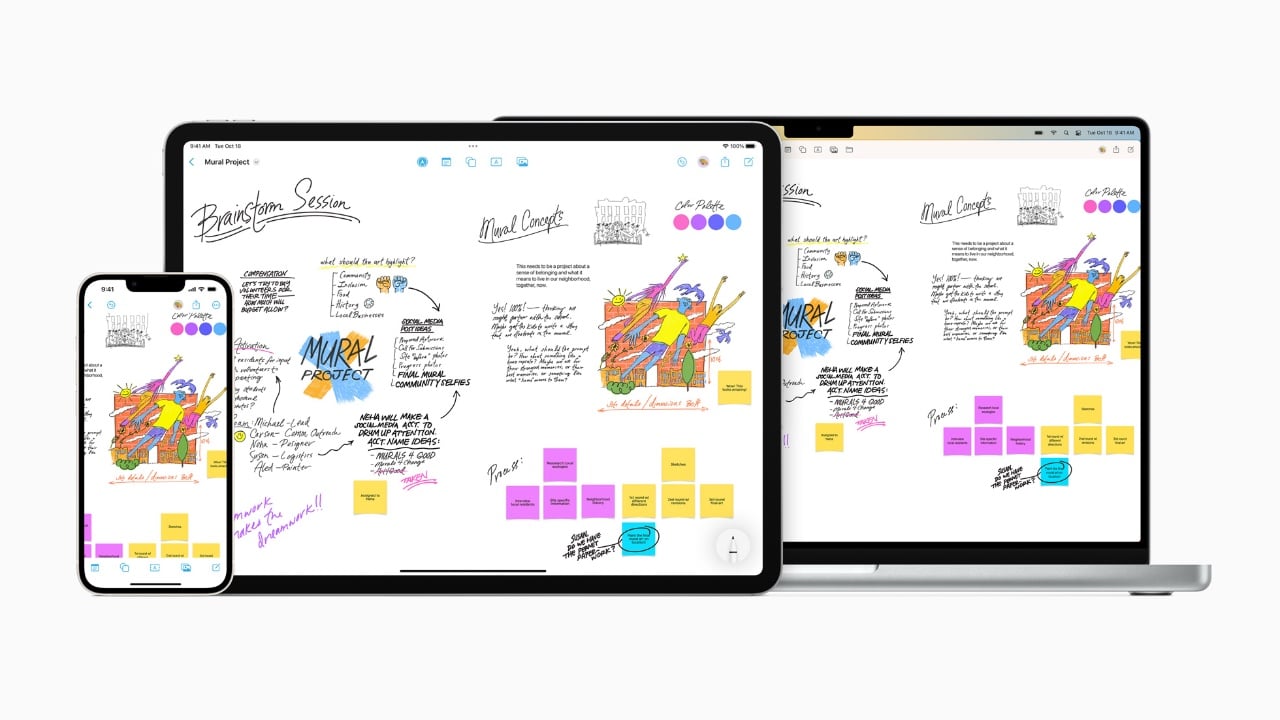
Apple Freeform is a versatile digital tool designed to help you brainstorm, plan, and organize ideas on an infinite canvas. Whether you’re a creative professional, a student, or a team leader, Freeform offers a robust set of features to streamline workflows and enhance collaboration. By mastering its core functionality and tools, you can transform Freeform into a powerful platform for creativity and productivity. Its flexibility and adaptability make it a valuable resource for a wide range of users, empowering you to bring your ideas to life in an intuitive and visually engaging way. The video below from
Nikias Molina shows us how to use the Freeforum app.

What Makes Apple Freeform Unique?
At its core, Apple Freeform revolves around its infinite canvas—a boundless digital workspace where you can freely arrange and integrate content. This flexibility allows you to capture ideas in multiple formats, making it ideal for brainstorming, project planning, or creative exploration. Here’s what sets it apart:
- Content Variety: Add images, handwritten notes, sticky notes, sketches, links, and PDFs to create visually rich boards. This variety ensures that you can express your ideas in the format that best suits your needs.
- Interactive Design: Combine different media types to build dynamic and engaging layouts. The ability to mix and match content types encourages creativity and experimentation.
- Limitless Space: Expand your canvas as needed, making sure you never run out of room for ideas. This feature is particularly useful for large-scale projects or brainstorming sessions that require extensive visual mapping.
Freeform’s unique combination of features makes it a standout tool for anyone looking to organize their thoughts and projects in a visually compelling way.
Organizing Complex Projects with Scenes
Freeform’s “scenes” feature is a powerful tool for managing larger projects. Scenes act as individual sections within your board, helping you compartmentalize tasks or ideas. This feature is especially useful for breaking down complex workflows into manageable parts. Key benefits include:
- Clear Segmentation: Break down complex projects into manageable sections. This makes it easier to focus on specific tasks without feeling overwhelmed by the bigger picture.
- Customizable Layouts: Rename, reorder, or export scenes as PDFs for easy sharing or printing. This flexibility allows you to tailor your project organization to suit your workflow.
- Enhanced Focus: Work on specific parts of a project without losing sight of the overall goal. By isolating individual sections, you can maintain clarity and productivity.
Scenes provide a structured approach to project management, making sure that even the most intricate tasks remain organized and accessible.
Keeping It Neat: Grids and Alignment Tools
A clean and structured layout is essential for effective communication, and Freeform’s grids and alignment tools make this effortless. Features like snap-to-grid functionality and alignment guides help you position elements with precision. These tools are particularly valuable when creating presentations, workflows, or any project that requires a polished appearance.
By using grids, you can ensure that your boards maintain a professional and organized look. Alignment tools further enhance this by allowing you to line up elements perfectly, creating a visually cohesive design. Whether you’re working on a detailed project plan or a creative storyboard, these features help you maintain clarity and professionalism.
Customization with Shapes and Styles
Freeform offers a library of pre-made shapes, ranging from geometric figures to symbols and objects. This library provides a quick and easy way to add visual elements to your boards. Additionally, you can draw custom shapes directly on the canvas, giving you complete creative freedom. Each shape is fully customizable, allowing you to:
- Adjust Colors and Outlines: Personalize shapes to match your project’s theme or aesthetic.
- Copy and Paste Styles: Maintain consistency across your board by reusing styles for multiple elements.
- Combine Shapes: Create unique designs tailored to your specific needs by merging or layering shapes.
These customization options make Freeform a highly adaptable tool, capable of meeting the demands of any project.
Visualizing Ideas with Connectors
For mind mapping and flowchart creation, Freeform’s connectors are invaluable. These tools let you link shapes and ideas, visually representing relationships and processes. You can customize connectors with different colors, line styles, and arrowheads, making it easy to create clear and engaging diagrams.
Connectors are particularly useful for illustrating workflows, organizational charts, or brainstorming sessions. By visually mapping out relationships, you can gain a deeper understanding of your ideas and how they fit together. This feature enhances both creativity and clarity, making it easier to communicate complex concepts.
Media Integration for Enriched Boards
Freeform supports a wide range of media types, allowing you to enhance your boards with photos, videos, links, and scanned documents. This media integration adds depth and context to your projects, making them more engaging and informative. Notable features include:
- Background Removal: Clean up images for a polished look, making sure that your visuals remain professional and focused.
- PDF Markup: Annotate PDFs directly within the app, eliminating the need for external tools and streamlining your workflow.
- Seamless Integration: Save links from Safari directly to your canvas for easy access to resources. This feature is particularly useful for research or collaborative projects.
By incorporating various media types, Freeform allows you to create boards that are both visually appealing and highly functional.
Collaboration Made Simple
Collaboration is one of Freeform’s standout features. You can share boards via iMessage, AirDrop, or custom links, and set permissions to control whether collaborators can view or edit. This makes it easy to:
- Work on Group Projects: Collaborate in real time with team members, making sure that everyone stays on the same page.
- Gather Feedback: Share your boards with stakeholders or peers to collect valuable input and suggestions.
- Seamless Sharing: Share ideas effortlessly across devices and platforms, making collaboration more efficient.
These collaboration tools make Freeform an excellent choice for team-based projects, fostering communication and teamwork.
Extra Features to Spark Creativity
Freeform includes additional tools to enhance your creative process. Sticky notes are perfect for quick annotations or reminders, while AI-generated images and stickers add a fun, personalized touch to your boards. These features, combined with its robust functionality, make Freeform a comprehensive tool for creativity and organization.
By using these extra features, you can add personality and flair to your projects, making them more engaging and memorable. Whether you’re brainstorming ideas or finalizing a presentation, Freeform’s tools help you achieve your goals with ease.
Expand your understanding of Apple Freeform with additional resources from our extensive library of articles.
- Apple Freeform App notetaking and sketching tips and tricks
- Apple Freeform App Review: The Best Tool for Visual Thinkers
- How to Use Apple Freeform for Creativity and Collaboration
- Apple Freeform Features: Infinite Canvas, Scenes & More Explained
- New Apple Freeform Scenes features makes it easier to organize
Source & Image Credit: Nikias Molina
Disclosure: Some of our articles include affiliate links. If you buy something through one of these links, Geeky Gadgets may earn an affiliate commission. Learn about our Disclosure Policy.
