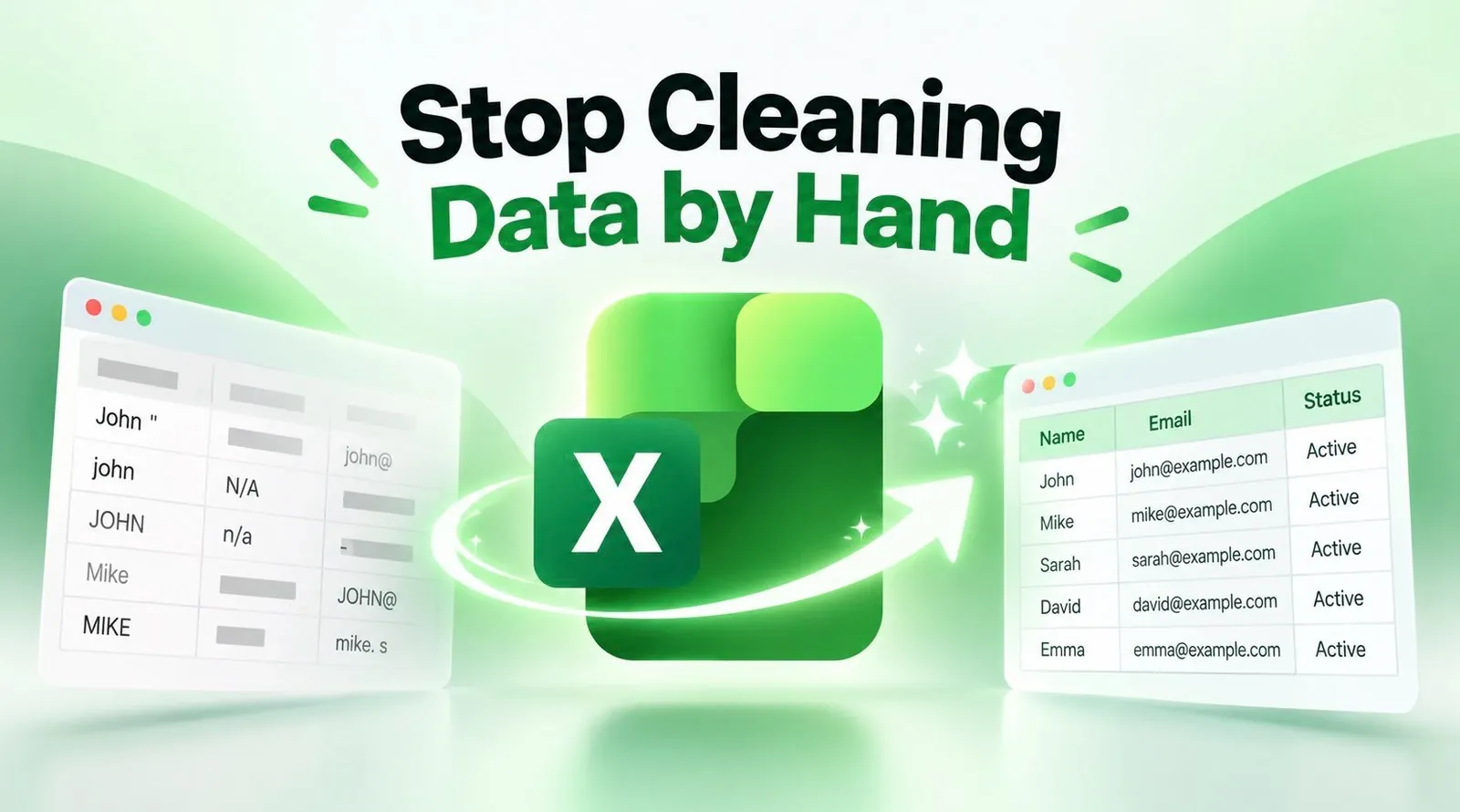
Cleaning messy datasets in Excel doesn’t have to be a tedious, manual process. Simon Sez IT demonstrates how a few essential features, like Excel’s “Remove Duplicates” function, can save time and improve accuracy when preparing data for analysis. For instance, by selecting specific columns to check for duplicates, you can quickly eliminate redundant entries while preserving the integrity of unique values. These techniques are particularly valuable when working with large datasets, where manual cleaning can lead to errors and inefficiencies.
In this deep dive, you’ll explore practical strategies to streamline your data-cleaning workflow. Learn how to split combined text into separate columns for better organization, apply the `TRIM` function to remove unnecessary spaces and use `SUBSTITUTE` to standardize inconsistent text. You’ll also discover how to convert text-formatted numbers into usable numeric values, making sure your data is ready for calculations and analysis. These methods will help you create cleaner, more reliable datasets for any project.
Excel Data Cleaning Tips
TL;DR Key Takeaways :
- Removing Duplicates: Use Excel’s “Remove Duplicates” tool to quickly identify and eliminate redundant data, making sure accuracy in large datasets.
- Splitting Text into Columns: Use the “Text to Columns” feature to separate combined data (e.g., names or addresses) into distinct columns for better organization and analysis.
- Trimming Extra Spaces: Apply the `TRIM` function to remove unnecessary spaces, improving data consistency and avoiding errors caused by hidden spaces.
- Substituting Text: Standardize inconsistent text using the `SUBSTITUTE` function to replace specific text or abbreviations efficiently.
- Converting Text to Numbers: Use the `VALUE` function to convert text-formatted numbers into numeric values, making sure accurate calculations and analysis.
1. Removing Duplicates
Duplicate entries can distort your analysis and lead to unreliable conclusions. Excel’s “Remove Duplicates” tool provides a quick and effective way to identify and eliminate redundant data while preserving unique values. To use this feature:
- Select the dataset you want to clean.
- Navigate to the “Data” tab and click on “Remove Duplicates.”
- Specify the columns to check for duplicates, making sure only relevant data is compared.
For example, when managing customer records, you might focus on unique identifiers like email addresses or phone numbers to detect duplicates. This tool is particularly useful for large datasets, helping you maintain accuracy and consistency in your analysis.
2. Splitting Text into Columns
Data often arrives in combined formats, such as full names, addresses, or other information stored in a single column. This can make it challenging to analyze or organize the data effectively. Excel’s “Text to Columns” feature allows you to separate combined information into distinct columns for better structure. Here’s how to use it:
- Select the column containing the combined data.
- Go to the “Data” tab and click on “Text to Columns.”
- Choose a delimiter (e.g., comma, space, or tab) that defines where the split should occur.
For instance, splitting “Jane Smith” into separate first and last name columns enables easier sorting and filtering. This feature is invaluable when working with datasets that require structured formatting for analysis or reporting.

Here are more guides from our previous articles and guides related to Excel that you may find helpful.
- 19 Clickable Excel Tools Replace Tedious Worksheet Scrolling
- Convert Excel Spreadsheets Into No-Code Mobile Apps
- Master Advanced Excel Functions BYROW vs MAP vs SCAN vs REDUCE
- Why Excel’s FILTER Function Outperforms VLOOKUP for Complex Data
- Google Pixel 10 Pro XL Price Leaks: How Much Will it Cost?
- Excel iPad Quick Start Guide 2026: Setup, Tips, Widgets & Shortcuts
- 15 Modern Excel Functions Worth Knowing in 2026 That Outclass Clunky Workflows
- Master Dynamic Excel Formulas with Dot Operator in 2025
- Build Finance Models in Minutes with Claude for Excel
- How to Unlock Excel Sheets Without a Password
3. Trimming Extra Spaces
Inconsistent spacing in your data can cause issues with sorting, filtering and calculations. Excel’s `TRIM` function is a simple yet effective way to remove unnecessary spaces, leaving only single spaces between words. To apply this function:
- Enter
=TRIM(cell)in a new column, replacing “cell” with the reference to the cell containing the text.
This function is especially helpful when importing data from external sources, where extra spaces are common. By making sure your text is clean and uniform, you can avoid errors caused by hidden spaces and improve the reliability of your analysis.
4. Substituting Text
Standardizing text is a critical step in preparing data for analysis, especially when dealing with inconsistent naming conventions or abbreviations. Excel’s `SUBSTITUTE` function allows you to replace specific text within cells efficiently. To use this function:
- Enter the formula
=SUBSTITUTE(cell, "old_text", "new_text"), replacing “old_text” with the text you want to replace and “new_text” with the desired replacement.
For example, if your dataset includes both “CA” and “California,” you can standardize the text by replacing all instances of “CA” with “California.” This function also allows you to specify which occurrence to replace if the text appears multiple times in a single cell, giving you precise control over the changes.
5. Converting Text to Numbers
Datasets often include numbers stored as text, which can interfere with calculations or statistical analysis. Excel’s `VALUE` function converts text-formatted numbers into numeric values, making sure your data is ready for mathematical operations. To apply this function:
- Enter
=VALUE(cell)in a new column, replacing “cell” with the reference to the text-formatted number.
For instance, converting “456” (text) to 456 (number) ensures the data can be used for summing, averaging, or creating charts. This step eliminates errors and ensures your calculations are accurate and reliable.
Streamlining Your Data Cleaning Process
By incorporating these five techniques into your workflow, you can significantly reduce the time and effort required to clean and organize your data in Excel. Whether you’re removing duplicates, splitting text into columns, trimming extra spaces, substituting text, or converting text to numbers, these tools empower you to create clean, well-structured datasets. With accurate and organized data, you’ll be better equipped to perform meaningful analysis, generate insights and make informed decisions.
Media Credit: Simon Sez IT
Disclosure: Some of our articles include affiliate links. If you buy something through one of these links, Geeky Gadgets may earn an affiliate commission. Learn about our Disclosure Policy.
