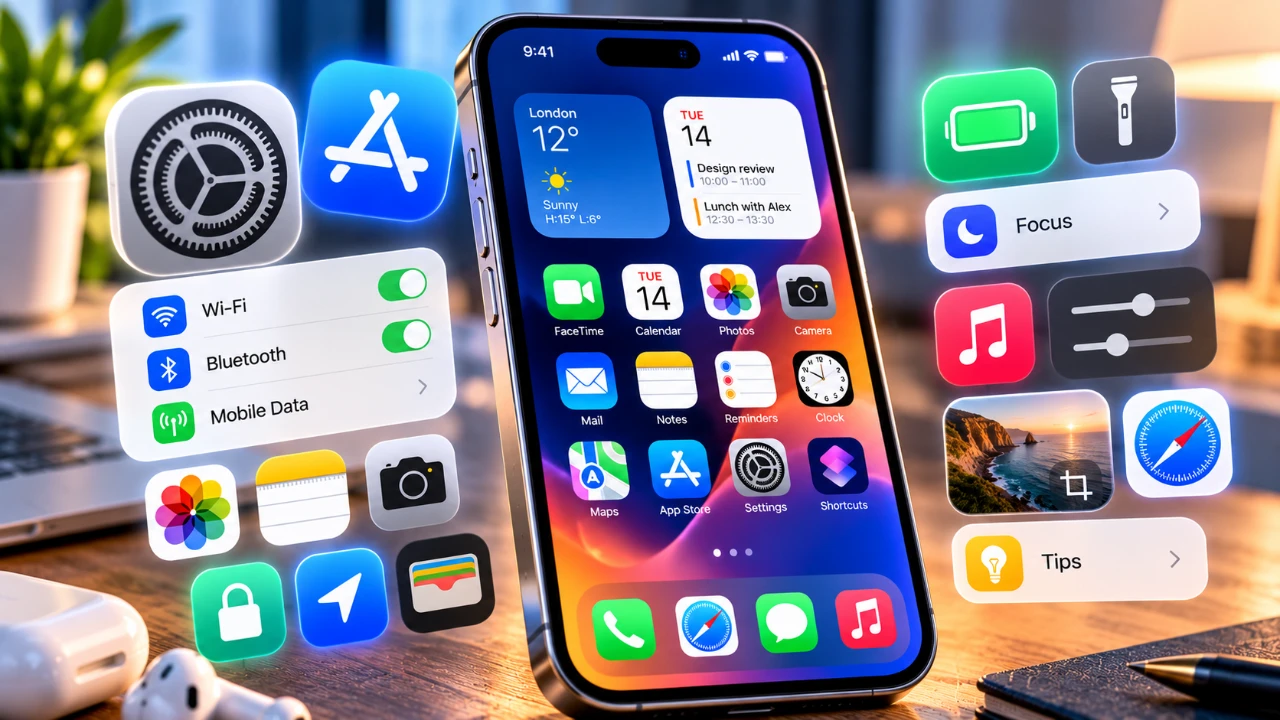
Setting up your iPhone effectively is crucial for creating a personalized, efficient, and secure user experience. By configuring essential settings, customizing features and integrating useful apps, you can optimize your device for daily use. The video below from Andrew Ethan Zeng provides a detailed approach to help you tailor your iPhone to your unique needs, reduce distractions, and safeguard your privacy.

Key Settings to Configure First
Begin by adjusting foundational settings to ensure your iPhone is ready for seamless use and integration with your lifestyle:
- Rename Your Device: Assign a unique name to your iPhone for easy identification across Apple services and connected devices. This is especially helpful when managing multiple devices.
- Set Up Medical ID: Use the Health app to provide emergency responders with critical health information, such as allergies, medical conditions, and emergency contacts.
- Customize Your Contact Avatar: Add a personal touch by creating a contact poster and avatar for calls and messages, making communication more visually engaging.
These initial adjustments establish a solid foundation for a smoother and more personalized experience.
Personalizing Your iPhone
Your iPhone should reflect your preferences and priorities. Customizing it not only enhances usability but also makes it feel uniquely yours:
- Change Default Apps: Replace Apple’s default apps with your preferred options for email, browsing, and messaging to streamline your workflow.
- Organize Your Home Screen: Declutter by removing unused apps, grouping similar ones into folders, and adding widgets for quick access to essential information like weather or calendar events.
- Customize the Control Center: Add frequently used tools such as the flashlight, calculator, or screen recording for instant access.
- Personalize Your Lock Screen: Experiment with widgets, fonts, and wallpapers to create a lock screen that matches your aesthetic while providing useful information at a glance.
These changes allow you to optimize your device for both functionality and style.
Optimizing Battery Performance
Maintaining battery health is essential for long-term performance. Implement these strategies to maximize battery life:
- Enable Charging Limits: Activate optimized battery charging in Settings to prevent overcharging and extend battery lifespan.
- Use Adaptive Power Mode: Enable Low Power Mode during heavy usage to conserve energy and prolong battery life.
- Monitor Battery Usage: Identify apps that consume excessive power and adjust your usage or settings accordingly.
- Disable Always-On Display: If supported, turning off this feature can significantly reduce battery drain, especially during periods of inactivity.
By following these tips, you can ensure your iPhone remains reliable and efficient over time.
Managing Storage Efficiently
A clutter-free iPhone operates more smoothly and efficiently. Use these methods to manage your storage effectively:
- Offload Unused Apps: Automatically remove apps you rarely use while retaining their data for future access.
- Use iCloud for Media: Store full-resolution photos and videos in iCloud to free up local storage without losing access to your media.
- Merge Duplicate Files: Use the Photos app to identify and combine duplicate images or videos, saving valuable space.
- Disable Automatic Media Saving: Prevent apps like WhatsApp from saving unnecessary media files to your device, reducing clutter.
Regular storage management ensures your iPhone remains fast and responsive.
Enhancing Privacy and Security
Protecting your personal data is a top priority. Strengthen your iPhone’s security with these steps:
- Enable Device Protection: Use a passcode, Face ID, or Touch ID to secure your device and prevent unauthorized access.
- Disable App Tracking: Limit data collection by turning off app tracking and opting out of personalized ads in your privacy settings.
- Adjust Location Services: Restrict apps to accessing your location only when absolutely necessary to minimize data exposure.
- Review Privacy Settings: Regularly audit your system settings to ensure your data remains secure and only accessible to trusted apps.
These measures help safeguard your information and provide peace of mind.
Minimizing Distractions
Stay focused and productive by reducing interruptions and managing notifications effectively:
- Turn Off Notification Badges: Disable app badges to reduce visual clutter on your Home Screen and maintain a cleaner interface.
- Set Up Focus Modes: Create custom modes for work, personal time and sleep to filter notifications and prioritize what matters most during specific times of the day.
These tools help you maintain balance and focus, improving your overall productivity.
Must-Have Apps for Your iPhone
Expand your iPhone’s functionality with these highly recommended apps:
- Local Send: A cross-platform file-sharing app for seamless and secure transfers between devices.
- Halide: A professional photography app offering manual controls for capturing high-quality images.
- Blackmagic Camera: Advanced video recording tools for creating professional-grade footage.
- Opal: A distraction-blocking app designed to help you manage screen time and stay focused.
- Overlook: A visually intuitive weather app providing detailed and accurate forecasts.
- Noir: A browser extension that enables dark mode for all websites, enhancing readability and reducing eye strain.
These apps can significantly enhance your iPhone experience by adding convenience and functionality.
Unlocking Hidden Features
Explore lesser-known features to maximize your iPhone’s potential:
- Motion Cues: Reduce motion sickness by allowing motion reduction in Accessibility settings.
- Reduce White Point: Dim screen brightness for more comfortable nighttime use.
- Adjust Flashlight Beam: Customize the flashlight’s intensity for more precise lighting needs.
- Sound Recognition: Set up alerts for specific sounds, such as doorbells or alarms, to stay informed even in noisy environments.
- Back Tap Shortcuts: Use the Back Tap feature to create shortcuts for common tasks, such as taking screenshots or launching apps.
These features add versatility and convenience, making your iPhone more user-friendly and adaptable to your needs.
Here are additional guides from our expansive article library that you may find useful on iPhone 18 Pro Max.
- Early iPhone 18 Reports Point to Major Unconfirmed Shifts
- iPhone 18 Pro Max Leaks: 10 Massive Upgrades Coming to Camera, Screen, and Battery
- Early iPhone 18 Pro Max Leak Reveals the Upgrade We’ve Been Waiting For
- Just Leaked: 10 Huge Upgrades for the iPhone 18 Pro Max
- Apple May Keep the iPhone 18’S Best New Feature Exclusive to the Pro Max
- iPhone 18 Pro Max: Final Leaks Drop Hours Before Apple’s Event
Source: Andrew Ethan Zeng
Disclosure: Some of our articles include affiliate links. If you buy something through one of these links, Geeky Gadgets may earn an affiliate commission. Learn about our Disclosure Policy.
