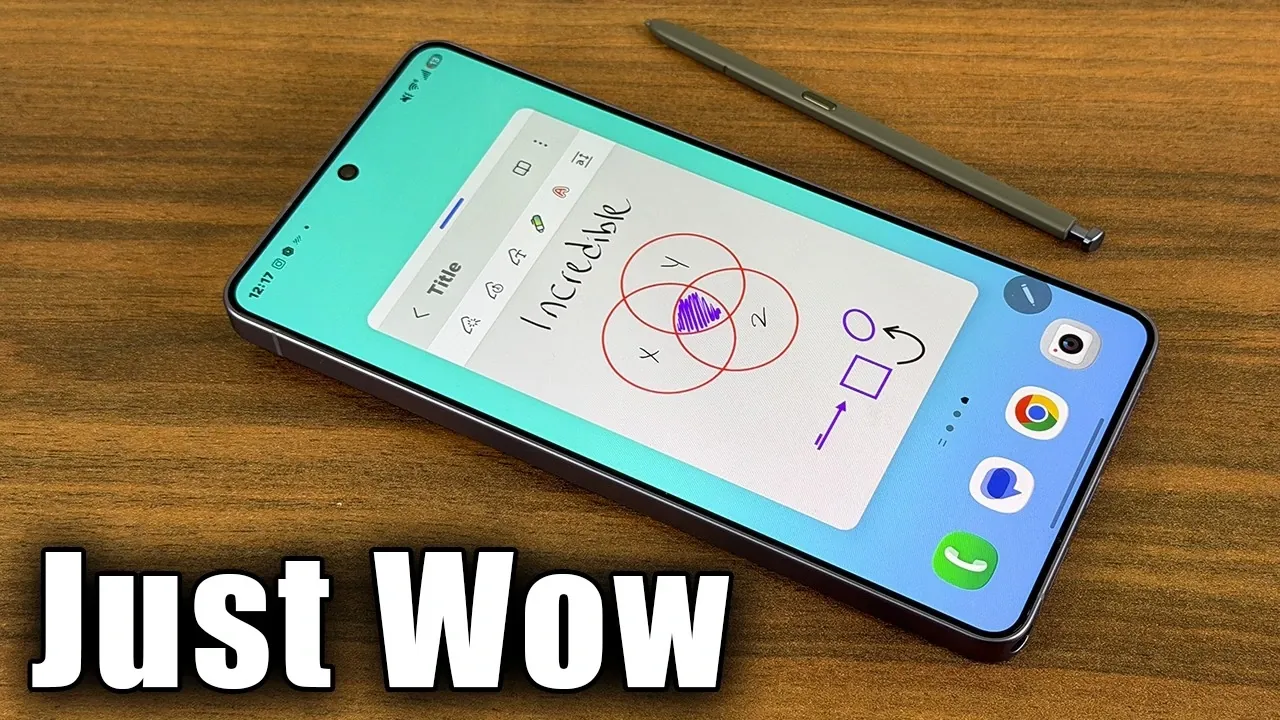
The Samsung Galaxy S26 Ultra’s S Pen is more than just a stylus; it’s a versatile tool designed to enhance productivity, creativity, and overall device interaction. Whether you’re a professional looking to streamline your workflow or a casual user exploring its capabilities, the S Pen offers a wide range of features that can transform how you use your smartphone. The video below from Sakitech provides more insights into 17 essential functionalities, providing practical insights to help you maximize the potential of this powerful tool.
Effortless Note-Taking and Organization
The S Pen turns your Galaxy S26 Ultra into a powerful note-taking device, making it easier to capture and organize your thoughts. Using the Samsung Notes app, you can:
- Create, edit and organize notes with ease, making sure your ideas are always accessible.
- Use the Math Solver feature to solve equations directly within your notes, ideal for students, engineers and professionals.
- Take advantage of Reading Mode to interact with embedded phone numbers, websites and email addresses, streamlining your workflow.
These features make the S Pen an indispensable tool for both personal and professional use.
Shape Correction for Flawless Drawings
The S Pen’s shape correction feature ensures your drawings and diagrams look professional. Here’s how it works:
- Enable the auto-fix shapes tool to instantly refine your drawings.
- Pause briefly after drawing to manually adjust shapes, giving you complete control over your creations.
This functionality is perfect for creating polished diagrams, sketches, or even artistic designs, making it a valuable tool for students, designers and professionals alike.
Keep Track of Your S Pen
Misplacing your S Pen is no longer a concern with the Galaxy S26 Ultra’s built-in tracking features:
- Enable alerts to notify you if the S Pen is left behind, making sure you never lose it.
- Use the device to track the last removal time and location of the S Pen, making it easy to locate when misplaced.
These features provide peace of mind, making sure your S Pen is always within reach when you need it.
Enhanced Navigation with the Air Command Menu
The Air Command menu is a powerful navigation tool that simplifies access to essential features and apps. With the S Pen, you can:
- Customize up to 10 shortcuts, including S Pen-specific tools and frequently used applications.
- Switch between standard and compact layouts to suit your preferences and usage style.
This level of customization makes the Air Command menu a highly efficient tool for quick and personalized navigation.
Advanced Personalization with Good Lock
For users seeking deeper customization, the Good Lock app offers advanced options to tailor the S Pen experience:
- Adjust brightness, blur effects and menu styles to match your aesthetic preferences.
- Assign double-tap shortcuts to launch specific apps or features instantly, saving time and effort.
These options allow you to create a truly personalized S Pen experience, enhancing both functionality and style.
Seamless PDF Editing and Signing
The S Pen simplifies digital document management, making it easy to handle PDFs on the go. You can:
- Import, annotate and sign PDF files directly within Samsung Notes.
- Save or share edited files in various formats, making sure compatibility with different platforms and devices.
This feature is particularly valuable for professionals who frequently review, edit, or sign documents while on the move.
Quick Notes for Multitasking Efficiency
The S Pen’s quick note capabilities are designed to enhance multitasking. With this feature, you can:
- Minimize active notes for continuous editing while working on other tasks.
- Easily access saved notes within the Samsung Notes app, allowing you to pick up where you left off.
This functionality ensures you stay organized and productive, even during busy days.
Handwritten Notes on Your Calendar
The S Pen integrates seamlessly with your calendar, offering a more intuitive way to manage your schedule. You can:
- Add handwritten notes or reminders directly to your calendar for a personal touch.
- Customize pen styles, colors and zoom levels to create detailed and visually appealing edits.
This feature makes scheduling and planning more interactive and personalized, helping you stay on top of your commitments.
Maximize the Potential of Your S Pen
The S Pen for the Samsung Galaxy S26 Ultra is a multifunctional tool that enhances both productivity and creativity. From advanced note-taking and shape correction to PDF editing and calendar integration, its features cater to a wide range of needs. By exploring and using these functionalities, you can unlock the full potential of your device, making the S Pen an essential part of your daily routine. Whether you’re managing tasks, creating art, or navigating your smartphone, the S Pen is designed to elevate your experience.
Explore further guides and articles from our vast library that you may find relevant to your interests in S Pen Features.
- Samsung Galaxy S26 Ultra: Privacy Display Explained
- Essential Galaxy S26 Ultra S Pen Tips & Hidden Features
- Samsung Galaxy S25 Ultra S-Pen: Features, Tips and Tricks
- Samsung Galaxy S26 Ultra vs. S25 Ultra: Full Comparison
- Which is Better: Galaxy S25 Ultra or iPhone 17 Pro Max?
Source & Image Credit: sakitech
Disclosure: Some of our articles include affiliate links. If you buy something through one of these links, Geeky Gadgets may earn an affiliate commission. Learn about our Disclosure Policy.
