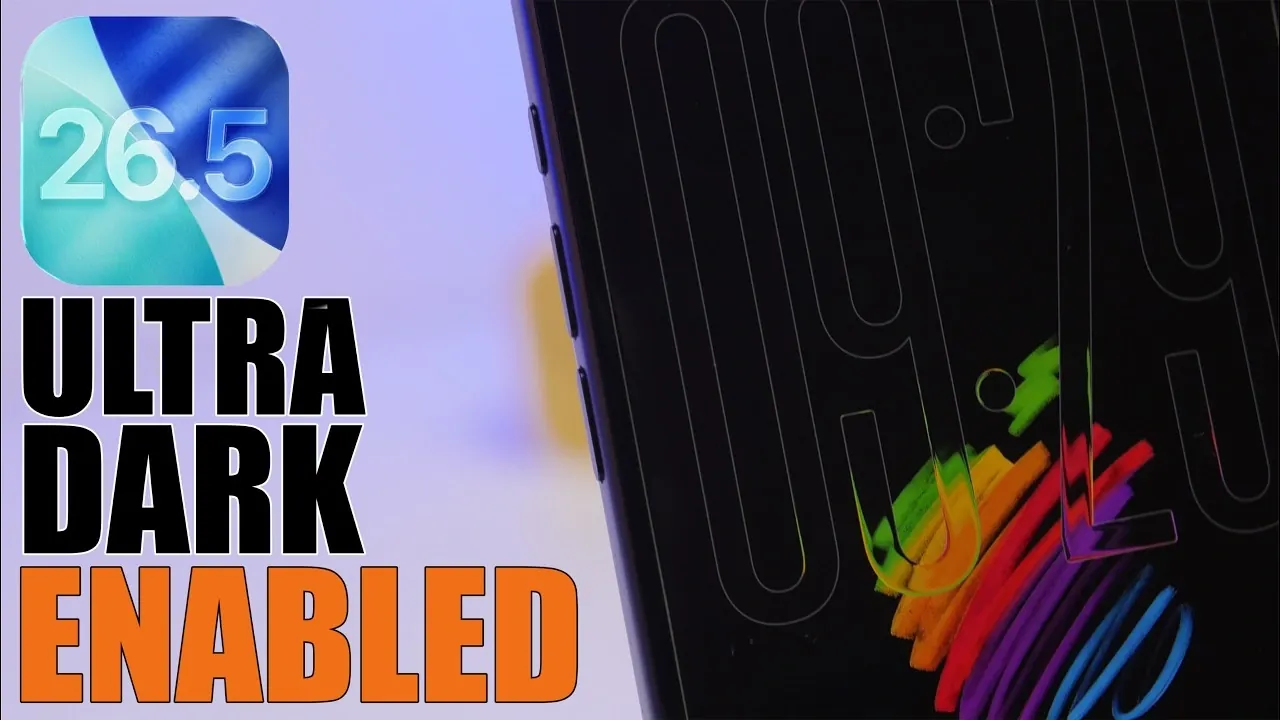
The introduction of ultra dark mode in iOS 26.5 brings a feature that seamlessly blends aesthetic appeal, energy efficiency, and user comfort. Designed to take full advantage of OLED technology, this mode not only enhances the visual experience but also optimizes battery performance. By understanding how to enable and customize this feature, you can unlock its full potential and tailor it to your preferences. The video below from iReviews gives us more details.
How Ultra Dark Mode Saves Battery
For devices equipped with OLED screens, ultra dark mode offers a significant advantage in energy conservation. Unlike traditional LCD screens, OLED technology allows individual pixels to turn off completely when displaying black. This results in darker interfaces consuming less power, especially when paired with dark wallpapers and UI elements. By allowing ultra dark mode, you can extend your device’s battery life while enjoying a sleek and modern interface.
Additionally, this feature is particularly beneficial for users who spend extended periods on their devices, as it reduces the strain on the battery without compromising the overall user experience.
Steps to Enable Ultra Dark Mode
Activating ultra dark mode is straightforward and provides flexibility for different usage scenarios. Follow these steps to enable it:
- Navigate to Settings > Display & Brightness.
- Select “Dark” to enable the mode permanently.
- Alternatively, choose automatic scheduling to switch between light and dark modes based on the time of day, such as from sunset to sunrise.
Automatic scheduling is particularly useful for reducing eye strain in low-light environments, as it adapts to your surroundings seamlessly. This feature ensures that your device remains comfortable to use regardless of the time of day.
Customizing Ultra Dark Mode for a Personalized Experience
Ultra dark mode offers a variety of customization options, allowing you to create a cohesive and energy-efficient interface that suits your preferences. Here’s how you can personalize your experience:
- Dark Wallpapers: Choose black or predominantly dark backgrounds to complement the mode and further reduce energy consumption.
- App Settings: Enable dark mode in supported apps to maintain consistency across your device.
- Dark-Themed Icons: Use icons that align with the dark mode aesthetic for a unified and polished look.
- Wallpaper Tints: Add subtle tints to your wallpapers to enhance the overall appearance without compromising energy efficiency.
These adjustments not only improve the visual appeal of your device but also contribute to a more functional and user-friendly interface.
Advanced Features to Enhance the Dark Mode Experience
iOS 26.5 introduces advanced features that refine the dark mode experience, giving you greater control over your device’s appearance and usability. These features include:
- Liquid Glass Tinting: This feature, available since iOS 26.2, darkens menus and UI elements for a more immersive and cohesive look.
- Reduced Transparency: Removes transparency from UI elements, improving readability and enhancing the dark mode aesthetic.
- Reduced Bright Effects: Introduced in iOS 26.4, this minimizes display highlights, creating a subtler and less intrusive visual experience.
- Reduced White Point: Dims the screen further, offering softer visuals that are easier on the eyes, particularly in low-light conditions.
These features allow you to fine-tune your device’s interface, making sure maximum comfort and usability while maintaining a visually appealing design.
Personalizing the User Interface
Ultra dark mode supports additional UI enhancements that improve both visibility and personalization. These options include:
- Show Borders: Highlight UI elements with borders to make them stand out against dark backgrounds.
- Widget Customization: Align widgets with dark mode settings for a consistent and cohesive design.
- Dark-Themed Icons: Use icons that match the dark mode aesthetic for a seamless and polished interface.
By exploring these options, you can create a user interface that is not only functional but also visually harmonious, enhancing your overall experience.
Optimizing the Lock Screen for Ultra Dark Mode
Your lock screen can also be tailored to complement ultra dark mode, making sure both functionality and style. Adjustments include:
- Modifying the clock’s brightness, color and transparency to improve readability in low-light conditions.
- Adding borders around the clock to enhance visibility and make it easier to check the time at a glance.
These changes make your lock screen more user-friendly, especially during nighttime use, while maintaining the sleek aesthetic of ultra dark mode.
Maximizing the Benefits of Ultra Dark Mode
Ultra dark mode in iOS 26.5 is more than just a visual enhancement, it’s a practical feature that improves both battery efficiency and user experience. By using its advanced features and customization options, you can create a personalized, energy-saving interface that aligns with your preferences. Whether your goal is to extend battery life, reduce eye strain, or enjoy a modern and cohesive design, ultra dark mode provides a comprehensive solution tailored to your needs.
Unlock more potential in OLED technology by reading previous articles we have written.
- The iPad Mini 8 is Finally Getting OLED: What You Need to Know
- Goodbye, Cutouts: How the iPhone 20 Hides the Camera and Face ID for Good
- AMOLED vs OLED: What’s the difference?
- AMOLED vs OLED vs POLED: Breaking Down the Display Differences
- MacBook Ultra Leak: Apple’s Secret Plans for a Touchscreen OLED Powerhouse
Source & Image Credit: iReviews
Disclosure: Some of our articles include affiliate links. If you buy something through one of these links, Geeky Gadgets may earn an affiliate commission. Learn about our Disclosure Policy.
