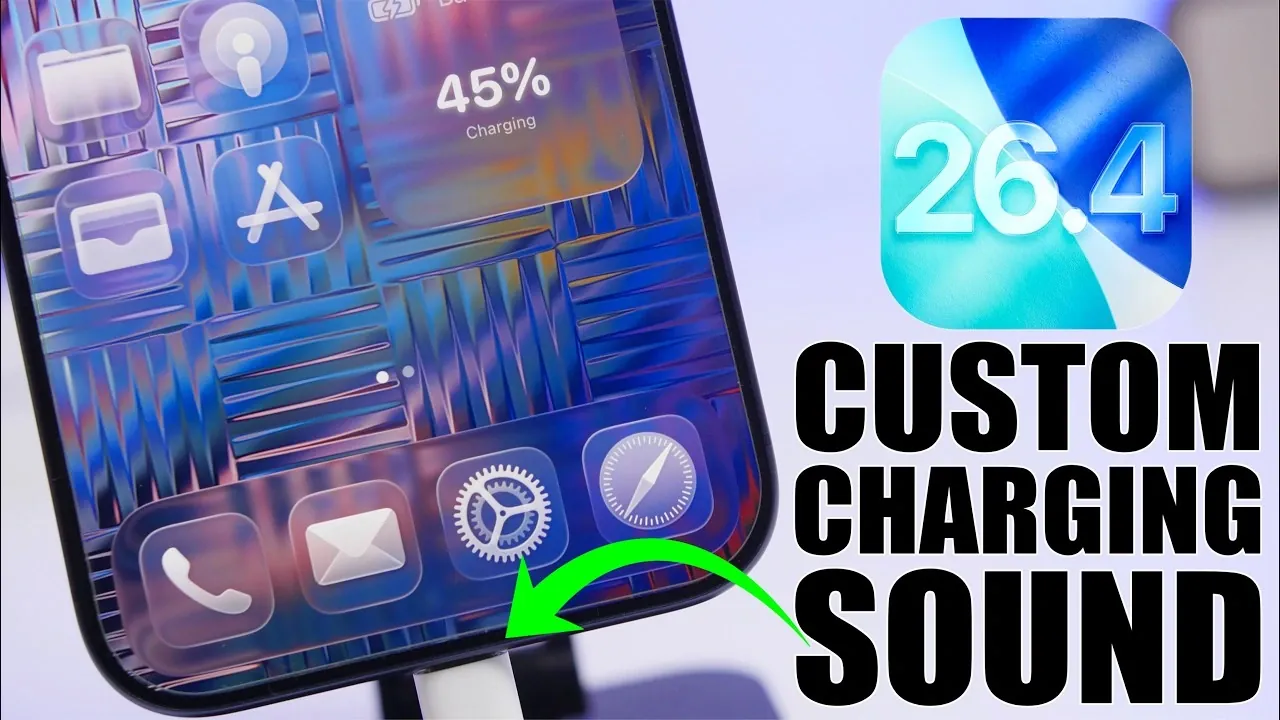
With the release of iOS 26.4, Apple has introduced enhanced options for personalizing your iPhone’s charging experience. Using the built-in Shortcuts app, you can now customize the sound your device plays when connected to a charger. Whether you prefer a unique sound effect or a spoken phrase, this guide will provide you with clear, actionable steps to achieve your desired customization. These methods rely solely on iOS’s native apps, making sure a secure and seamless process without the need for third-party tools. The video below from iReviews gives us more details.
Set a Custom Sound Effect for Charging
Adding a custom sound effect to your iPhone’s charging process is a straightforward way to personalize your device. By using the Files app and Shortcuts app, you can create a unique charging sound. Follow these steps:
- Save Your Sound File: Start by saving your desired sound file to the Files app. Ensure the file is in a compatible format, such as .mp3 or .m4a, to avoid playback issues.
- Create a Charging Automation: Open the Shortcuts app and navigate to the “Automation” tab. Select “Create Personal Automation” and choose “Charger” as the trigger. Opt for “Is Connected” to activate the automation when your iPhone is plugged in.
- Prepare Your Sound File (If Necessary): If your sound file requires base64 encoding for compatibility, use an online or app-based converter to encode it. This step ensures the file integrates smoothly with the Shortcuts app.
- Add the ‘Play Sound’ Action: In the automation workflow, add the “Play Sound” action. Link this action to the sound file stored in the Files app, making sure the file path is correctly specified. Test the setup to confirm the sound plays as expected.
This method allows you to use any audio clip, from a favorite song snippet to a custom notification tone, to make your iPhone’s charging experience more enjoyable and uniquely yours.
Make Your iPhone Speak a Custom Phrase
For those seeking a more interactive option, you can configure your iPhone to speak a specific phrase when it starts charging. This feature uses the “Speak Text” action in the Shortcuts app and is both simple and customizable. Here’s how to set it up:
- Create a New Automation: Open the Shortcuts app and create a new personal automation. As with the custom sound method, select “Charger” as the trigger and choose “Is Connected.”
- Add the ‘Speak Text’ Action: In the automation workflow, add the “Speak Text” action. Enter the phrase you want your iPhone to say, such as “Charging initiated” or a personalized message.
- Adjust Voice Settings: Customize the voice, language and speed settings to suit your preferences. Test the automation to ensure the phrase is spoken correctly when the iPhone is connected to a charger.
This option is particularly useful for adding a touch of personality or functionality to your charging routine. For example, you could set reminders or motivational phrases to play whenever you plug in your device.
Why Use iOS’s Native Apps?
Both customization methods rely exclusively on iOS’s built-in apps, such as Shortcuts and Files, offering several advantages. By sticking to native tools, you ensure compatibility with future iOS updates, including iOS 26.4, while minimizing potential security risks associated with third-party apps. The Shortcuts app provides robust functionality, including actions like “Play Sound” and “Speak Text,” which make it easy to create personalized automations without unnecessary complexity.
Additionally, using iOS’s stock apps ensures a seamless experience. These tools are designed to integrate perfectly with the operating system, eliminating the need for external software and reducing the likelihood of errors or compatibility issues. Whether you’re customizing your charging sound or adding a spoken phrase, the native apps provide all the functionality you need for a secure and efficient setup.
Enhance Your iPhone Experience
Customizing your iPhone’s charging sound is a simple yet impactful way to make your device feel more personal. Whether you opt for a unique sound effect or a spoken phrase, the Shortcuts app enables you to tailor your charging experience to your preferences. By following the steps outlined above, you can easily add a creative and functional touch to your daily routine. These methods not only enhance your interaction with your device but also showcase the versatility of iOS’s built-in tools, making your iPhone truly your own.
Source & Image Credit: iReviews
Disclosure: Some of our articles include affiliate links. If you buy something through one of these links, Geeky Gadgets may earn an affiliate commission. Learn about our Disclosure Policy.
