Sponsored:
If you’ve recently switched from Android device to iPhone 13, WhatsApp may be one of the most critical app you want to transfer to your new iPhone, you definitely don’t want to lose all your chat history, photos, videos, and attachments.
However, WhatsApp uses end-to-end encryption to secure users’ messages and doesn’t provide an official and direct method to transfer WhatsApp data from Android to iPhone.
In this article, you will learn how to transfer WhatsApp from Android to iPhone 13 step-by-step, we will introduce an effective software iMyFone iTransor for WhatsApp to help you fulfil the transfer process easily and quickly.
Is there an official way to transfer WhatsApp from Android to iPhone 13?
WhatsApp has promised to include the feature that would allow its users to transfer WhatsApp from Android to iPhone, but at the moment, there is no official way to transfer WhatsApp from Android to iPhone.
WhatsApp says, “transferring your chat history cross platform is currently only available when moving from an iPhone iOS device to Samsung Android device, but we will make it available to users of both Android and iOS in the coming months” on their official website.
How to directly transfer WhatsApp from Android to iPhone 13 Using iTransor for WhatsApp
There are no official means to transfer WhatsApp from Android to iPhone, but there are third-party tools to do the magic. The best method you can utilize to transfer your data across platforms is using the iTransor for WhatsApp.
This wonderful software allows you to effortlessly transfer all your WhatsApp data from any Android device to iPhone and vice versa, even the latest iPhone 13. You can even restore and export Google Drive WhatsApp Backups using this tool. It has gathered a lot of positive reviews on popular platforms such as iPhone Life, Tech Advisor, MacWorld and many others.
Learn the following step-by-step guide:
Step 1: Frist of all, download and install iTransor for WhatsApp on your computer, it is available for both Windows and Mac.
Then launch the software and choose “Transfer WhatsApp between Devices”, you will need to connect both of your Android and iPhone devices to your PC. On the first screen, make the Android device the source device while the iPhone is the destination device.
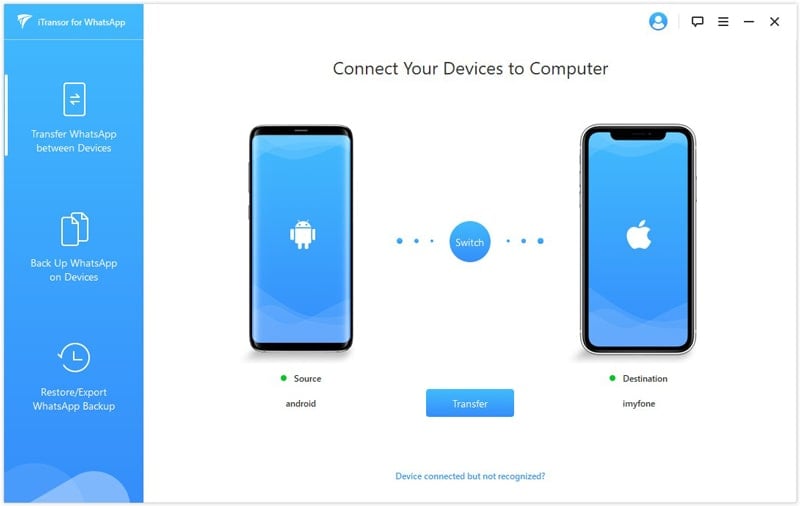
Step 2: Now, you need to enable USB debugging on your Android phone after turning on the Developer option. On your iPhone, click the “Trust this device” message that will pop up on the screen.
Step 3: Go ahead and click on “Transfer”. Then just follow the pop-up instructions on the screen to continue. Note that an customized version of WhatsApp will be installed on your Android device. On that customized version of WhatsApp, grant the necessary permissions and log in to your account.
![OFFICIAL] iTransor® for WhatsApp: Transfer/Backup/Restore/Export WhatsApp on iPhone/Android with One Click](https://www.geeky-gadgets.com/wp-content/uploads/2022/01/official-itransorr-for-whatsapp-transfer-backup-.png)
Step 4: Connect both devices to the computer until the operation is finished. After your iPhone reboots, the task is completed, you should be able to see your WhatsApp data on the device.

Note: the time it will take to complete the backup to your iPhone solely depends on the size of the backup file itself.
An Alternative Way to Transfer WhatsApp from Android to iPhone 13
There is another way to transfer WhatsApp from Android to iPhone, and that is through email.
Transfer WhatsApp Chats from Android to iPhone 13 Using Email
WhatsApp lets users email specific conversations to any contact, so in this method, you can select some chats and email to yourself to create a backup. However, there is a drawback that you can not restore the chats to your WhatsApp on iPhone, you can only read or keep a backup of any important chat in your email. Here is how to transfer WhatsApp chats from Android to iPhone 13 via E-mail.
Step 1: On your Android smartphone, launch WhatsApp and go to Settings, then Chat Settings > Chat History. Select “Email chat” on this page.
Step 2: Choose the specific WhatsApp chat history that you wish to transfer and whether you want to attach media or not. Enter the email address of your choice and send the attachment to it.
Step 3: Go to your computer, log in to that particular email address you used on WhatsApp and download the attached file from the message.
This method is not really ideal for big files that contain media content and the likes. Therefore, it is not the best solution if your media content is very important to you.
Conclusion
As you have read in the article, there are no official means to transfer WhatsApp from Android to iPhone. Even though the WhatsApp team has promised to include this feature in the future, you shouldn’t have to wait for that long when there are simpler and easier ways that you can use. With the iTransor for WhatsApp, this problem has been effectively solved. Try it now.
Disclosure: “This is a sponsored post. Geeky Gadgets has been compensated for this post.”
Disclosure: Some of our articles include affiliate links. If you buy something through one of these links, Geeky Gadgets may earn an affiliate commission. Learn about our Disclosure Policy.
