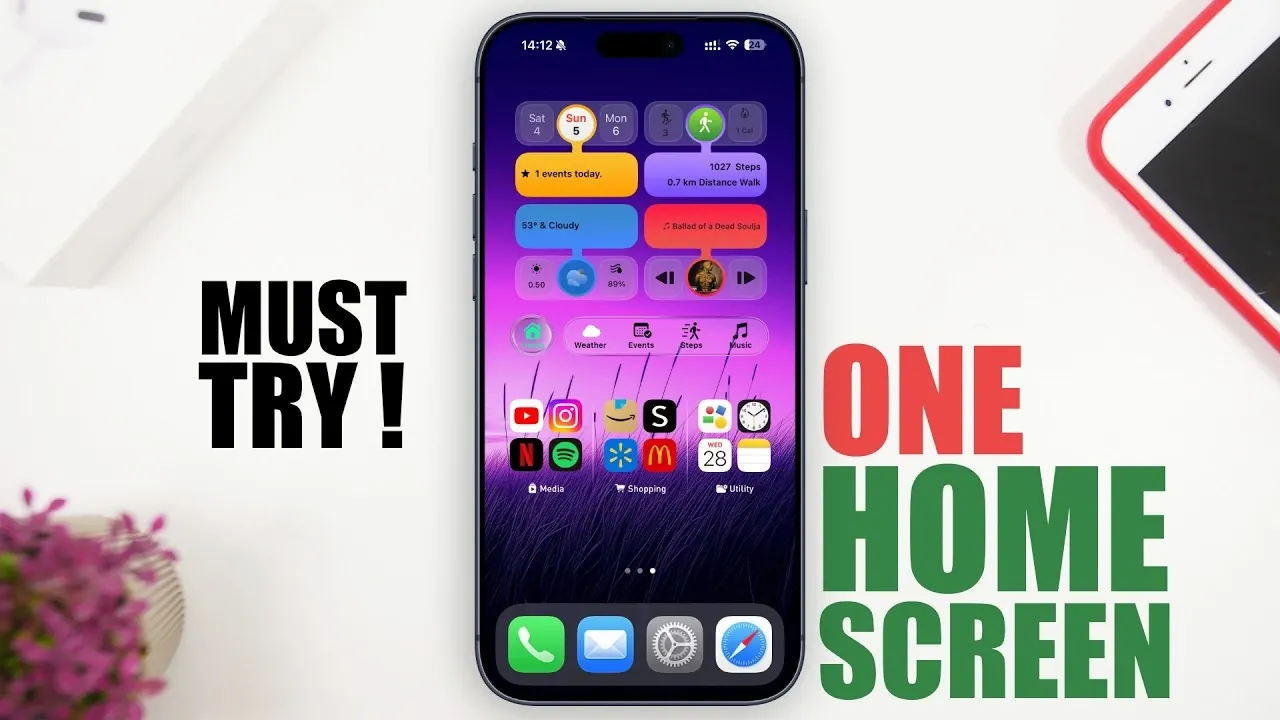
Designing an efficient and visually appealing iPhone home screen doesn’t have to be a daunting task. By focusing on simplicity, functionality, and personalization, you can create a home screen that enhances productivity while reflecting your unique style. The video below from iReviews provides actionable steps to help you streamline your iPhone setup like a professional.
Why Simplify Your Home Screen?
A cluttered home screen can hinder productivity and make it difficult to locate essential apps or tools. Simplifying your home screen allows for faster navigation, reduces distractions and creates a more organized digital environment. Here’s how you can achieve this:
- Remove unnecessary pages: Consolidate your apps onto a single or minimal number of pages to maintain a clean and focused layout.
- Group similar apps: Use folders to categorize apps by function, such as productivity, entertainment, or social media, for easier access.
- Prioritize frequently used tools: Place your most-used apps and widgets in prominent, easily accessible spots on your home screen.
By simplifying your home screen, you ensure that everything you need is just a tap away, improving both efficiency and user experience.
Maximizing Widget Functionality
Widgets are a powerful feature that can elevate your home screen’s functionality. They provide quick access to essential information without requiring you to open multiple apps. To make the most of widgets, consider the following tips:
- Transparent widgets: Use apps like “Mojo” to create widgets that seamlessly blend with your wallpaper, maintaining a polished and cohesive look.
- Custom shortcuts: Add shortcuts to frequently used apps, settings, or websites for faster navigation and improved efficiency.
- Category grouping: Organize widgets by themes, such as productivity, fitness, or media, to enhance usability and keep your screen organized.
Incorporating widgets into your home screen not only boosts functionality but also contributes to a professional and visually appealing design.
Advanced Widget Features for Enhanced Productivity
To take your home screen to the next level, explore advanced widget features that display real-time information and integrate seamlessly with your daily activities. Apps like “Widget” offer a variety of options to enhance your experience:
- Music Playback: Control your music directly from the home screen, complete with playback details and album art.
- Weather Updates: Access detailed hourly and weekly forecasts at a glance, helping you plan your day effectively.
- Fitness Tracking: Monitor your steps, calories burned and activity progress without needing to open a fitness app.
- Calendar Integration: Stay organized with widgets that display upcoming events, reminders and daily schedules.
These advanced widgets save time by reducing the need to switch between apps, making your device more efficient and tailored to your needs.
Enhancing Visual Appeal
A professional home screen isn’t just about functionality, it should also be visually appealing. A cohesive and attractive design can make your device more enjoyable to use. Start by selecting a high-quality wallpaper that complements your overall theme. Then, refine the visual elements of your setup with these tips:
- Transparent widgets: Use apps like “Mojo” to create widgets that blend seamlessly with your wallpaper, making sure a clean and polished appearance.
- Font and color customization: Adjust widget fonts and colors to match your chosen theme, creating a harmonious look.
- Consistent design: Ensure that app icons, folders and widgets follow a unified style for a professional and cohesive setup.
A well-designed home screen not only enhances usability but also serves as a reflection of your personal style and attention to detail.
Step-by-Step Setup Instructions
Creating your ideal iPhone home screen is a straightforward process when broken down into manageable steps. Follow this guide to achieve a professional and efficient layout:
- Download and install customization apps like “Mojo” and “Widget” from the App Store.
- Take a screenshot of your wallpaper to use as a background for transparent widgets.
- Customize widgets to display the information you use most, such as music controls, weather updates, or fitness stats.
- Organize apps into folders based on categories like productivity, entertainment, or utilities and add shortcuts for quick access to frequently used features.
- Adjust widget transparency, font styles and colors to align with your wallpaper and overall design theme.
By following these steps, you’ll create a home screen that is both practical and visually appealing, tailored to your daily needs and preferences.
Here is a selection of other guides from our extensive library of content you may find of interest on iPhone home screen setup.
- 2026 Guide: The Ultimate iPhone Home Screen Setup
- Best iPhone Home Screen Customization Tips
- Transform Your iPhone: 5 Awesome iOS 18 Home Screen Ideas
- 5 Smart Ways to Organize Your iPhone with iOS 26
- Best iOS 26 Home Screen Setup Ideas
Source & Image Credit: iReviews
Disclosure: Some of our articles include affiliate links. If you buy something through one of these links, Geeky Gadgets may earn an affiliate commission. Learn about our Disclosure Policy.
