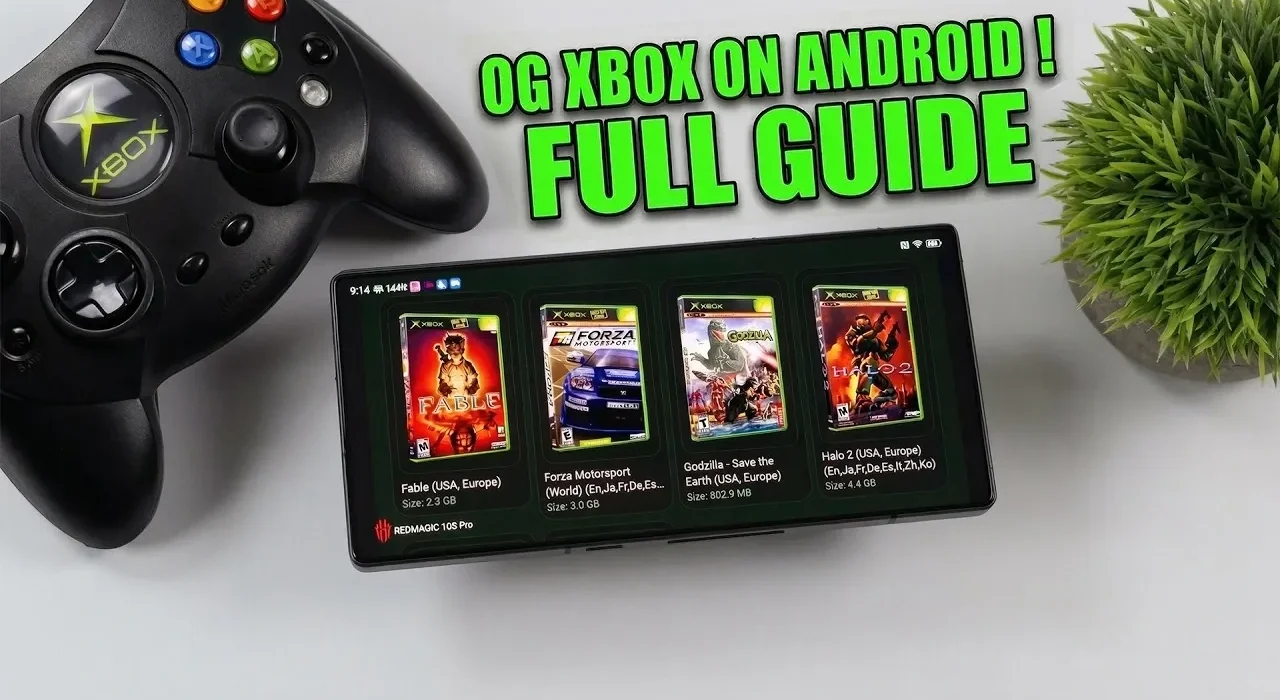
Playing original Xbox games on your Android device is now within reach, thanks to the X1 Box emulator. Built on the XEMU project, this emulator allows you to relive classic titles like Halo: Combat Evolved or Fable directly on compatible Android devices. As ETA Prime explains, setting up the emulator involves key steps such as gathering BIOS files, configuring a hard disk image and making sure your games are in ISO or XISO format. However, it’s important to note that Xbox emulation is demanding, so a high-end device, such as one with a Snapdragon 8 Gen 2 processor and at least 8GB of RAM, is strongly recommended for smooth performance.
In this step-by-step guide, you’ll learn how to prepare your device by checking system requirements and organizing essential files for the emulator. Explore how to install and configure the X1 Box APK, including linking BIOS and game files for proper functionality. You’ll also gain insight into optimizing settings like resolution, frame rate and rendering options to balance performance and visual quality. Whether you’re revisiting old favorites or discovering Xbox classics for the first time, this guide will help you get started with confidence.
Play Xbox Games on Android
TL;DR Key Takeaways :
- The X1 Box emulator, based on the XEMU project, allows Android devices to run original Xbox games, offering a nostalgic gaming experience.
- To use the emulator, your Android device must meet specific requirements, including Android 8+, a 64-bit ARM processor, Vulkan-compatible GPU and at least 8GB of RAM.
- Essential files for setup include Xbox game files (ISO/XISO format), BIOS files (flash ROM and MCPX boot ROM), and a hard disk image, all of which must be properly organized.
- Performance optimization involves configuring settings like graphics rendering (Vulkan/OpenGL), resolution, aspect ratio, frame rate and audio, tailored to your device’s capabilities.
- Additional features such as save states, controller support and shader caching enhance gameplay, though some limitations like app crashes and performance variability may occur on less powerful devices.
System Requirements: Making sure Compatibility
Emulating Xbox games requires a powerful Android device due to the demanding nature of Xbox hardware emulation. Before proceeding, confirm that your device meets the following specifications:
- Operating System: Android 8 or higher (API 26+).
- Processor: A 64-bit ARM device with a Vulkan-compatible GPU.
- Memory: At least 8GB of RAM is recommended for smooth performance.
- Compatibility: Devices running 32-bit operating systems are not supported.
High-end devices, such as those equipped with the Snapdragon 8 Gen 2 chipset, are particularly well-suited for running the X1 Box emulator. If your device meets these requirements, you can proceed with confidence.
Preparing the Required Files
To emulate Xbox games, you need to gather and organize specific files. Proper preparation is essential for a successful setup. Here’s what you’ll need:
- Game Files: Ensure your games are in ISO or XISO format for compatibility with the emulator.
- BIOS Files: Obtain the BIOS flash ROM and MCPX boot ROM files. These are critical for replicating the Xbox environment. Trusted sources like GitHub often provide these files.
- Hard Disk Image: A hard disk image file is required to simulate the Xbox’s internal storage.
Store these files in an easily accessible directory on your device. Organizing them properly will streamline the setup process and reduce potential errors.

Here are additional guides from our expansive article library that you may find useful on games emulation.
- Steam Machine Emulation Guide: 4K Upscaling and Older Consoles
- Steam Deck Emulation Upgrade, Retro Deck Adds 3DS & Switch
- Emulation on the Legion Go 2 : OLED Display & Detachable Controllers
- Snapdragon 8 Gen 3 mobile games emulation performance tested
- Best Android Devices for x86 PC Game Emulation: 12GB vs 16GB RAM
- MacBook Neo Emulation Performance : PS2, Wii U & PS3
- Samsung Galaxy S26 Ultra Emulation & Gaming Review
- Resident Evil Requiem Android Emulation: Snapdragon 8 Elite Gen 5 Results
- Raspberry Pi 5 games emulation tested
- M4 Mac Mini: The ULTIMATE Emulation Machine?
Installing and Configuring the X1 Box Emulator
Once you’ve prepared the necessary files, follow these steps to install and configure the X1 Box emulator:
- Download: Obtain the X1 Box APK from a reliable source, such as GitHub.
- Enable Unknown Sources: Go to your device settings and enable installations from unknown sources to sideload the APK.
- Install and Configure: Launch the emulator and configure it by selecting the BIOS, MCPX and hard disk image files. Set your game directory to access your Xbox game library.
After completing these steps, the emulator will be ready to load your games. Ensure all files are correctly linked to avoid setup issues.
Optimizing Emulator Settings for Performance
To maximize performance and visual quality, adjust the emulator settings based on your device’s capabilities and the specific game you’re playing. Key settings to configure include:
- Graphics: Choose between Vulkan or OpenGL rendering. Vulkan is generally faster and more efficient on modern devices.
- Resolution: Start with the native resolution (1x) and increase it incrementally if your device can handle higher settings.
- Aspect Ratio: Most Xbox games are designed for a 4:3 aspect ratio, but you can switch to 16:9 for widescreen displays if preferred.
- Frame Rate: Set the frame rate to 30 or 60 FPS, depending on the game’s original design.
- Audio: Enable DSP audio processing for accurate sound or disable audio entirely to improve performance on lower-end devices.
Experiment with these settings to find the optimal balance between performance and graphical fidelity. Adjustments may vary depending on the game and your device’s hardware.
Enhancing Gameplay with Additional Features
The X1 Box emulator offers several features to enhance your gaming experience, making it more enjoyable and user-friendly:
- Save States: Save your progress at any point and resume later, bypassing in-game checkpoints.
- Controller Support: Use on-screen touch controls or connect a Bluetooth controller for a more authentic gaming experience.
- Shader Caching: Reduce stuttering by preloading graphical assets, improving performance over time.
These features provide flexibility and convenience, catering to both casual players and dedicated gamers.
Addressing Known Issues and Limitations
While the X1 Box emulator is a powerful tool, it is not without its challenges. Be aware of the following issues:
- App Crashes: Occasional crashes may occur during setup or gameplay. Restarting the app usually resolves these problems.
- Performance Variability: Game performance depends heavily on your device’s specifications and the emulator’s settings.
- Feature Limitations: Some advanced Xbox features, such as complex shaders and high-fidelity audio processing, may not be fully supported due to the emulator’s developmental stage.
As Xbox emulation on Android continues to evolve, these issues are expected to improve with future updates.
Real-World Performance Example
To provide a practical reference, the X1 Box emulator has been tested on the Red Magic 10 Pro, which features a Snapdragon 8 Gen 2 processor and 16GB of RAM. On this device, the emulator performed well at 480p resolution, demonstrating its capability on high-end hardware. This example highlights the importance of using a powerful device for optimal results.
Unlocking Nostalgia on Android
By following this guide, you can successfully set up and optimize the X1 Box emulator to play original Xbox games on your Android device. While the process requires some technical preparation, the reward is a customizable gaming experience that brings classic Xbox titles to life. As development progresses, Xbox emulation on Android is expected to offer even greater compatibility and performance, making it an exciting option for retro gaming enthusiasts.
Media Credit: ETA PRIME
Disclosure: Some of our articles include affiliate links. If you buy something through one of these links, Geeky Gadgets may earn an affiliate commission. Learn about our Disclosure Policy.
