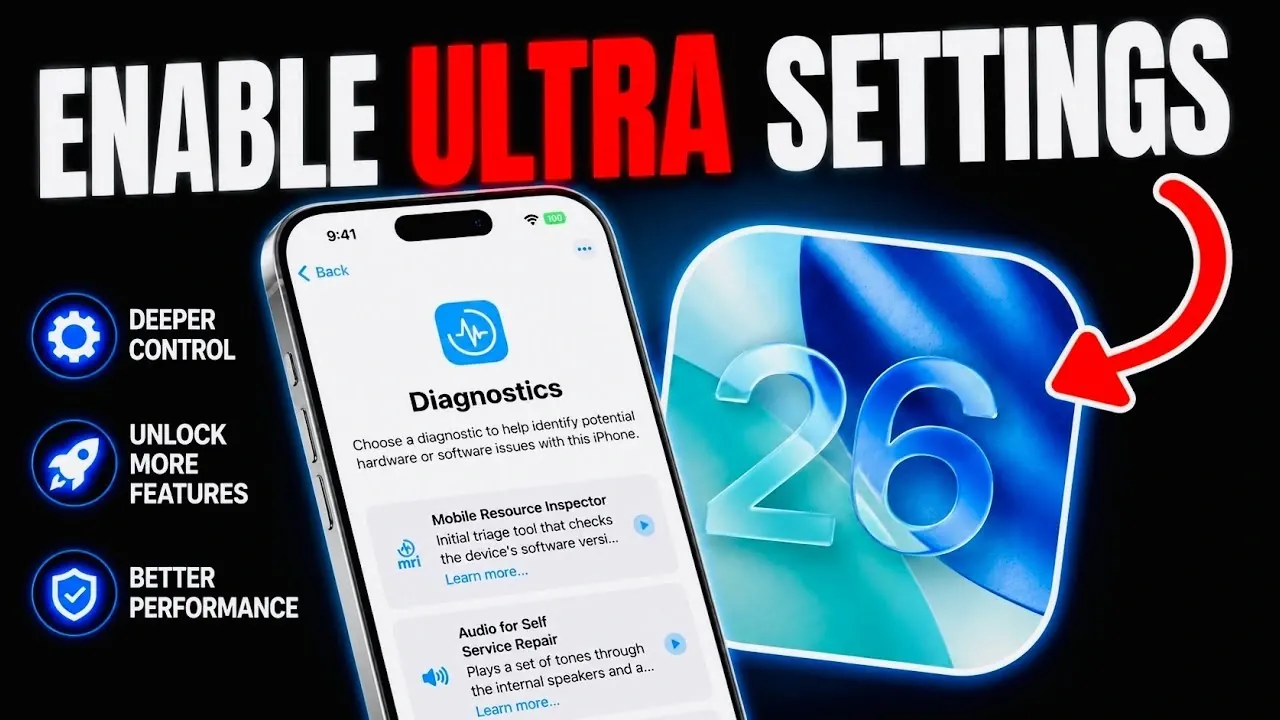
Your iPhone is equipped with a hidden diagnostics menu, a powerful tool designed to help you identify and resolve hardware-related issues. This feature is particularly useful for troubleshooting problems such as unresponsive touchscreens, Face ID malfunctions, or distorted audio. It also serves as an essential resource for verifying the condition of a second-hand iPhone before making a purchase. By following a specific sequence of steps, you can access this menu and perform a variety of tests to ensure your device is functioning optimally. Understanding how to use this tool can save time and provide clarity on your device’s performance. The video below from iDeviceHelp gives us more details.

Why Use the Diagnostics Menu?
The diagnostics menu is a centralized hub for hardware testing and troubleshooting, offering a detailed assessment of your iPhone’s functionality. If your device is experiencing performance issues, this menu allows you to pinpoint the root cause and address it effectively. Here are some key reasons to use the diagnostics menu:
- Identify Display Issues: Test for dead pixels, discoloration, or other screen abnormalities.
- Evaluate Face ID Accuracy: Ensure your facial recognition system is functioning correctly.
- Test Camera and Audio Quality: Verify the performance of your camera, speakers and microphone.
For those considering the purchase of a second-hand iPhone, the diagnostics menu is invaluable. It enables you to confirm the hardware’s condition, making sure you make an informed decision and avoid potential complications in the future.
How to Access the Hidden Menu
Accessing the diagnostics menu involves a specific sequence of steps. Follow these instructions carefully to unlock this feature:
- Turn off your iPhone by navigating to Settings > General > Shutdown and sliding the power off option.
- Connect your iPhone to a power source using a Lightning cable.
- While connecting, press and hold both the volume up and volume down buttons simultaneously.
- Continue holding the buttons until the Apple logo appears on the screen, then release them.
Once these steps are completed, the diagnostics menu will appear, granting you access to a range of testing tools. This process is straightforward and does not require any additional software or technical expertise.
Key Features of the Diagnostics Menu
The diagnostics menu offers a variety of tools to evaluate your iPhone’s hardware. These features are designed to provide a comprehensive overview of your device’s performance and functionality. Some of the key tools available include:
- Display Testing: Detect dead pixels, discoloration, or other screen-related issues.
- Multi-Touch Diagnostics: Verify that your touchscreen responds accurately to multiple points of contact.
- Face ID and Camera Functionality: Assess the accuracy of facial recognition and the quality of your camera.
- Audio Performance Testing: Check the clarity and volume of your speakers and microphone.
- Mobile Resource Inspector: Analyze system resources to identify potential performance bottlenecks.
In addition to these tools, the diagnostics menu provides an option to connect directly with Apple Support. This feature is particularly useful if the tests reveal issues that require professional assistance.
How to Exit the Diagnostics Menu
Exiting the diagnostics menu is a simple process. Once you have completed your tests, use the on-screen exit option to reboot your iPhone. This action will return your device to its normal operating state, allowing you to resume regular use. The seamless transition back to the home screen ensures that the diagnostics process does not disrupt your overall user experience.
When to Use the Diagnostics Menu
The hidden diagnostics menu is a practical tool for addressing hardware issues and verifying device functionality. Here are some scenarios where using this feature is particularly beneficial:
- Troubleshooting Hardware Problems: If your iPhone is experiencing issues such as unresponsive touchscreens or distorted audio, the diagnostics menu can help identify the cause.
- Evaluating Second-Hand Devices: Before purchasing a pre-owned iPhone, use the diagnostics menu to confirm the hardware is in good condition.
- Routine Maintenance: Periodically testing your device’s hardware can help you detect and address potential issues before they escalate.
By incorporating the diagnostics menu into your troubleshooting routine, you can take a proactive approach to maintaining your iPhone’s performance and longevity.
Empower Your iPhone Experience
The hidden diagnostics menu is an essential tool for iPhone users who want to take control of their device’s performance. By learning how to access and use this feature, you can troubleshoot hardware issues, verify the condition of second-hand devices and ensure your iPhone operates at its best. Whether you’re addressing specific problems or conducting routine checks, the diagnostics menu provides the insights you need to make informed decisions and maintain your device’s functionality.
Source & Image Credit: iDeviceHelp
Disclosure: Some of our articles include affiliate links. If you buy something through one of these links, Geeky Gadgets may earn an affiliate commission. Learn about our Disclosure Policy.
