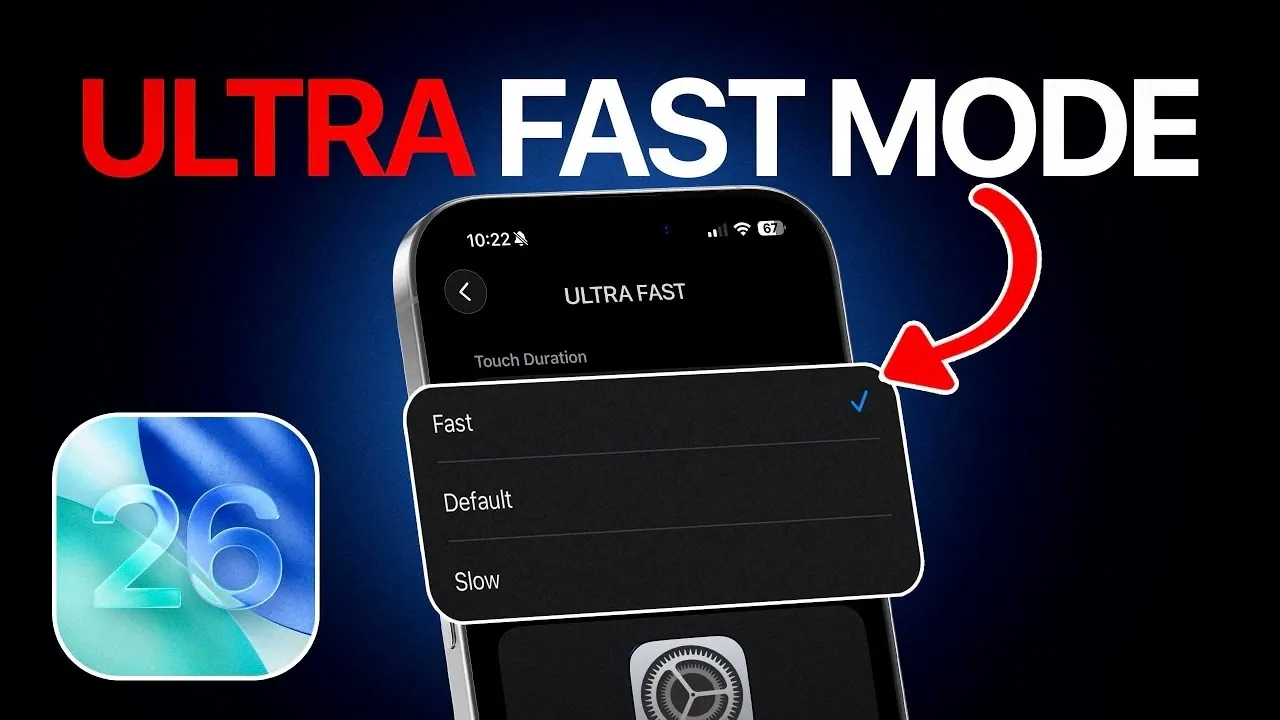
iOS 26 introduces a range of features designed to enhance your iPhone’s performance and streamline everyday tasks. By adjusting specific settings related to unlocking, navigation, haptic feedback, and camera access, you can create what feels like an “Ultra Fast Mode” for your device. These optimizations not only improve speed but also make your iPhone more intuitive and efficient to use. Follow this guide to unlock the full potential of iOS 26 and enjoy a faster, smoother experience.

1. Unlock Your iPhone Faster
A quick and seamless unlocking process is essential for an efficient iPhone experience. iOS 26 provides tools to make this process faster and more reliable, making sure you can access your device effortlessly.
- Enable “Tap or Swipe to Wake”: Navigate to Settings > Accessibility and activate this feature. It allows you to wake and unlock your phone with a simple tap or swipe, eliminating the need to press physical buttons.
- Set Up an Alternate Face ID Appearance: If you frequently use your iPhone in varying conditions, such as wearing sunglasses, hats, or changing hairstyles, this feature improves Face ID recognition. Add a secondary appearance in Settings > Face ID & Passcode to minimize failed unlock attempts and save time.
These adjustments ensure that accessing your iPhone is both faster and more reliable, regardless of the situation.
2. Navigate Between Apps More Quickly
Efficient app navigation is crucial for multitasking and iOS 26 enhances this with gesture-based controls. By using intuitive swipe gestures, you can switch between apps without relying on the app switcher, saving time and effort.
- Swipe Across the Navigation Bar: Simply swipe left or right along the bottom edge of the screen to move between recently used apps. This eliminates extra taps and makes multitasking more fluid.
- Streamline Your Workflow: Whether you’re toggling between a messaging app and a browser or managing multiple work-related apps, this feature ensures uninterrupted productivity.
These gestures make navigating your iPhone feel more natural and significantly improve your overall efficiency.
3. Optimize Haptic Feedback for Faster Responses
Haptic feedback plays a key role in how you interact with your iPhone. By fine-tuning its settings in iOS 26, you can reduce delays and make your device respond more quickly to your touch.
- Adjust Haptic Touch Speed: Go to Settings > Accessibility > Touch > Haptic Touch and select the “Fast” option. This reduces the delay when accessing menus, notifications, or quick actions, making interactions feel more immediate.
- Boost Productivity: Faster haptic feedback is especially useful for previewing emails, activating shortcuts, or interacting with apps directly from the home screen. This small adjustment can have a noticeable impact on your daily tasks.
By optimizing haptic feedback, you can enhance the responsiveness of your iPhone and complete tasks with greater speed and precision.
4. Launch the Camera App Instantly
Capturing moments quickly is often a priority and iOS 26 offers several ways to speed up access to the camera. These options ensure you’re always ready to snap a photo or record a video without unnecessary delays.
- Use the Lock Screen Shortcut: Enable the camera shortcut on your lock screen to open the app instantly, even without unlocking your phone. This is ideal for capturing spontaneous moments.
- Customize Control Center Shortcuts: Add the camera or frequently used third-party apps like Instagram or Snapchat to your Control Center. This provides one-tap access to your preferred camera tools.
These features make it easier than ever to capture important moments, making sure you never miss an opportunity to document your experiences.
Enhance Your iPhone Experience with iOS 26
By implementing these adjustments, you can unlock the full potential of iOS 26 and transform your iPhone into a faster, more efficient device. From quicker unlocking and intuitive app navigation to responsive haptic feedback and instant camera access, these features are designed to streamline your daily interactions. Spend a few minutes exploring these settings and you’ll notice a tangible improvement in how quickly and effectively you can complete everyday tasks.
Browse through more resources below from our in-depth content covering more areas on iOS 26.
- iOS 26.2.1 Bug Fixes and iOS 26.3 Features Explained
- iOS 26.2.1: The Update You Didn’t Know You Needed
- Preparing for iOS 26.2: Tips to Ensure a Smooth iPhone Update
- iOS 26.3 Update: Everything You Need to Know
- Step-by-Step Guide to Updating Your iPhone to iOS 26.3
- iOS 26.4 Release Date, Features, and Performance Details
Source & Image Credit: iDeviceHelp
Disclosure: Some of our articles include affiliate links. If you buy something through one of these links, Geeky Gadgets may earn an affiliate commission. Learn about our Disclosure Policy.
