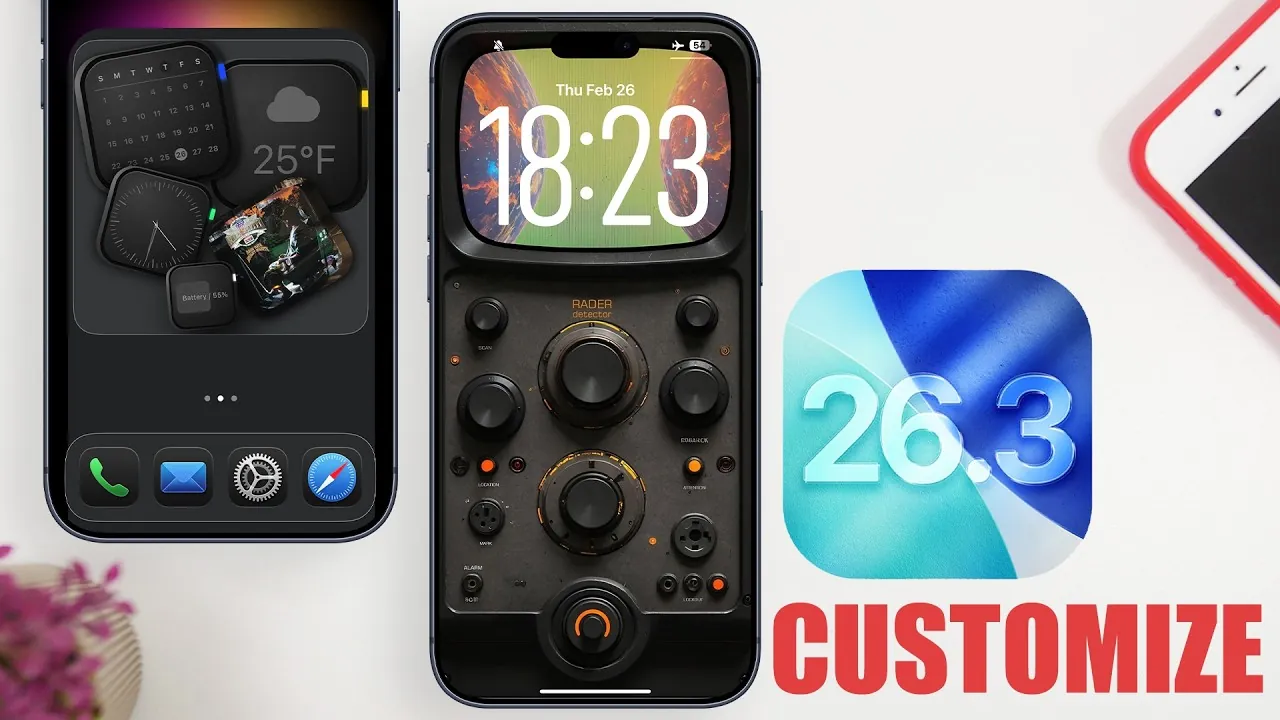
Apple’s iOS 26.3 introduces a robust set of customization tools, empowering you to tailor your device’s lock screen and home screen to suit your preferences. Whether your focus is on functionality, aesthetics, or a seamless blend of both, these updates provide the flexibility to create a personalized experience without requiring advanced technical skills or jailbreaking. This guide explores the key features and practical steps to help you make the most of these new options. The video below from iReviews gives us more details.

Home Screen Customization: Functionality Meets Style
The home screen serves as the central hub of your device, and iOS 26.3 enhances its versatility with innovative customization features. These updates allow you to design a home screen that is both visually appealing and highly functional. Here’s how you can take advantage of the new tools:
- Creative Icon Layouts: iOS 26.3 introduces flexible icon arrangements, allowing you to organize apps in unique configurations. For instance, you can group four icons at the top of the screen while keeping four in the dock. This setup not only creates a clean, minimalist look but also improves accessibility by keeping your most-used apps within easy reach.
- Enhanced Widgets: Widgets are now more dynamic and customizable, allowing you to integrate tools such as calendars, weather updates, clocks, and music album art directly onto your home screen. Third-party apps, like Widget, expand these options further by offering transparent widgets that blend seamlessly with your wallpaper, creating a cohesive and polished appearance.
- Accessibility Features: Accessibility settings can refine your home screen design. For example, allowing borders around icons or widgets adds a structured, organized look while improving navigation for users who prefer a more defined layout.
These features allow you to strike the perfect balance between practicality and style, making sure your home screen is both functional and reflective of your personal taste.
Lock Screen Customization: Make It Uniquely Yours
The lock screen in iOS 26.3 has been reimagined to offer greater customization, allowing you to design a screen that is both visually striking and practical. Here’s what you can do to make your lock screen stand out:
- Wallpaper Selection: Choose wallpapers that complement your overall theme. Bright focal points or subtle gradients can enhance the lock screen’s aesthetic appeal while maintaining readability. Dynamic wallpapers, which shift slightly with movement, add an extra layer of depth and interactivity.
- Clock Customization: Adjust the size, font, and color of the clock to align with your preferred style. Whether you favor a bold, modern design or a minimalist aesthetic, these options allow you to create a lock screen that feels uniquely yours.
- Functional Buttons: Simplify your lock screen by removing unnecessary buttons or keep them for quick access to essential features like the flashlight or camera. This flexibility ensures that your lock screen remains both practical and visually appealing.
These updates transform the lock screen from a simple barrier to entry into a personalized extension of your device’s functionality and style.
General Tips for a Polished Look
To elevate your device’s overall appearance and maximize the potential of iOS 26.3, consider these additional tips:
- Enable Dark Mode: Dark mode not only reduces eye strain but also provides a sleek, modern aesthetic. It pairs particularly well with the new liquid glass effects, which add a dynamic, reflective quality to your screen, enhancing its visual appeal.
- Experiment with Colors: Solid or transparent color schemes can create striking visuals. Transparent elements, in particular, help integrate widgets and icons seamlessly with your wallpaper, resulting in a clean and cohesive design.
- Explore External Apps: Third-party apps offer additional tools, wallpapers, and widgets that expand your customization options. These apps allow you to fine-tune your device’s appearance, giving you greater control over every detail of your home and lock screens.
- Use Focus Modes: Focus modes in iOS 26.3 allow you to create tailored home screen layouts for different scenarios, such as work, relaxation, or travel. By customizing app visibility and widget placement for each mode, you can ensure your device adapts to your needs throughout the day.
By combining these tips with the built-in features of iOS 26.3, you can achieve a polished, professional look that enhances both the functionality and aesthetics of your device.
Redefine Your iOS Experience
iOS 26.3 reimagines how you interact with your device by offering a wide range of customization features for both the home screen and lock screen. From arranging app icons and integrating functional widgets to experimenting with wallpapers and adjusting clock settings, the possibilities are extensive. By using these tools, you can create a personalized, visually stunning iOS experience that reflects your unique style while enhancing your daily interactions with your device.
Here are additional guides from our expansive article library that you may find useful on iOS 26.3.
- iOS 26.3 Update: Performance, Battery, and Key Features
- 6 Things You Must Do First After Installing iOS 26.3 on Your iPhone
- iOS 26.3 Beta 1 Features, Updates, and Performance
- Apple iOS 26.3 Beta: Key Highlights, Features, and Release
- Apple Releases iOS 26.3: Why This Update is Critical for Your Privacy
Source & Image Credit: iReviews
Disclosure: Some of our articles include affiliate links. If you buy something through one of these links, Geeky Gadgets may earn an affiliate commission. Learn about our Disclosure Policy.
